
Printing over a OneDrive PDF can create a second file instead of replacing it. Save the PDF through Excel's Save As command first. In the original report, that route worked while Microsoft Print to PDF kept producing a merge error.
That distinction matters when OneDrive cannot overwrite existing files. A failed PDF print, a file open in another app and a general sync conflict need different fixes. Start by checking how you're creating the replacement.
In this guide
1. Save the PDF through Excel instead of printing it
Keep the source workbook open. In Windows desktop Excel, choose File > Save As > Browse. Choose PDF in Save as type, select the destination folder and enter the intended filename.
Use Options to check whether you're exporting the active sheet, selected cells or the whole workbook. Confirm the page range, then save. Agree to replace the existing PDF only after checking the destination and filename.
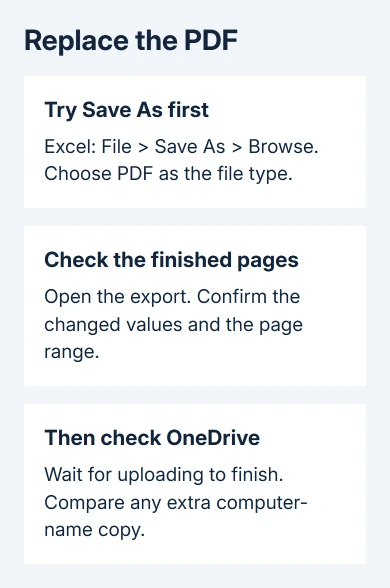
Open the resulting PDF and verify the updated values and intended pages. Then watch OneDrive's activity until the upload finishes. A replacement isn't complete just because Excel closed its Save As dialog.
The original PDF overwrite report makes this comparison unusually useful. One owner confirmed that Save As worked, while printing over an existing PDF created another copy with the computer's name attached.
The failure also happened when printing from Word. Try creating the PDF a different way before rebuilding an otherwise working OneDrive connection. It doesn't mean every duplicate PDF has that cause.
For page breaks or missing columns in the exported file, adjust the Excel PDF export settings. That's a separate problem from whether OneDrive replaces the destination file.
2. Create the replacement outside the synced folder
If direct export still fails, export the PDF into a folder outside OneDrive. Check the path in File Explorer: Desktop and Documents can also be backed up to OneDrive, so a folder with either name isn't necessarily outside OneDrive.
Open this local PDF before moving it. Inspect both ends of the document and the material you changed. If the local file won't open either, return to Excel's export settings; OneDrive hasn't handled that copy yet.
Close the PDF viewer, then copy the verified file into its intended OneDrive folder. When Windows offers to replace the destination, confirm that it's the old PDF you meant to update. Let OneDrive finish uploading before reopening it.
I'd use this separate export when the PDF is going to a client. Checking the finished pages first keeps a bad export from replacing the shared copy.
If the verified local copy opens but replacement inside OneDrive fails, keep it. You'll have the updated document ready while you check the destination, without having to export it again every time.
3. Release the file and check the destination
Close the old PDF in your PDF reader and browser tabs. If a coworker is editing or replacing the same file, ask them to finish before trying your replacement. Try replacing it once more while your coworkers aren't changing the file.
An open-file or access-denied message calls for checking the app using the PDF or your folder permissions. A warning that changes couldn't be merged is different: OneDrive has created conflicting versions that need comparing.
Confirm that the folder belongs to the intended account. A personal OneDrive folder and your organization's OneDrive folder can both appear in File Explorer. A successful save to one doesn't update a link that points to the other.
For a shared work folder, ask the folder owner about your editing access. Being able to read the old PDF doesn't mean you can replace it. Don't delete the original as a substitute for getting the right access.
If exporting a newly named PDF works but replacing just one file fails, send the folder owner that result. If every file in the folder refuses replacement, ask them to check the folder's permissions and shared editing activity.
4. Keep both versions when a computer-name copy appears
Open the original and the computer-name copy separately. Check which contains the updated material. Keep a copy of the good export outside OneDrive before removing anything from the synced folder.
In the saved report, the original PDF could become unreadable after a failed overwrite. Don't assume that the filename without the computer suffix is automatically the good version. Use the document's contents to decide.
If the conflict happens with Word and Excel documents too, follow the computer-name duplicate repair. It covers credential problems and Office editing conflicts rather than this Print to PDF comparison.
For a PDF-only problem, keep exporting the way that works and note which method fails. Resetting saved credentials isn't the first move when ordinary saves and other documents still sync correctly.
5. Reset OneDrive if the print route still fails
Check the OneDrive cloud near the clock and read its error. A paused or disconnected account needs reconnecting before a replacement can reach the cloud. Resolve that displayed error rather than repeatedly printing the document.
Microsoft's reset instructions explain how to rebuild the desktop app's sync connections. Keep unsynced changes in an independent copy before starting; the reset rebuilds sync connections and starts a full sync.
The same owner later confirmed that a reset restored Print to PDF overwrites. To follow the current Windows procedure, press Windows + R, run wsreset.exe and close the Store window that opens.
Press Windows + R again and run this sync-app reset command:
%localappdata%\Microsoft\OneDrive\onedrive.exe /resetIf Windows can't find it, try the installed-app path:
C:\Program Files\Microsoft OneDrive\onedrive.exe /resetA 32-bit installation can use this alternate location:
C:\Program Files (x86)\Microsoft OneDrive\onedrive.exe /resetOpen OneDrive from Start afterward. Once syncing finishes, restore any previously selected folder choices for each account. Test a newly named PDF, then replace that test file with a revised export.
If the fault continues, send your work administrator both filenames, the exact merge message and whether Save As succeeds. Ask for a OneDrive support case about the PDF replacement failure. Include your Excel and OneDrive versions.
The Short Version
Use Save As PDF before resetting OneDrive. Verify the export, release open copies and compare any computer-name duplicate before cleanup. Reset OneDrive to repair the print route if needed, keeping the verified export safe.
Checked November 16, 2026.






