

Excel's web view can report too much data even in a small worksheet. When filtering triggers it, check named ranges built with OFFSET. Replacing them with fixed cell ranges solved it for the owner who reported the problem.
Start with a copy in desktop Excel. Excel doesn't identify the limit behind this error. Check the workbook's names before deleting rows, so the repair doesn't discard useful records.
In this guide
1. Check whether filtering triggers the message
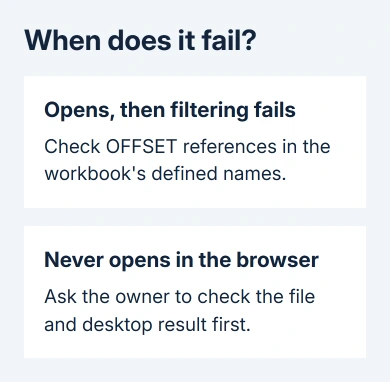
Open the workbook and record exactly when it fails. Does the sheet display correctly until you filter one column, or does it fail before you can see the sheet? That decides whether to check named ranges first.
The specific message is The content in this view can't be displayed, as it contains more data than currently supported. Record the entire message and the column or filter choice that triggers it.
In the 2018 filtering report, the sheet contained 375 rows and 64 columns. Opening it worked; filtering a column failed. Those numbers describe that workbook's size, not a published browser limit.
One owner later changed OFFSET named ranges to ordinary references and reported that colleagues no longer saw the error. Check the names in a similar workbook. That doesn't mean OFFSET is unsupported in every web workbook.
If the file won't open at all, use the desktop comparison next, then ask its author about its size and features. Don't assume a filter-specific repair explains an opening failure.
2. Make a separate copy in desktop Excel
Choose the workbook's desktop-opening option, provided it's available to your account and you have a license for the installed Excel app. Otherwise, ask the workbook owner to download a copy and work on it in desktop Excel.
Before editing any names, save an untouched copy. Give your repair copy a different filename from the shared original so colleagues don't edit it during the repair. Keep the same workbook type so it keeps its features.
Try the same filter in desktop Excel and note the result. If it works, you can keep working there while checking the web failure. If it fails there too, tell the workbook's author; the web version may not be the only place affected.
To check the selected range or remove existing filter conditions, the Excel filtering controls explain those operations. Keep that check separate from changing how a named range refers to its cells.
SharePoint and Excel web command labels can vary with your organization's layout. If there is no desktop-opening option, ask the owner or IT for an approved copy instead of changing sharing permissions to get one.
3. Look for OFFSET in the workbook's defined names
In Windows desktop Excel, choose Formulas > Name Manager. Select each relevant name and inspect Refers to. A defined name labels cells or a formula, such as SalesData standing for a block of records.
Microsoft's Name Manager instructions explain how to inspect and edit these references. The dialog also shows each name's scope: whether it covers a single worksheet or the entire workbook.
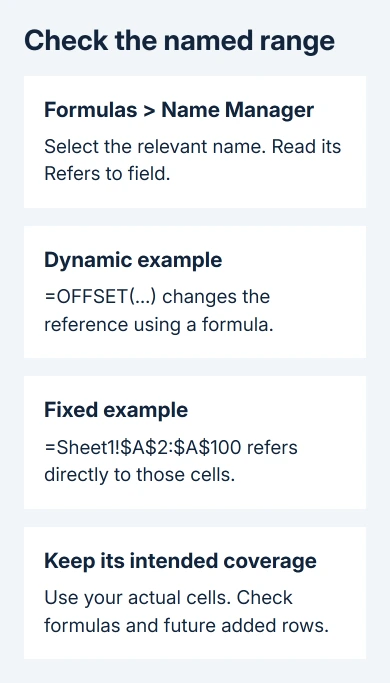
Look for references beginning with =OFFSET(. OFFSET points to cells a set number of rows and columns from a starting cell. In a named range it can make the referenced area change as the workbook changes.
Those names can supply data validation lists, which control cell entries. The owner found filtering worked after removing validation rules. The final repair changed OFFSET names rather than stripping every rule from the sheet.
Record the name, scope and original formula before editing it. Some workbooks contain many names, and a name that looks unimportant can still feed a chart, formula or validation list.
Name Manager doesn't show hidden names or names defined through VBA. If no relevant OFFSET references appear, tell the workbook's author instead of deleting other names.
4. Replace the reference with the correct fixed cells
Select the affected name and use Edit, or edit its Refers to field. Keep the name itself and its scope. Replace its OFFSET formula with a direct reference to the cells that the workbook actually needs.
For example, a name covering column A from row 2 through row 100 on Sheet1 can refer to =Sheet1!$A$2:$A$100. Use that example to see how the reference is written; choose the cells your own workbook needs.
Use the range-selection control if it's easier to select the intended cells on the sheet. Confirm the first row, last row and included columns, then save the change. Check any totals or lists that use that name.
A fixed reference doesn't follow every change its old formula handled. For new records, the workbook's owner needs to maintain or redesign the range. Check that the change won't leave new records out.
I'd make this change with the person who maintains the workbook. They can check why the dynamic formula was there and whether a fixed range covers the records the team will need next week.
5. Reopen the repaired copy in the browser
Save the copy and place it in the same approved SharePoint location for testing. Open that copy in Excel for the web, apply the original filter and check that the expected records remain visible without the message.
Try the other filters the team uses and check calculations that use the changed name. After one successful filter, check that summaries still include every required record from the changed name.
If the message remains, give IT the file, affected column, filter choice and desktop result. Ask them to check workbook compatibility with your SharePoint or Microsoft 365 environment rather than applying a guessed universal row limit.
For a separate formula-reference warning after editing names, use the Excel formula-reference checks. Restore the recorded reference if the edit broke the workbook, then have its author review the name.
The Short Version
A filtering-only error can come from the workbook's OFFSET names. Work on a copy, inspect Name Manager, replace suitable dynamic references with the correct fixed cells and retest in the browser. Keep all required records in the range.
Checked November 16, 2026.
 If you have any business, I can build it online






