
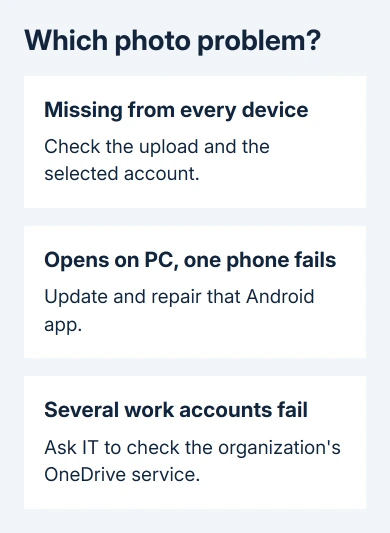
OneDrive photos can stop opening because the Android app needs repair or your work account has a wider service problem. Update the app first when only one phone fails; several affected work accounts need IT.
Photos that never uploaded need separate checks. An old university-wide viewing fault survived reinstalling and permission changes, so compare the same image on a PC before repeating those repairs on every phone.
In this guide
1. Check whether the picture is already in OneDrive
Open Files in the Android OneDrive app and find the image's folder. Check both the folder and the signed-in address when the app has personal and work sign-ins.
Try a picture that was uploaded earlier and that you know opens on a PC. Note whether its thumbnail is missing, whether tapping it gives an error, and whether other file types still open in the same account.
If every device shows that folder without the picture, you're checking an upload or account-location problem instead. For Samsung phones that have stopped uploading new pictures, use the paused OneDrive camera upload checks.
An image listed in the folder but refusing to open is a different situation. Camera backup switches control uploads from the phone; they aren't a general repair for viewing pictures already stored online.
A newly created SharePoint folder without its upload control needs the Android Add button workaround before a new photo can be sent there.
Note the exact message you see when the picture won't open. A permission request for local device storage, an unavailable cloud file and a picture preview failing only on a work account need different attention.
2. Compare the same image on another device
Use a PC that already has access to that OneDrive account and open the image there. If possible, ask another Android phone owner in the same organization to check with their own work account. Ask whether ordinary images open there.
If the PC can't open the same image either, ask the file owner to check the original file and your access. Repairing the Android app won't replace a damaged image or grant permission to a file you aren't allowed to open.
If the PC opens it and only one phone fails, continue with the app steps. If several phones and several work accounts fail while PCs work, send that pattern to IT before clearing more phones.
On iPhone and iPad, a crash opening Shared needs an app update check and a browser comparison of the shared file.
The original university account report described missing thumbnails and failed picture opening while documents and videos worked. Another phone had the same fault, and a personal account could display pictures.
That comparison doesn't require moving university or company files into a personal account. Use an ordinary, non-sensitive test picture if IT needs an account comparison, and keep work data in approved storage.
3. Update OneDrive when only this phone fails
Open Google Play, find Microsoft OneDrive and tap Update if offered. Reopen the app afterward and try the same image in the same account. Keep using that account and image to see whether updating fixed the preview.
Check Android permissions if the error asks for photo or storage access. Open Settings > Apps > OneDrive > Permissions. Names vary by Android version: newer phones separate photo access, while older versions can show Storage.
Grant the access needed for that operation. Importing a picture from the phone and viewing a picture already in OneDrive aren't identical operations. A cloud preview failure doesn't always mean a local permission is missing.
If the app now opens the image, check another image from the affected folder. If this phone alone still fails, use the app repair next. If another user's phone has joined the same failure, return to the work-account comparison.
4. Clear the app's data and reinstall if needed
Microsoft's Android app instructions recommend this repair: force stop OneDrive, clear its data and cache, then uninstall and reinstall it from Google Play.
Before clearing anything, check for uploads that haven't reached OneDrive and keep their originals on the phone. Clearing app data won't recover an unfinished upload. Review the app settings afterward.
Open Android Settings > Apps > OneDrive and choose Force stop. Open Storage, or Storage & cache, and use the clear-data and clear-cache controls. On some phones the data control is called Clear storage.
Uninstall OneDrive when Android offers that option, then reinstall it from Google Play. If a work policy prevents removal, ask IT to handle the managed installation rather than removing the device's management settings.
Reopen OneDrive, select the correct account and retry the same picture. Check your camera backup preferences after the repair so uploads still work the way you need.
I'd stop repeating this repair once another phone shows the same account-specific problem. A clean installation can't repair a service fault shared by the organization's accounts.
5. Ask IT to check a failure across work accounts
In the 2019 university report, IT confirmed that all its accounts were affected and contacted Microsoft. The accepted reply describes the request for help, not a completed repair. It gives no confirmed fix for the university's accounts.
Give IT the affected account type, phone and Android version, OneDrive version, error text and the time the picture failed to open. Include whether images open on a PC and whether another authorized user sees the same mobile failure.
Have IT review Microsoft 365 service health for your organization and open a OneDrive mobile image-viewing support case. Give support a non-sensitive sample image and describe how to trigger the error. They can check that viewing failure.
Until it's resolved, use the PC route that already opens the pictures within your organization's rules. For a separate Android problem where the unwanted account keeps returning, follow the OneDrive sign-out checks.
The Short Version
Separate missing uploads from images that won't open. Compare the same account on a PC and another phone, then repair one faulty Android app. Several affected work accounts need IT; the university thread has no confirmed final repair.
Checked November 16, 2026.






