

USB speakers that go silent again after a driver reinstall may need a different playback format. Try an offered 44,100 Hz setting and disable audio enhancements. An owner confirmed that this stopped their recurring Windows 11 failure.
First check whether the speakers are still listed as an output. If the device stays connected but goes quiet, check its playback settings. If it disappears or Device Manager shows an error, check the connection and driver.
In this guide
1. Select the USB output that's actually connected
Open Settings > System > Sound. Under Output, select your external USB speaker system, then play a familiar local audio file. Check the speaker's physical volume control as well as the Windows volume slider.
The name might be USB Audio Device, Speakers, or a manufacturer name. Match it by unplugging the speaker's USB connection and watching which entry disappears. Reconnect it, wait for the entry to return, and select that output.
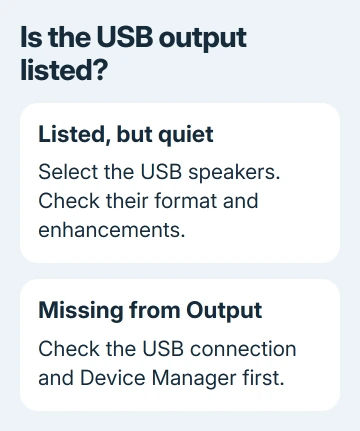
If laptop speakers play, switch the output to the USB system. For silence confined to one app, check Settings > System > Sound > Volume mixer for its volume and output. That application may have its own output selection.
For a USB system missing from Output, go to section 4's connection checks. Windows needs to detect the device before you can change its playback format. Changing settings for another output won't fix the missing speakers.
The original owner had already tried another USB port and found that a driver reinstall helped only temporarily. This format change addresses that pattern. Check that sound keeps working, rather than returning briefly after reinstalling.
2. Change this speaker's format to 44,100 Hz
Press Windows+R, enter mmsys.cpl, and select OK. The classic Sound controls appear. On Playback, select the USB speakers, choose Properties, and open the Advanced tab.
Under Default Format, note the current setting. Open the list and choose an offered setting containing 44100 Hz. Keep the existing bit depth if the matching option is available, then select Apply and use Test.
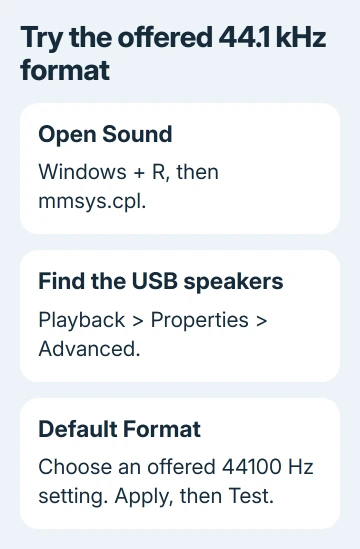
The test should play through the external speakers. If it fails, return to the previous setting rather than leaving an unusable format selected. The list comes from your device and driver; some USB products won't offer 44,100 Hz.
Microsoft's audio troubleshooting steps include changing Default Format and testing again. The owner got their speakers working with the specific 44,100 Hz setting.
Another owner confirmed 16 bit, 44100 Hz with enhancements off in April 2023. A later report described left-channel-only sound that these steps hadn't fixed. If only one side plays, include that result in your support request.
The sample rate, 44,100 Hz, means 44,100 audio samples per second. A higher available number isn't automatically the best choice when you're trying to get reliable playback. Use a format the device actually accepts.
If 44,100 Hz isn't offered, test another available format, then continue with enhancements. Write down the format that worked for later reference.
3. Turn enhancements off for the same speakers
In the speaker's Properties, open Enhancements if that tab is present. Select Disable all enhancements or Disable all sound effects, depending on the wording shown, then select Apply and OK.
With some Windows 11 drivers, you'll find this control in Settings > System > Sound > your output device > Audio enhancements. Choose Off there. If neither control appears, continue without that change.
Play the same audio again. Keep it running beyond the brief period when a driver reinstall previously helped, then check another application. Check that the USB system keeps playing; a startup chime isn't enough to check this.
The original owner reported several days of working sound after the suggested change. They had already said enhancements were off, so the report doesn't tell us that turning them off alone was the cure.
I'd leave a working format in place while checking normal use. Changing the rate again, reinstalling the driver, and adding effects together leaves you unsure which change stopped the dropouts.
If the sound continues but breaks into short gaps rather than going fully silent, the computer audio-stuttering checks cover that related symptom. Sound cutting out completely needs different checks from sound that stutters.
4. Check the USB connection and driver when the device vanishes
Connect the speaker directly to another USB port on the PC, bypassing a hub for this check. Make sure the speaker has its required power connection. Some systems use USB for power while their sound arrives through a separate audio cable.
Right-click Start > Device Manager, then expand Sound, video and game controllers. Look for the matching USB audio device and open Properties. Read Device status on the General tab if a warning symbol appears.
Let the Device status error guide your next check. Record its code and the driver's provider and version. A device that fails to start needs a driver or connection repair; changing the format is for an output that Windows can open.
When failure follows an update, the USB audio update-fault guide deals with the specific update and affected-driver cases. Don't remove an update simply because another USB audio complaint mentioned it.
To reinstall, select Uninstall device on the matching speaker entry and restart. Let Windows detect it again. For devices needing their own package, get the exact model's driver from its maker, not a driver-download service.
If detection still fails, try the speakers on another compatible computer. If they work elsewhere, focus on this PC's connection or software. If they fail on both, tell the speaker maker so they can help you check the hardware.
5. Escalate with the playback result and device details
If a listed output still goes silent, describe the recurring silence in Get Help and request audio support. Include the speaker model, Windows version, format, and enhancement setting. Say whether local files fail along with streams.
Tell support whether the output stays listed and whether reconnecting restores sound. Ask the speaker maker to check your model's compatibility with Windows 11 and the chosen format. Give them the driver version too.
The Short Version
Choose the connected speakers, test an offered 44,100 Hz format, and turn enhancements off. Check sustained playback. Missing outputs and Device Manager errors need connection or driver repair, even if reinstalling briefly restored sound.
Checked November 16, 2026.
 If you have any business, I can build it online






