

A synced calendar appointment can make Outlook crash during CSV export. One owner confirmed that deleting an Acuity test appointment restored export. Try a separate test calendar before repairing Office or changing real bookings.
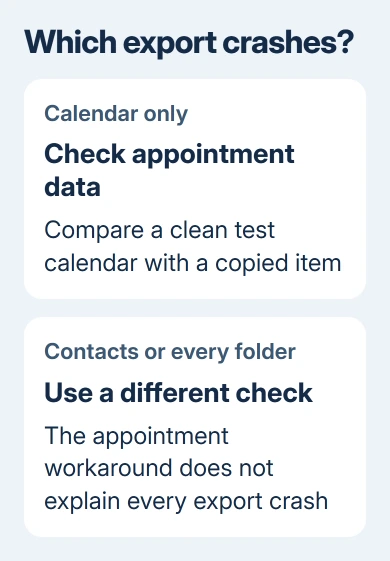
Use these checks for the classic Windows app's calendar export. If export crashes only with Contacts, appointment data doesn't explain that failure; check the folder first.
In this guide
1. Check which folder makes export crash
Reopen Outlook after the crash and note the folder selected in the export wizard. Note whether Calendar, Contacts, or another folder fails to export, and whether Outlook freezes or closes outright.
For the classic wizard, use File > Open & Export > Import/Export, choose Export to a file, and then select Comma Separated Values. Confirm the intended folder before choosing the output file.
If the same calendar has already crashed repeatedly, don't keep exporting it just to watch the progress bar. The original report stalled near completion, including after the owner reduced the date range from a year to a week.
The same owner tried exporting only appointment subjects without success. A shorter range or fewer fields didn't get around the appointment data that was causing trouble in that case.
If contacts export successfully but Calendar doesn't, concentrate on the calendar contents. If every export fails, skip to the Office update and support checks in section 5.
2. Back up the calendar as a PST first
Before changing appointments, make a separate backup. Outlook's PST format can store calendar items; it differs from the spreadsheet-style CSV format.
Open File > Open & Export > Import/Export > Export to a file and choose Outlook Data File (.pst). Select the affected calendar, choose an appropriate local save location, and finish the export.
Microsoft's Outlook export instructions explain the data-file route. The owner in the CSV crash thread confirmed that their PST export completed even though CSV export failed.
Check that the file was created before proceeding. For a work calendar, use a location approved by your organization because appointment details can include customer information and private meeting notes.
If PST export crashes too, stop changing the calendar and report both failed formats. In the confirmed case, only CSV failed; the Outlook data-file export still completed.
3. Compare a clean calendar with a copied appointment
In classic Outlook's Calendar view, select Folder > New Calendar. Name it CSV Test, choose where to place it, and select OK. Look for CSV Test among your calendars.
Create one ordinary appointment in that test calendar, then export CSV Test through the same CSV wizard. Use a distinct filename for each export so you can recognize the earlier file that worked.
If this simple export works, compare it with a copied appointment from the affected calendar. Select a representative appointment, press Ctrl+C, open the test calendar, and press Ctrl+V. Export the test calendar again.
Use a disposable test item where possible, and don't send meeting updates to attendees during this comparison. The goal is to copy calendar data into a separate folder, without changing a live booking.
If adding the copied appointment causes the crash, remove that copy from CSV Test and repeat its export. If export works again, you have a specific appointment to show the service that created it.
An owner reported that a colleague could export normally, couldn't after adding the Acuity test appointment, and could again after deleting it. In that case, the imported appointment data was what made export fail.
4. Keep affected bookings out of the CSV copy
If the comparison matches, prepare the required CSV from a separate calendar containing the appointments that export successfully. Keep the complete original calendar and its PST backup while working on that copy.
I'd keep customer bookings intact while making the spreadsheet. Copy the required items in small groups and export between groups. That way, a failed export doesn't leave you guessing which addition changed the result.
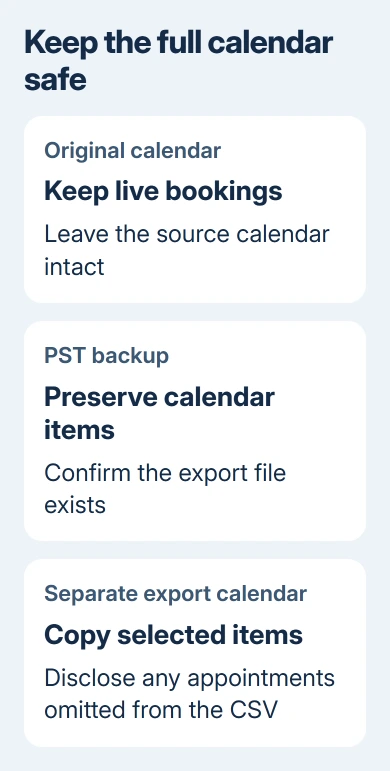
Be clear about any excluded appointments when handing over the CSV. A readable CSV may still lack appointments. Compare its dates and appointment count with the set you intended to export.
Turning off calendar syncing didn't fix the original owner's export. Existing synced appointments remained in the calendar, which explains why disabling the connection alone wasn't a successful workaround in that report.
If the calendar is shared, check with its owner before changing its contents or permissions. Outlook calendar sharing controls affect who can edit it, rather than how its data converts to CSV.
5. Update once, then report the reproducible failure
Open File > Office Account > Update Options > Update Now where available. Reopen Outlook after the update. For a company-managed installation, have IT review the build and update channel.
The report involved Outlook 2016 and the Office 365 desktop app in 2018. Try exporting with and without the copied appointment before deciding that your crash has the same cause.
If Outlook crashes during ordinary editing too, compare that behavior with the Outlook right-click crash rather than assuming export is the only trigger.
Give IT or the scheduling service your Outlook build, failed export format, and test-calendar result. Ask them to examine an appointment with private details removed that makes export fail when added and work when removed.
Use File > Office Account > About Outlook for the build. If Windows records a crash, note its time in Event Viewer > Windows Logs > Application so IT can match it to the export attempt.
The Short Version
Back up to PST, then compare CSV export with and without a copied appointment in a test calendar. Removing a synced test item restored export for one owner. Preserve real bookings and disclose anything omitted from the CSV.
Checked November 16, 2026.
 If you have any business, I can build it online






