SharePoint folders can disappear from Explorer when OneDrive loses their library connections. Reconnect a missing library from SharePoint if it no longer appears in OneDrive's Account list. Pinning its old folder won't restart sync.
If syncing still works and only the pinned folder is missing, restore the pin in Explorer. A disconnected library needs sync repair. If the library won't open online either, have the site owner review your access first.
In this guide
1. Check whether the library connection is gone
Click the work cloud beside the Windows clock. Open Help & Settings > Settings > Account and find the affected library. Check the work account name too, especially if personal and business accounts are both present.
Open File Explorer and check the organization's entry, not just your personal OneDrive. Separately synced SharePoint libraries can appear under the organization's name rather than inside the personal cloud folder.
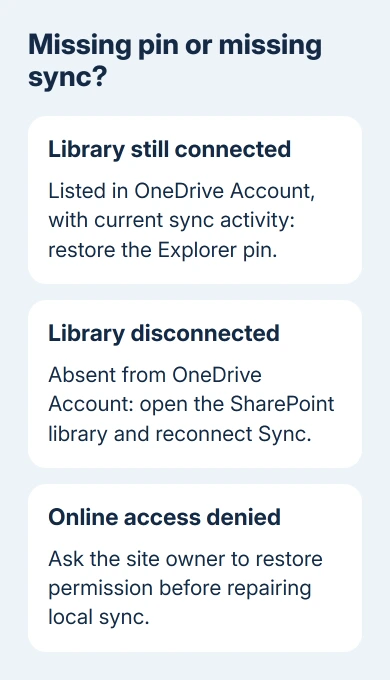
If the library remains listed and its files continue syncing, locate its folder and right-click it to choose Pin to Quick access. Windows 11 uses Home as the landing view; Windows 10 shows Quick access more prominently.
That makes the folder easier to reach; it doesn't repair syncing. Check OneDrive's activity and a recent file to see whether it's syncing. A disconnected local folder can still open while showing files that are days out of date.
In the original report, the owner rejected pinning as the answer: all SharePoint libraries had stopped syncing, while their own OneDrive remained connected. They later reported the problem resolved after the support exchange.
The libraries sometimes returned after reconnection, then vanished again. If yours returns temporarily, note whether it disappears after a restart or during the workday. Give IT that timing when reporting a recurrence.
2. Reconnect the library that still opens online
Sign in to SharePoint with the same work account used by OneDrive. Open the affected library and confirm the expected documents are present. If you get a permissions error, ask the site owner to restore access before repairing sync locally.
Choose Sync from the library's command bar and accept the browser prompt for Microsoft OneDrive. Complete the account prompt if shown. Watch for the OneDrive window behind the browser if the website appears to do nothing.
When OneDrive detects the existing library folder, check that it belongs to this site and library before using it again. The original asker said that reconnecting restored library sync without requiring a different folder each time.
Before reconnecting, copy recent local work somewhere safe if it hasn't uploaded. Don't delete the old library folder to make the setup look clean; it may contain the only current copy of an edit.
Open the library in Explorer and check its sync status. Compare a recent document with its online version. Check again after a normal restart. If the connection disappears when the PC restarts, the problem is still there.
If the library uses Add shortcut to OneDrive instead, it belongs inside work OneDrive. Our SharePoint connection guide explains that method and the conflict that occurs when a shortcut already connects the same content.
If Sync is missing, ask the site owner to check Library settings > More library settings > Advanced settings > Offline Client Availability. A disabled library setting can prevent setup even when the documents open online.
3. Check the sync app separately from Office
Open OneDrive's Settings > About and record its version. Updating Word or Excel doesn't update the OneDrive app that syncs your files. The original support exchange specifically corrected that assumption.
On a current PC, keep the desktop OneDrive app running and connected so its normal updater can work. Our OneDrive update guide explains the app version and release channel checks.
The original thread involved OneDrive 17.3.7290.1212 and Windows 10's Fall Creators era. Don't install that build today. That version number helps identify the old report; it isn't a recommendation for a current Windows computer.
If several employees lose all libraries together, ask IT to compare their OneDrive builds, Windows versions, and account configuration. A single PC reconnecting successfully doesn't explain a repeated organization-wide problem.
4. Reconnect the work account when libraries keep dropping
For continuing sync trouble, Microsoft's SharePoint sync repair includes unlinking OneDrive and running setup again. This reconnects the account, so try it after checking the individual library.
Open the work cloud, choose Settings > Account > Unlink this PC, then confirm Unlink account. Sign in again using that work identity. When setup recognizes the intended existing OneDrive folder, choose Use this folder.
The current full reconnect procedure also clears PreSignInSettingsConfig.json from %localappdata%\Microsoft\OneDrive\settings between unlinking and signing back in. Follow that specific step rather than emptying the whole settings folder.
Reconnect the SharePoint libraries your workplace uses and let OneDrive finish checking changes. Review the library list afterward; signing back into personal storage isn't the same as restoring every separate SharePoint connection.
One owner skipped instructions to remove saved sign-in details because those steps were unclear. They reset OneDrive, then reconnected the existing folders. Their later reply said the issue appeared resolved.
Don't delete unrelated Windows credentials to imitate that repair.
5. Reset OneDrive if the connection still fails
A reset rebuilds the app's settings, reconstructs its connections, and performs a full sync. It can affect both personal and work connections, so plan time to check both accounts afterward.
Press Windows+R, enter the command for the installed OneDrive location, and select OK. Start with:
%localappdata%\Microsoft\OneDrive\onedrive.exe /resetIf that executable isn't found, try the matching installed location instead:
"C:\Program Files\Microsoft OneDrive\onedrive.exe" /reset
"C:\Program Files (x86)\Microsoft OneDrive\onedrive.exe" /reset
Those are alternatives, not three commands to run in succession. Open Start, search for OneDrive, and launch the desktop app afterward. Let it finish syncing, then restore any selective folder choices you used.
When the libraries disappear again
Send your Microsoft 365 admin the library addresses, affected accounts, Windows and OneDrive versions, and the recurrence time. Tell them whether all libraries vanish together and whether personal OneDrive still works.
If reconnection and reset don't last, ask your admin to request business support. Ask them to check OneDrive's logs, sync policies, and account changes when the folders disappeared again. Pinning an old folder won't restore its sync.
The Short Version
Check OneDrive's Account list, reconnect the library from SharePoint, and verify it survives a restart. Update the sync app separately from Office. Continued losses need account repair, reset, or an administrator's support case.
Checked November 16, 2026.
 If you have any business, I can build it online