

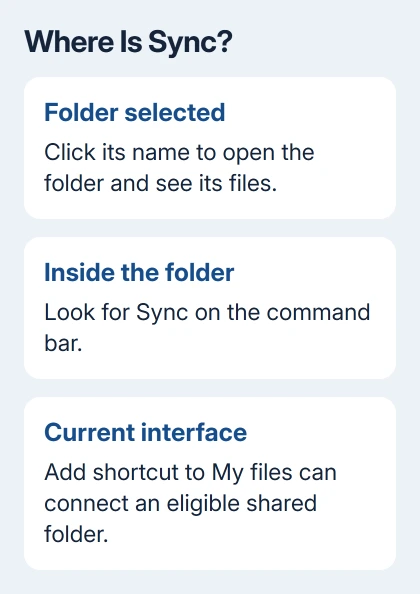
A missing Sync button in OneDrive for Business can mean you're selecting the shared folder instead of opening it. Go inside it, then look at the command bar.
In the current interface, Add shortcut to My files can also bring a shared folder into your computer's OneDrive folder, if the folder meets the requirements.
The missing web button and a missing cloud symbol in the notification area are different problems. These steps cover a folder that's visible online but hasn't reached File Explorer or Finder.
In this guide
1. Open the shared folder, rather than selecting its box
Sign in to your work or school OneDrive in a browser. Open Shared, then With you when that choice appears. Click the shared folder's name so its files fill the page, rather than just selecting the circle beside it.
Check the command bar inside the folder for Sync. If it appears, select it and approve opening Microsoft OneDrive. Complete any account setup using the work address that received the invitation.
One owner in the OneDrive discussion confirmed that opening the folder made Sync appear. Using it brought the shared files into File Explorer under a separate organization entry.
That fix was reported in 2019, when OneDrive had an older interface. Today's OneDrive also offers shortcuts. If opening the folder still doesn't show Sync, check the current route next instead of hunting for the old ribbon.
2. Use Add shortcut to My files when it's offered
Return to Shared > With you and select just the folder you want. Choose Add shortcut to My files, or right-click the folder and look for that command. Then open My files to check that its shortcut appears.
The shortcut links to the shared folder. With the sync app connected to that account, it can appear in File Explorer or Finder too. You don't need to download each document separately to work with the shared collection.
The shared-folder shortcut instructions distinguish work or school accounts from personal accounts. For work or school sharing, this shortcut works for people inside the organization; an external guest can't add the same shortcut.
If the shortcut appears online but not on your computer, go to step 4. If the command itself is absent, first check the folder and your permission in step 3. Those are different failures, and an app reset can't grant web access.
I'd use the shortcut command when it's available rather than downloading the folder. A download is an independent copy: changes from your colleagues won't keep arriving in that copy, and your edits won't update their originals.
3. Check why the shortcut command is unavailable
Select only one folder. The command isn't offered for individual files, several selected folders or a folder you've already added. Look in My files before trying to add it again, including inside any folder where you moved the shortcut.
Check whether the share gives you Can edit access. Have its owner review the original folder's permission if it only allows viewing. The OneDrive folder-sharing guide explains the difference between giving access and sending a link.
The current limits are up to 100 folder shortcuts from one person's OneDrive or Teams site and 1,000 shortcuts across files and folders. An existing shortcut or a reached limit can hide the command even when the app works.
Your administrator can disable adding shortcuts across the organization. Ask IT whether they've turned it off if folders that meet the requirements never show the command. Reinstalling OneDrive won't reverse an organization setting.
If the invitation opens an access-denied screen, have the owner share the folder with the exact account you're using. A folder name in an old message doesn't mean your account still has access to its contents.
4. Match the browser account to the sync app
On Windows, select OneDrive's cloud symbol beside the clock. Open Help & Settings > Settings > Account and check the work or school address.
On Mac, open the cloud icon's three-dot menu, then Preferences > Account. Compare its address with the browser account used to add the shortcut.
If the account isn't connected, use Add an account and finish setup. Open that account's OneDrive location using Explorer or Finder. Look for the shared folder there, rather than in your similarly named personal account.
When you can open the folder online, sign into the desktop app before asking for a new invitation. For a sign-in error, follow the OneDrive account checks using the app's message.
Older Sync setups can put shared libraries under an organization name with a building icon, separate from OneDrive - Organization. In that older report, syncing the shared folder created the expected second entry, not duplicate files.
Open that organization entry and look for the shared folder before setting up another connection. With shortcuts, look in the connected account's OneDrive folder instead. Which route you used explains where to look.
Give IT the missing command and the affected account
If neither command is available for an internal folder with edit permission, give your organization's Microsoft 365 administrator the folder's web address, your work account and a description of the commands you can see inside it.
Include whether the folder appears in My files, whether colleagues can add it and whether the sync app lists your account. Those details help IT check access, organization settings and the desktop connection.
Ask IT to check folder access and shortcut policy, then open a Microsoft 365 business support request if both are correct. Keep using the shared original online so your team stays on the same documents.
The Short Version
Open the folder before looking for Sync. Try Add shortcut to My files for an eligible internal folder, then connect the same account in the desktop app. Missing permission or an organization policy needs the owner or IT.
Checked November 16, 2026.
 If you have any business, I can build it online






