

Word's right-click menu doesn't have a simple setting to move Cut ahead of Review Selection in Editor. A reported workaround removes that Editor entry with a small Word macro; for an immediate cut, select the text and press Ctrl + X.
The macro changes the desktop Word menu, rather than turning off Editor's spelling checks. It targets the older English menu label reported in the discussion, so check that your Word version actually shows that label before using it.
In this guide
1. Keep Cut available while checking the menu
In a document you don't need to keep, highlight a short passage and open its right-click menu. Look for the command that is getting in your way. The reported item was Review selection in Editor, placed where owners expected Cut.
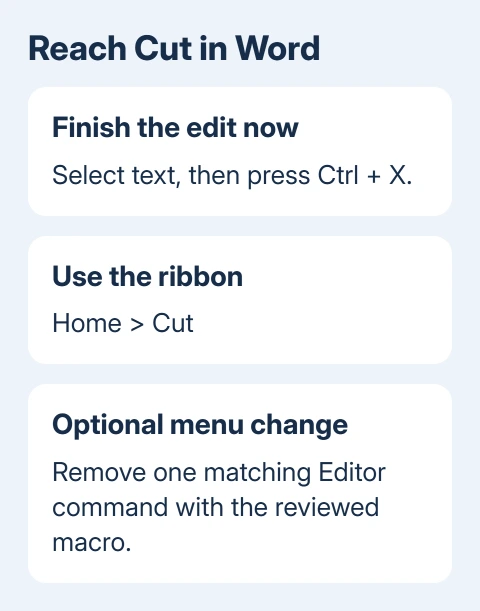
Close that menu with Esc. With the words still selected, press Ctrl + X, then Ctrl + V to put them back. If that works, Cut itself works; it's the menu arrangement that's causing trouble.
For mouse use, Home > Cut provides the ribbon command. That avoids changing Word's setup when you need to finish an edit immediately. It also lets you decide whether a permanent menu change is necessary.
If selecting words is the part that fails, start with the Word selection checks. Removing an Editor command won't repair a mouse-selection problem that stops you highlighting text before cutting it.
Check the ordinary text menu, rather than a table, picture or spelling-suggestion menu. Word has different right-click menus for different parts of a document, and the workaround targets the one named Text.
The Word text-box guide explains another distinction: right-clicking a box's edge works on the object, while clicking inside it works on its contents. Compare the same kind of selection each time.
2. Decide whether the reported customization fits
One owner confirmed in Microsoft's forum that the removal macro worked. Its author said to save the change in the Normal template. That template stores settings used by ordinary new Word documents.
The discussion offers a reported removal method, but no built-in menu editor. Don't look for a checkbox under Customize Ribbon that promises to reorder this right-click menu.
This procedure is for desktop Word for Windows. Word for the web doesn't run these desktop macros. The report covers Windows, so check Mac-specific instructions before attempting a similar change there.
Check File > Account > About Word and note your version before changing the menu. Keep that version in your notes, especially if an update has just changed how the right-click menu looks.
I'd keep the ribbon or keyboard route if this is a work-managed computer. An administrator may block macros, and a minor menu annoyance doesn't justify changing the organization's security settings.
Close Word and copy Normal.dotm from %appdata%\Microsoft\Templates to a backup folder. Reopen Word afterward. Keep that original template in case you need to reverse the customization.
3. Remove only the matching Editor command
Microsoft's CommandBarControl.Delete reference describes deleting a menu control. This version uses the reported menu name and caption. It checks commands from last to first so removing one doesn't cause it to skip the next.
Only use code you can review and understand. Don't enable all macros or disable a work policy to run it; an administrator can review this small change if Word blocks it.
- Create a new empty file in Windows desktop Word.
- Open the Visual Basic editor by pressing Alt + F11.
- In the project list, select Normal, then choose Insert > Module.
- Paste this code into the new module.
Sub RemoveReviewSelectionFromTextMenu()
    Dim textMenu As CommandBar
    Dim itemNumber As Long

    CustomizationContext = NormalTemplate
    Set textMenu = CommandBars("Text")

    For itemNumber = textMenu.Controls.Count To 1 Step -1

        If textMenu.Controls(itemNumber).Caption = _
            "Review selection in &Editor" Then
            textMenu.Controls(itemNumber).Delete
        End If
    Next itemNumber
End Sub
The ampersand in the caption marks a menu access key. It isn't an extra character you're expected to see printed in the right-click menu. The code looks for that exact caption and leaves the other commands in place.
- Click within this procedure, then use F5 for a single run.
- Return to Word with Alt + F11. Select ordinary text and right-click it again.
If the matching entry disappears, Cut should be easier to reach among the remaining commands.
This doesn't force Cut into the first position. The asker also wanted to remove Search the Menus, but later replies found that the same caption-based method didn't remove that separate search box.
If nothing changes, stop and record the version and visible label. A different caption, language or type of menu needs a different change. Deleting other entries by position can remove the wrong command.
4. Save the change and check a fresh Word session
Close the disposable document and quit Word. If a Normal template save prompt appears, accept it to retain the menu edit. Declining can bring back the original menu when Word reopens.
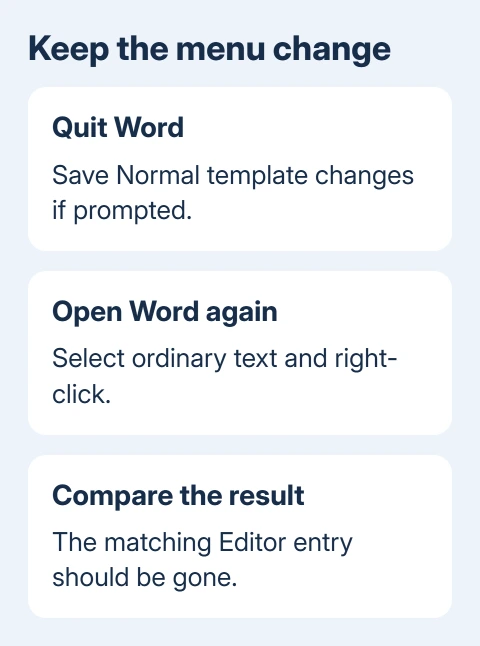
Open Word again, create a blank document and right-click selected ordinary text. Compare that menu with the one you checked before running the macro. Then confirm that Ctrl + X still cuts the selection normally.
If the Editor entry returns after restarting or updating, don't run a deletion macro automatically on every document. Keep the working Cut shortcut and report the return with the build number and a menu screenshot.
To reverse your template changes, close Word and restore the backed-up Normal.dotm to its original folder. Keep the changed copy separately first, because replacing it also replaces any other template changes made since the backup.
For a managed setup, ask IT to handle that restoration. The template can contain more than this one customization, including macros and other personal settings you still need.
Ask for a version-specific menu change if it persists
Use Help > Feedback in Word to report the unwanted placement. Include whether the label appears for ordinary text, its exact wording and the Word build from About Word.
For technical help, tell Microsoft Support or work IT what happened, including whether the macro found a matching entry. Ask for a supported menu customization for that build before considering an Office reinstall.
The Short Version
Use Ctrl + X or Home > Cut immediately. The reported desktop workaround removes one matching Editor entry from the Text menu and saves the change in Normal.dotm. Keep a template backup and stop if the label doesn't match.
Checked November 17, 2026.
 If you have any business, I can build it online






