Gmail contacts still visible in Google Contacts aren't deleted from that account. If only the Windows app lost them after you refused access, check its permission first. If they're missing online too, check the Google account and Trash.
The old Windows Mail and People apps are also retired. The 2024 advice about their contact permissions needs a different next step if you're using new Outlook today.
In this guide
1. Find out where the contacts are missing
Open contacts.google.com in your browser and check your profile menu for the signed-in address. Search for a person you know was saved. If you have several Gmail accounts, check the one that originally held those contacts.
If the contact is present there, the saved Google copy is intact. Check the Windows app's permission or account connection next. Don't restore the whole Google address book to an earlier date for a list that is only missing inside Outlook.
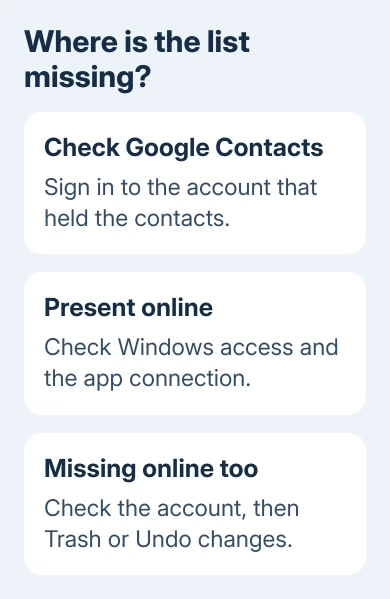
If the contact is absent from Google Contacts too, go to section 4. That case needs the account and deletion checks, rather than repeated changes to a Windows contact-access switch.
In the February 2024 Gmail contacts discussion, the asker could still see their contacts in Gmail. Removing and adding the mail account hadn't restored the Windows contact list.
That distinction matters. Reconnecting an account won't recover deleted data. But a missing list in one app doesn't mean Google deleted your contacts.
2. Restore contact permission if it was refused
On Windows 11, open Settings > Privacy & security > Contacts. Turn on Contacts access, then Let apps access your contacts. If the affected app appears with its own switch, turn that switch on too.
Launch the app again and look through its saved contacts. Look for a known person rather than only checking suggestions in the To field. Suggested recipients and the saved address book aren't always the same list.
One owner in that thread still had trouble after checking permissions. They later confirmed that resetting old Mail, restarting, and adding Gmail again brought the contacts back. Permission alone wasn't the final repair.
For old Mail, the reset path was Settings > Apps > Installed apps > Mail > three-dot menu > Advanced options > Reset. That was the reset that worked for this owner. Today, replace the retired app with one that's still supported.
If the app isn't listed, don't assume it has been blocked. Desktop apps can handle contacts through their account connection rather than an individual Windows app switch. Continue by identifying the mail program you're actually using.
3. Separate retired Windows Mail from new Outlook
Microsoft says support for Windows Mail, Calendar, and People ended on December 31, 2024. Rebuilding their old sync settings isn't the current way to maintain a Gmail address book.
If you're still opening old Mail or People, move to a supported app such as new Outlook, or use Google Contacts in the browser. Confirm the contacts are present online before removing an old account or uninstalling an app.
In new Outlook, open People from the navigation area and check the account or contact folder being displayed. If several accounts are connected, select Gmail's list instead of an empty list under your Microsoft account.
Current Microsoft Cloud sync information includes contacts for Gmail in new Outlook for Windows. It also explains that a copy of account data is synchronized through Microsoft's servers.
To add Gmail in current new Outlook, open View > View settings > Accounts > Your accounts > Add account. Enter the Gmail address and choose Continue. Complete Google sign-in and review Allow on the permissions screen.
If you refused Google's consent request, review the access Outlook asks for during account setup. Allow contacts if you want that cloud sync. Email can arrive even while contact sync fails.
If Gmail is connected correctly but new Outlook still behaves incorrectly, try its Windows app repair options. Open Settings > Apps > Installed apps, find Outlook, and choose Advanced options from its three-dot menu if available.
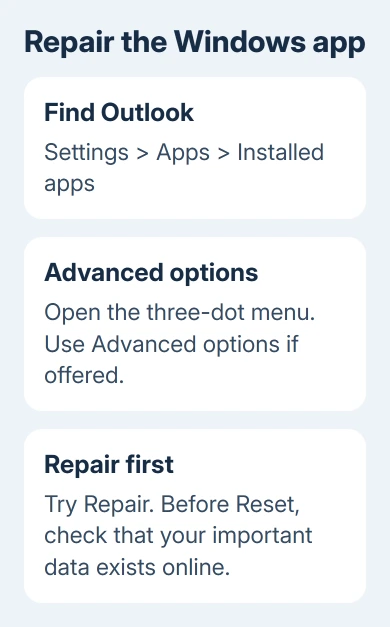
Use Repair first. If it fails and Reset is offered, check that important contacts and mail exist online before resetting the app. Reset can clear its local setup, so expect to reconnect accounts and grant their permissions again.
Classic Outlook is different: an ordinary IMAP connection syncs email, not your Google contacts. Changing an incoming mail server or port won't turn that connection into a connection that syncs your Google address book.
For an email problem alongside the missing contacts, the Outlook mail-receiving checks address messages separately. Keep the contact problem focused on People, account permissions, and the saved Google list.
4. Recover contacts that are also missing from Google
In Google Contacts, confirm the account again, then select Trash from the left navigation. On a narrow window, open the navigation menu first. Contacts normally stay in Trash for 30 days before permanent deletion.
Select the missing contacts and choose Recover. Search for one of them in the normal Contacts list afterward. Once it appears online again, check the connected Windows app separately for its next sync.
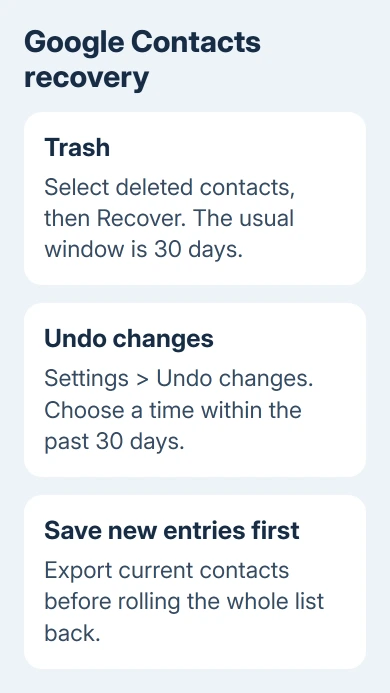
For a wider accidental change, open Settings > Undo changes in Google Contacts. Choose a time before the loss and click Confirm. This can undo changes made during the past 30 days.
Export your current contacts before rolling the address book back. Contacts added after the chosen time won't appear in the restored list, so keep a copy of recent additions you may need to import again.
The contact recovery instructions also distinguish Other contacts: deleted entries from that list don't appear in Trash, but may be recovered through Undo changes within the time limit.
Permanently deleted contacts can't be recovered through that Trash procedure. If the entries are older than the recovery window, look for an earlier contacts export or another account that holds them rather than repeatedly undoing changes.
5. Get help for the connection that is still failing
If Google Contacts has the complete list but new Outlook doesn't, open Help > Support in new Outlook, where available. Report that Gmail email works but contacts don't, and say whether People shows the Gmail account.
Give support the Outlook version, the Google permissions granted, and any refused Windows access. Ask about Gmail contacts through Microsoft Cloud sync, making clear that the Google address book still exists.
If deletions or moves in Gmail also fail to match Outlook, the Gmail and Outlook sync guide covers that separate behavior. I'd use Google Contacts directly while the app connection is being repaired.
The Short Version
Check Google Contacts first. If the list is still online, check Windows permissions and the app's account connection. Replace retired Mail and People. Use Trash or Undo changes when the contacts are missing from Google itself.
Checked November 17, 2026.