

An external DVD drive that lights up but doesn't appear in Windows can still have a USB connection or power problem. Connect it directly to another PC port first, then check whether Device Manager detects it before changing drivers.
If Device Manager doesn't show the drive, check its connection. If it shows a warning, or the drive can't read a disc, follow the steps for that problem instead. The tray opening only tells you that the drive receives some power.
In this guide
1. Check the connection before the disc
Unplug the drive, then connect it to a computer USB port. Leave out a hub, dock, or extension cable for this check. Then try another port and watch for a Windows connection sound or device notification.
If your drive has a separate power supply, connect the supply specified by its maker. For a model with an extra USB power connector, use the cable arrangement specified in its manual.
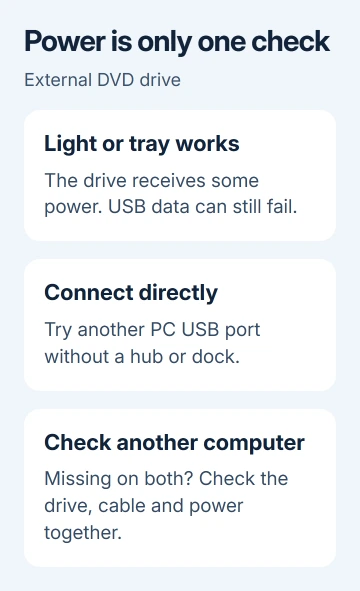
A detachable cable gives you another check: use a compatible cable known to carry data. The tray and light can work through a cable whose data connection has failed, leaving the computer unable to see the drive.
For a permanently attached cable, inspect the plug and the point where the cable enters the case. Don't pull the cable out of the housing to replace it. Move to the second-computer test if reconnecting it makes no difference.
Neither Device Manager nor File Explorer listed the reported drive on the owner's Windows 10 or Windows 11 PC. Since both PCs used the same drive and cable, those are the first things to check.
Test the drive with a second computer when possible. If it works there, return to the first PC's port and device settings. If neither computer detects it, keep the drive, cable, and power supply together for a hardware check.
2. Find the drive or its warning in Device Manager
Right-click Start and choose Device Manager. Expand DVD/CD-ROM drives if that category appears. Also check Universal Serial Bus controllers and Other devices for a new warning when you connect the drive.
Unplugging and reconnecting the drive can help identify which entry belongs to it. Select Action > Scan for hardware changes if the list hasn't refreshed. Don't uninstall an unrelated USB controller to see what happens.
If the DVD drive appears, right-click it and choose Properties. Read Device status on the General tab and note any error code. That tells you whether Windows has detected the hardware but can't start it correctly.
Microsoft lists codes 19, 31, 32, 39, and 41 in its CD and DVD recognition repairs. If your drive is listed with an error, try reinstalling it in the next section.
If a USB entry instead shows a descriptor or recognition error, use the USB device not recognized guide. That failure happens before Windows has a usable optical drive to repair.
If connecting the drive adds no entry anywhere, you have no listed DVD device to reinstall. Use the connection checks and second-PC result instead of downloading a supposed universal DVD repair tool.
3. Reinstall a DVD device that has an error
In Device Manager > DVD/CD-ROM drives, right-click the affected drive and select Uninstall device. Confirm removal, then restart Windows. Windows should reinstall its driver after the restart.
Keep the drive connected for detection when the PC starts again. Check Device Manager, then File Explorer. If the warning has disappeared and the drive is accessible, try a known-good data disc.
These steps are for a drive Windows can detect, including one with a yellow warning symbol. It can't repair a broken USB cable or an unresponsive drive that several computers can't detect.
If the warning remains, save the exact code and driver details from Properties. Check Windows Update and ask the computer or drive maker whether that model needs a current chipset, USB, or device package.
I'd skip third-party driver finders. Get help for your actual PC and drive model rather than a search result offering the same repair download for every device.
4. Separate a missing drive from an unreadable disc
A DVD drive listed in Device Manager without an error may still fail to read a particular disc. Insert a known-good data CD or DVD that the drive supports, then open File Explorer > This PC and check again.
Test a second disc if the first doesn't open. If other discs read normally, the problem is the original disc or its format. A CD-only drive can't read DVDs, and DVD support doesn't mean a drive can read Blu-ray discs.
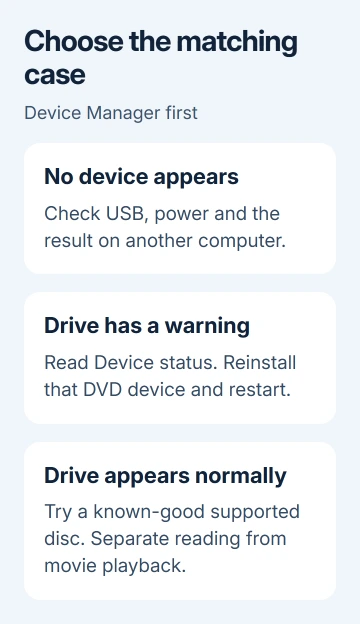
Movie playback is another separate issue. Even when Windows recognizes the drive and can read the disc, you'll still need software that plays DVD movies. Don't reinstall the USB device just because a movie won't start automatically.
Likewise, an optical drive uses different checks from a flash drive or external hard disk. Don't initialize or format it to make it appear. The external storage drive guide covers hard disks and SSDs, which use different checks.
If every supported disc fails on two computers while the drive itself is detected, give the maker those results. The reading mechanism needs attention rather than another change to Windows file associations.
5. Escalate persistent driver errors carefully
When the drive stopped working after installing or removing disc-burning software, mention that history with the Device Manager code. Software used to write discs can leave driver settings that affect optical-drive detection.
The official repair page includes an advanced registry procedure for damaged UpperFilters and LowerFilters entries. Ask support to check that procedure against your code before applying it to an external USB drive.
Don't copy instructions that delete the entire optical-drive registry key. Removing the wrong entry can affect other software, and this repair makes little sense as a first step when several PCs can't detect the drive.
If the cable is permanently attached and the drive fails on both Windows versions, ask the seller or maker to check the cable assembly and drive. Include the model, port tests, power setup, and whether any device entry appears.
The thread ends with a suggestion to check the cable, but no report that replacing it worked. Checking yours can help you narrow down the fault; it won't fix every undetected drive.
The Short Version
Check a PC USB port and the right power supply. Device Manager separates missing hardware from a driver error. For a detected drive, test a supported disc; failure on two PCs points toward the drive assembly.
Checked November 17, 2026.
 If you have any business, I can build it online






