

A successfully sent meeting can be missing from your Outlook calendar because it was saved in another calendar. Check the sending account's calendars, then classic Outlook's default data file for events you create.
This matters when Reply with Meeting sends invitations but leaves nothing in the expected work calendar. A sent invitation isn't the calendar item. Keep it while you look for the organizer's event.
In this guide
1. Look in the other calendars before sending again
Open Calendar in Outlook. Expand the calendar groups on the left. Select each calendar connected to your account, including personal calendars or calendars held in another data file.
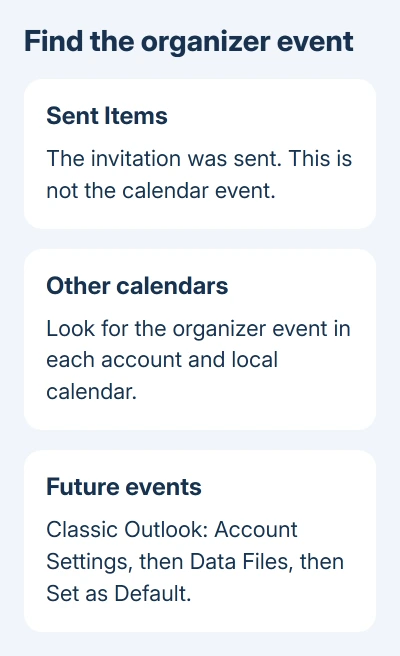
Check the meeting's date and time in each one. Look for its subject and attendees too, since an appointment with a similar name might be a separate entry.
For Reply with Meeting, also note which mailbox contained the original email. With several accounts open, it's easy to view one calendar while working from another mailbox's message.
An owner found their missing meetings in a personal calendar folder. If that matches your setup, correct the future destination while keeping the existing event. Another invitation can create a duplicate.
Selecting the correct calendar lets you see the event without moving it. Open the located event to review its attendee list and organizer details.
For comparison, create a temporary appointment with no attendees in the calendar you want to use. Check that it appears there, then remove that temporary item when you're finished. No invitation needs to go out for this check.
2. Check classic Outlook's default data file
In classic Outlook for Windows, choose File > Info > Account Settings > Account Settings. On Data Files, identify which account or file has the default marker.
Microsoft's default calendar instructions explain that meetings and appointments you create automatically use the default calendar. That can differ from the calendar you expected to see.
Select the account where you want calendar information stored by default, then choose Set as Default. Select Close after making the change. Check that you're selecting the intended work account rather than an unrelated local archive.
The Email tab has another default setting for outgoing mail. That sender setting doesn't choose the default data file for your calendar. Use Data Files for this calendar check.
If Set as Default is unavailable or you're unsure which entry belongs to the work mailbox, ask IT to review the setup. Don't remove a personal data file just because its calendar appears to be the unwanted destination.
This route belongs to classic Outlook. The Windows Data Files dialog isn't part of new Outlook or browser Outlook, so don't hunt through their settings for a matching tab.
3. Confirm the destination with one new event
After checking the default, create a new event and see where it is stored. Give it a subject you'll recognize and leave out attendees while you check where the appointment saves.
Then, if the original fault happens only with Reply with Meeting, try that command from a harmless email in the affected account. Keep it as an unsent draft while you review the selected calendar and organizer.
Check the destination before inviting other people. Once the result is correct, send one test invitation to a colleague who knows you're checking the setup. Confirm both their received invitation and your organizer event.
If an ordinary appointment saves correctly but Reply with Meeting still doesn't, give IT that difference. That tells them one command is failing, while the calendar can still save ordinary appointments.
I'd check the result with a new item before moving the existing meetings. A changed default affects where future items go; it doesn't gather the appointments already stored in another file.
For the ordinary meeting procedure, the Outlook invitation steps cover creating the event and adding attendees. Keep that task separate from correcting a misplaced organizer copy.
4. Treat received invitations as a separate case
Outlook doesn't choose the calendar the same way for meetings you organize and invitations you receive. Received meeting requests normally save to the calendar belonging to the receiving email account.
The rule changes for an account without its own calendar folder. Those requests use the default calendar. This can matter with a secondary IMAP account, an account that syncs email with the mail server.
That means a default data-file change won't recover every type of missing invitation. Check whether you created the meeting or received it before changing another setting.
If a received invitation disappeared after you declined it, use the declined-meeting recovery steps. A reply saved in Sent Items won't turn that declined event back into an accepted one.
The old thread also suggested an automatic-events-from-email setting. That feature isn't the same as saving an organizer's meeting, and the asker couldn't find the suggested option. Leave that unrelated setting alone for this fault.
5. Preserve existing events before moving calendar data
If you find a collection of events in a local or personal calendar, keep that calendar available. Review a single event's organizer, attendees, and recurrence before deciding what belongs in the work calendar.
Copying events through List view was suggested in the discussion. The owner never said whether those copies worked properly as meetings. A visible copy alone doesn't tell you how future updates will reach attendees.
For meetings you organized, ask IT how to move them between data files or mailboxes while keeping updates and cancellations working. Tell them which calendar currently contains the items and which one should hold them.
Don't delete the originals as part of the first check. Keeping the original events lets support examine the problem without relying only on the invitation sitting in Sent Items.
If there are many affected events, give IT a few dates that show the problem instead of copying the whole calendar immediately. Include one ordinary meeting and one recurring series if both kinds are affected.
If the organizer event still can't be found
Send IT the subject, meeting date, and sending account, a copy of the sent invitation, and the Outlook version. Say whether this happens only with Reply with Meeting or with New Meeting too.
Ask them to check where the organizer item was created and whether it exists in the work mailbox. They can then decide whether the next step is desktop profile repair, mailbox support, or recovery of an existing event.
The Short Version
Check the other calendars and classic Outlook's default under Account Settings > Data Files. Confirm where new events save. Keep misplaced organizer items while IT checks how to move them safely.
Checked November 17, 2026.






