

Error 8004DF03-0-0-560 can mean imported mail folders kept their old IMAP type in an Exchange mailbox. If they look empty in classic Outlook but contain mail on the web, try the IMAP Messages view, then correct the folder type.
Don't change folder properties just because this error appears. Check that your mailbox has the same symptoms first. The strongest match is a mailbox migration followed by empty subfolders, while Inbox and Sent Items still work.
In this guide
1. Match the error to the affected folders
IMAP is a mail-access system used by many providers. A folder imported from an IMAP account can keep settings meant for that system after its messages move to Exchange.
In the classic Windows app, click a folder that looks empty. Note its name and any unread count. Compare that folder with its webmail copy under the same account.
If the folder contains messages on the web, they haven't vanished from the mailbox. That gives you a safe way to read current mail while you check why the desktop view doesn't show it.
Press Ctrl+6 in classic Outlook to show the folder list and look for Sync Issues. Open the relevant log and check for 8004DF03-0-0-560. Match the time and affected folder rather than treating every old log as a new failure.
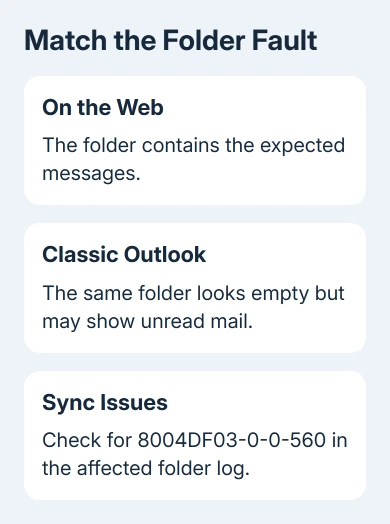
In the original report, the unread counts remained visible and Inbox and Sent Items downloaded normally. One owner later confirmed that a repair for imported IMAP folder properties fixed the affected folders in their mailbox.
If the folder is missing from the navigation pane altogether, use the missing Outlook folders checks first. A hidden pane and an empty-looking folder need different checks.
If the messages are missing on the web too, stop before changing folder properties. Ask your mail administrator to check the server copy, deleted items and migration results. The correction described here doesn't recover deleted mail.
2. Switch the affected folder to IMAP Messages
Select the empty folder, then open View > Change View. Look for IMAP-specific choices, particularly Hide Messages Marked for Deletion and IMAP Messages.
If those choices appear inside an Exchange mailbox or an imported Outlook data file, select IMAP Messages. Check whether the expected messages become visible without moving or importing anything.
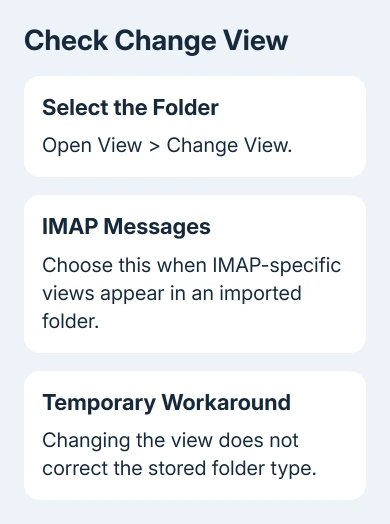
If that makes the mail appear, the folder may still be using its old IMAP type. Moving the messages to Exchange can leave those old folder settings in place.
The view change is a useful temporary workaround. The folder still needs its stored type corrected for normal Exchange behavior, follow-up flags and visibility in other clients.
If the menu contains ordinary Exchange views instead, don't change the folder type based on the error number alone. Record what the folder shows and give it to your administrator. Other sync problems need a different repair.
I'd check this menu before rebuilding an Outlook profile. It takes a moment, and a new profile won't correct a wrong folder property stored in the mailbox itself.
3. Have the imported folder type corrected
The property involved is PR_CONTAINER_CLASS, the folder's type. An imported mail folder can keep IPF.Imap when it should use IPF.Note for ordinary mail. This changes the folder type, not individual message formatting.
Microsoft's folder-class reference explains the property. The owner-confirmed repair in the source thread used the linked imported-folder repair instructions to correct that retained IMAP type.
Have an administrator back up the affected mail and handle the edit. MFCMAPI is an advanced mailbox tool with few protections against mistakes; they need to identify the right mailbox store and folder.
Ask IT to use a copy of MFCMAPI that matches Outlook's 32-bit or 64-bit edition. The edition is shown under File > Office Account > About Outlook. A 64-bit Windows installation can still run 32-bit Outlook.
The administrator's manual repair follows this order:
- Open MFCMAPI and choose Session > Logon.
- Select the Outlook profile containing the affected mailbox.
- Open that mailbox's store and expand Root Container.
- Expand its mail tree, which can be named IPM_SUBTREE, Top of Information Store, Top of Outlook data file, or Top of Personal Folders.
- Select one affected mail folder and open PR_CONTAINER_CLASS.
- If its value is IPF.Imap, change it to IPF.Note and confirm with OK.
- Close the tool, select another folder in Outlook, then return to the repaired one to refresh it.
These steps don't apply to Calendar, Contacts, Tasks or other folders that need their own types. If the selected mail folder already says IPF.Note, leave it alone and return to the sync problem with IT.
4. Verify one folder before repairing the rest
Check the repaired folder's message list, available views and follow-up flags. Compare a few messages with the web copy. The existing messages should appear in normal mail-folder views without importing them again.
Then check one previously affected subfolder. Each folder has its own property, so correcting a parent alone doesn't mean every child folder changed too. Give IT a list of the folders that still show the old behavior.
The original owner fixed the mailbox with a script. That confirms the folder-type remedy for their case. An administrator can instead begin with the manual procedure on one folder.
When planning another migration, copying mail directly from the IMAP account into the destination avoids preserving the folder's IMAP properties in the export-and-import route described by the repair instructions.
For a mailbox showing only recent mail rather than empty imported folders, the older email sync setting covers the separate download-range problem.
What should IT check if the error continues?
Ask your mail administrator to review a fresh sync log after the folder correction. Include the full error, folder path, Outlook build, account type and whether the server copy still displays the messages.
If normal mail folders already have the correct type, ask for an Exchange synchronization support case rather than another bulk folder edit. In the original thread, Office repair failed before the asker found the import-related fix.
The Short Version
For empty imported folders with 8004DF03-0-0-560, try IMAP Messages as a temporary view. An administrator can correct IPF.Imap to IPF.Note on confirmed affected mail folders, then check that each repaired folder displays its mail.
Checked November 17, 2026.






