

An ordinary Paste just before ActiveSheet.Paste Link:=True fixed this Excel VBA error for some owners after a move from Excel 2007. Check the destination cells and any software sharing the clipboard too.
The original report involved Excel 2010 and run-time error 1004. Changing the destination didn't help that asker, so try the workarounds separately rather than assuming one code change will fix every case.
In this guide
1. Select the destination's first cell
Duplicate the workbook before changing its macro. A paste operation can replace existing cells, and the extra ordinary paste used later also writes to the destination.
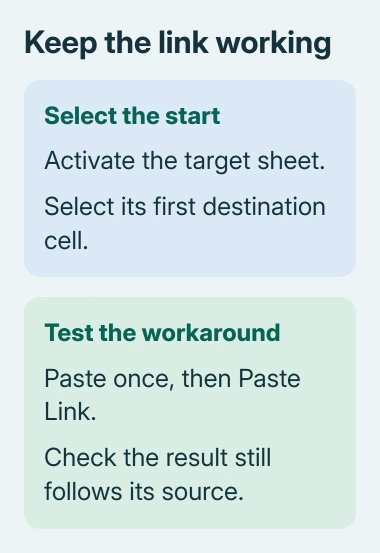
After copying the source range, activate the destination sheet and select its top-left target cell. For the reported example, the source is A1:BS3 and the destination begins at A2 on a sheet named Multi View 1.
The first suggested change was to select only A2 instead of preselecting A2:BS4. This makes the intended starting cell clear, but the asker tried it and still received the error.
Check the destination sheet's protection too. The adviser could reproduce their paste error on a protected sheet. If your workbook is protected, ask the worksheet owner to permit edits before testing the paste again.
If the destination is correct and editable but the linked paste still fails, leave the source and destination unchanged while testing the next workaround. That keeps a clipboard change from being mixed up with a different target range.
2. Try the extra Paste that an owner confirmed
Find the line that performs the linked paste. Add an ordinary paste immediately before it:
ActiveSheet.Paste
ActiveSheet.Paste Link:=True
A Microsoft forum reply from one owner confirms that adding the first line stopped the error. Their code had only the linked-paste line. This changes the paste sequence; it doesn't explain the Excel bug.
For the thread's sheet arrangement, the sequence looks like this:
Sheets(prod1).Range("A1:BS3").Copy
Sheets("Multi View 1").Activate
Range("A2").Select
ActiveSheet.Paste
ActiveSheet.Paste Link:=True
Selection.PasteSpecial Paste:=xlPasteFormats, _
    Operation:=xlNone, SkipBlanks:=False, Transpose:=False
Application.CutCopyMode = False
This code needs prod1 to hold a valid source sheet name or index, and the workbook you want must be active. Replace the names and ranges to fit your file. It isn't a complete macro with workbook selection and error handling.
Run it on the workbook copy and check the destination cells. A successful run should get past the linked-paste line, place the expected linked data at the destination, and then apply the copied formatting.
I'd check a destination formula before relying on the result. An ordinary paste can leave fixed values that look right at first. You need a working link so the destination follows changes to the source.
3. Confirm the result still follows its source
Click a pasted cell, then examine its formula-bar entry. It should reference its source rather than contain only the displayed value. Then change a harmless source value in the test copy and confirm that its destination follows.
This matters because the workaround performs two paste operations. The macro needs to do more than reach its last line. The pasted cells should stay linked to their source and have the formatting you wanted.
If the value doesn't change, check whether calculation is automatic and whether the source reference points at the expected cell. Also check that the macro didn't stop between its ordinary paste and its linked paste.
For cells that display formula text instead of calculating, use the Excel formula display checks. That's a different result from VBA stopping with error 1004 on the paste statement.
If the two-paste version still fails, go back to your saved original code and check the clipboard connection next. Remove the extra paste if it hasn't helped your workbook.
4. Close a remote-control clipboard connection
Another owner found that the code ran normally after closing a connected TightVNC session. They suggested that software might be taking control of the clipboard, but didn't confirm that explanation.
If TightVNC is connected, arrange a pause with anyone using that session, then disconnect it. Copy the source range again and rerun the macro.
Compare the same macro, file and ranges with and without that connection. If it succeeds only after disconnecting, record the result for your administrator or remote-control software support team.
The confirmed report concerns TightVNC. If it isn't in use, continue with the VBA argument checks rather than changing unrelated remote-access software.
5. Keep Link and Destination arguments separate
The Worksheet.Paste reference says the Link and Destination arguments can't be used together. With Link:=True, select the destination first, then call Paste without a Destination argument.
That means this isn't a valid shortcut for a linked paste:
ActiveSheet.Paste Destination:=Range("A2"), Link:=TrueKeep Range("A2").Select after activating the correct destination sheet. The method uses the current selection when Destination isn't supplied, and the selection can change after pasting.
Don't clear Application.CutCopyMode between copying and pasting. In the example it stays at the end, after the format paste has finished using the copied range.
If the target cells reject edits, check how worksheet cell locking works. Unprotecting the workbook structure isn't the same as unprotecting the destination worksheet, a distinction raised in the original replies.
6. Repair Excel when manual linked pastes also fail
Try copying and pasting a link manually in a blank workbook. The original asker couldn't paste links even between ordinary sheets without their macro. That pointed to the Excel installation rather than the order of the VBA commands.
They later reported that reinstalling Office fixed it. If manual linked pastes fail too, ask IT to repair Office, then consider reinstalling with your installer and license available. Code changes can't repair a faulty installation.
Give support the smallest failing macro
If nothing helps, make a sample workbook with two sheets and no private data. Include the exact error, Excel version, the line highlighted by Debug, sheet protection status and whether a TightVNC connection was active.
Ask your Excel VBA support contact to check that sample's copy-and-link sequence. Report whether the extra ordinary Paste changed the outcome. Support can work from that example more easily than a large macro with an unexplained 1004 error.
The Short Version
Select the first destination cell, check protection, then try Paste before Paste Link. Verify that the links work. A TightVNC connection was a separate confirmed trigger. Link can't share a Paste call with Destination.
Checked November 17, 2026.
 If you have any business, I can build it online






