

A 6×9 Word document can become a Letter-size PDF when the custom paper size doesn't apply to the whole document or the print destination still uses Letter. In Word 2011 for Mac, apply Page Setup to Whole Document, then save a fresh PDF.
That fixes a different problem from a PDF splitting into separate files. Check the exported page dimensions first: a page that looks small on screen can still be a full 8.5-by-11-inch sheet.
In this guide
1. Apply the 6×9 setup to the whole document
Duplicate your Word file before changing page setup. Book files can use sections for front matter and chapters, so a setting applied only to the current section can leave other pages at a different size.
In Word 2011 for Mac, choose File > Print, then Page Setup. In that dialog, change Page Attributes to Microsoft Word. Set Apply Page Setup To to Whole Document rather than This Section.
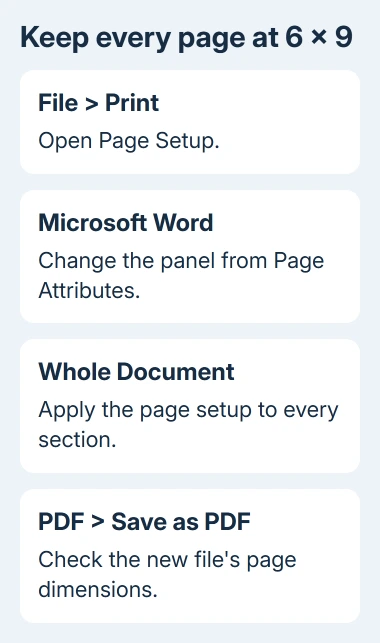
Confirm the setup with OK. Back in Print, open PDF at the lower left and choose Save as PDF. Give this export a new name so you won't inspect an older Letter-size version by mistake.
An owner confirmed this exact Word 2011 sequence produced a 6×9 PDF. That sequence fixed the page size; the thread's accepted answer deals with a different problem, PDFs split into separate files.
Open the new PDF and check a page near the start and another in the main text. If those now have the intended dimensions, review the remaining sections. If they still show Letter, check how the custom size was created next.
2. Select a real custom paper size
In File > Page Setup, check the selected paper size rather than judging it from Word's zoom level. A smaller text area inside Letter margins can resemble a book page without changing the PDF's outside dimensions.
Choose your saved 6×9 custom size. If it doesn't exist, the Mac's Paper Size > Manage Custom Sizes control lets you add one. Set the width to 6 inches and the height to 9 inches, using the displayed measurement units.
Apple's custom paper size instructions cover that system control. The available options can differ by app and printer, so use Word's Page Setup route when following the 2011 fix.
Name the size clearly enough to distinguish it from Letter or a printer preset. Select that new size after creating it. Adding a custom size to the list and actually using it for the document are separate actions.
Check portrait orientation as well. A 9-by-6-inch landscape page isn't the same output as a 6-by-9-inch portrait book, even though it uses the same two measurements.
Book margins also need their own review. Use the Word margin controls for the text area; margins don't replace the paper-size setting. Changing one to imitate the other can leave the exported sheet at Letter size.
Another owner reported success by selecting the entire document, choosing the custom size in Page Setup, and immediately printing to PDF. They also said the workaround didn't remain reliable after saving, so verify each new export.
3. Check the print destination's paper size
If Word shows 6×9 but the PDF still shows Letter, return to File > Print. In the old Mac print dialog, open Copies & Pages and choose Paper Handling. Look at Destination Paper Size.
That setting controls the size of the sheet you're printing onto. It can disagree with the page size selected in Word. Check it even when Word's Page Setup already reports 6×9.
If the destination is Letter, see whether selecting Scale to fit paper size lets you choose your 6×9 custom size. Export another PDF and compare both its dimensions and its text layout with the Word source.
An adviser suggested this workaround, but the owner didn't confirm that it fixed the problem for good. I'd use the whole-document fix first. Scaling can get a job onto the intended sheet while resizing or repositioning the contents.
Don't judge success only from the first line of text. Look at page numbers, the outside edges of pictures, and the space beside the binding. A file can have the right page dimensions while its contents need another layout check.
If this produces a correctly sized file with unexpected text changes, the Word PDF layout guide covers fonts, markup, and missing objects. Use those checks once the PDF's page dimensions are correct.
4. Handle split PDFs without deleting book structure
Two output files are a separate symptom from one file with Letter-size pages. The thread's accepted reply discusses a section break separating a title page from the rest of the document and suggests combining the PDFs.
Don't remove necessary book sections just to make the export produce one file. They may control chapter starts, page numbering, or different headers. First check whether each exported part has the correct size and all its expected pages.
When combining correctly sized parts, keep them in reading order and inspect the join. A title page followed by the wrong chapter page is an output problem even when the total page count looks plausible.
In a current Word release, use the page-size and PDF export controls available in that version. The owner-confirmed Microsoft Word panel and Whole Document sequence applies to Word 2011; modern print dialogs can differ.
When a book upload still fails
Ask your book printer for the required PDF page dimensions and whether its specification includes bleed, the extra printed area trimmed off the edges. A 6×9 finished book doesn't always mean the uploaded file must measure exactly 6×9.
Give support your Word version, the selected custom size, the exported dimensions, and whether all sections are affected. Keep the Word file and the rejected PDF together so they can compare the actual input and output.
The Short Version
In Word 2011 for Mac, set Page Setup to Whole Document and save a new PDF. Check the custom size and destination paper size if Letter remains. Verify the exported dimensions against the printer's specification before uploading.
Checked November 17, 2026.
 If you have any business, I can build it online






