
Word headings need a heading style or outline level to appear in the Navigation pane. Apply the correct Heading style first. Windows Word still omits headings inside tables or text boxes, even when their styles are correct.
That's why a heading can appear in a table of contents but still be missing from navigation. Check both its style and where it sits before changing the document's numbering or rebuilding its contents.
In this guide
1. Apply a heading style to one missing title
Click inside the title's paragraph in the document itself. On Home > Styles, choose Heading 1 for a main section, Heading 2 for a subsection, or the level appropriate to your document.
Open View > Navigation Pane, then select the pane's Headings tab. In Windows Word you can also press Ctrl+F to open navigation, but make sure you're looking at Headings rather than search results or page thumbnails.
When Word 2013 keeps jumping through search matches, select Page in Go To to return its navigation shortcuts to pages.
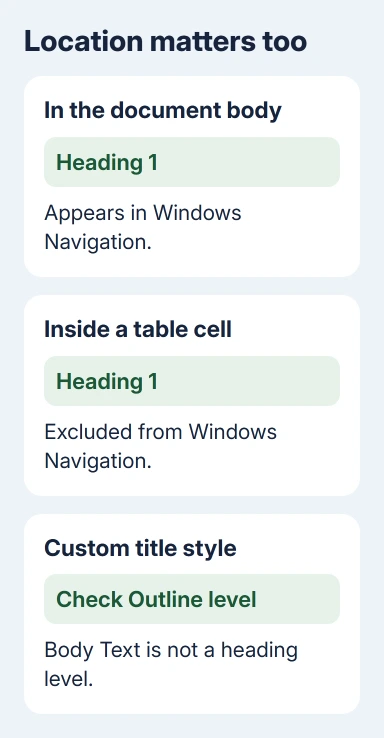
If the title now appears, Word wasn't treating that paragraph as a heading before. Large letters, bold text and a typed chapter number can look like a heading without making Word treat the paragraph as one.
Start with one title instead of selecting the entire manuscript. Applying Heading 1 to every paragraph would turn ordinary text into headings too. Repeat only for the titles that belong at that level.
Pasted chapters can bring another template's styles. Reapply the destination document's heading style and inspect navigation. Do this when older headings appear but pasted titles don't.
After the title appears in navigation, adjust its heading style if the appearance needs changing. Changing only the font can make a title look right without giving it the heading structure Word needs.
2. Is the heading inside a table?
Click the missing title and look for table-specific ribbon tabs. A heading inside a table cell won't appear in the Windows Navigation pane. The same limitation applies to headings in text boxes, headers and footers.
Microsoft's Navigation instructions list those excluded locations. A table of contents can include a heading that navigation omits.
For a chapter title that must appear in navigation, place its heading paragraph in the ordinary document body, outside the table. Keep the remaining information arranged in the table's cells.
Duplicate the document, move one title outside its table, and check navigation before revising the layout. Check that the same Heading 1 paragraph now appears in navigation and that the rest of your table is still intact.
If the template requires a heading inside a table, changing its font or style won't add that navigation entry. Keep the required layout and reach the section through the table of contents or a bookmark.
A running page header repeats across pages; a section heading introduces body text. If the document needs both, keep the repeating title in the header and a proper heading paragraph at the beginning of the section's body text.
3. Give custom heading styles an outline level
A custom style's appearance can resemble a heading even with Outline level set to Body Text. In that case, Word hasn't been told where that text belongs in the heading structure.
In Windows desktop Word, open the Home > Styles pane. Right-click the custom style used by the missing title and choose Modify > Format > Paragraph. On Indents and Spacing, inspect Outline level.
Choose Level 1 for a top-level section, Level 2 for a subsection, and so on. Select OK in the Paragraph dialog, then confirm the style change. Check the Headings tab again.
Choose a level that matches what the title introduces, rather than giving every custom style Level 1. A manuscript with chapters and nested sections needs that hierarchy so readers can understand what belongs inside each chapter.
One owner brought missing headings back after changing their custom style's Style based on setting from Normal to Heading 1. They also had to fix changes to its appearance caused by basing it on Heading 1.
That setting controls which formatting a style inherits. I'd check Outline level before changing which style it inherits its formatting from. Changing the parent style can affect more than whether the title appears in navigation.
Use the Word style repair guide if clicking a style applies something unexpected. Repair the actual paragraph style before trying to fix the pane's display.
4. Expand the heading list and check its hierarchy
If a main chapter is visible but its subsections aren't, expand that chapter in the Headings tab. Subheadings can be hidden inside a collapsed heading, even though their styles and outline levels are correct.
Click a visible entry and check where Word takes you. Then expand the chapter containing the missing title. That tells you whether the title is hidden in a collapsed list or missing from the pane entirely.
Check the style assigned to the missing subsection if it appears under the wrong chapter. A Heading 2 paragraph belongs under the preceding Heading 1. A title accidentally set to Heading 1 becomes a separate main section.
Fix a chapter's heading role before its numbering. The heading-numbering guide covers damaged numbers. Changing levels just to restore a number can damage the hierarchy.
Click entries without dragging them during this check. Moving a heading in the pane can move the section's text, not just its label. Click to navigate while checking, and use Undo immediately if a section moves accidentally.
5. Check the document in the right Word edition
These pane and location checks apply to Windows desktop Word, including Microsoft 365. Mac and browser Word handle navigation differently. A missing Windows-only checkbox doesn't mean your document is damaged.
If you're editing in the browser and need to repair custom style properties, open that file using desktop Word. Apply the intended built-in headings there and check the saved file again in the edition your readers use.
For a persistent failure, give your template administrator a small file containing both a working heading and a missing one. Include the Word version, styles, outline levels and locations. Microsoft Support can also inspect it.
Ask them to check the document's heading structure and template styles. That sample keeps the paragraph settings support needs to see why an entry is missing. An empty-pane screenshot can't show those settings.
The Short Version
Heading styles come first; check outline levels and collapsed subsections next. Windows Navigation omits headings in tables, text boxes, headers and footers. Move the heading into the body or use the contents or bookmarks.
Checked November 17, 2026.






