
Excel 2016 could lose mixed font formatting inside a cell because of a software bug. Update Excel first if bold words beside ordinary text lose their styling. The historical fix was Version 1708 (8431.2109).
Changes disappearing from an entire cell, a CSV file or a shared workbook can have other causes. Check which case matches yours first. Repairing Office won't make a file format store formatting it doesn't support.
In this guide
1. Update the build that loses mixed text formatting
Open File > Account in Excel. Under Product Information, note the version, then choose Update Options > Update Now if the option is available. Let the update finish and restart Excel when prompted.
The official rich-text fix addresses mixed formatting within a single cell.
Version 1708 (8431.2109) was the build that fixed this bug. Today's supported Office installations should receive their current updates; don't seek an old installer just to match that number.
Office 2016 reached the end of support in October 2025. If you're still using it, move to a supported Office release for ongoing fixes. A newer Microsoft 365 build with a similar symptom needs its own checks, not that old patch.
When your organization controls updates or Excel has no Update Options button, pass the Excel product details from File > Account to IT. Ask whether that build includes the mixed-formatting fix before changing the update channel.
2. Save a workbook format that retains formatting
Choose File > Save As and inspect the file type. CSV and text files store data without Excel's font formatting. Bold text won't survive in a CSV file just because Excel displayed it before you saved.
For a normal workbook, save a copy as Excel Workbook (.xlsx). Keep a workbook containing VBA in Excel Macro-Enabled Workbook (.xlsm) instead, so its code isn't removed while you're dealing with its appearance.
Close and reopen the copy you just saved. Check the full filename and folder rather than opening a similarly named entry from Recent. A second copy in another folder can make a successful save look as though it never happened.
If the formatting survives in the workbook copy but disappears in the CSV, the file format is the reason. Continue using the workbook as your editable master and export a CSV only when the receiving system requires one.
For help choosing the file you actually need to send, see the CSV and Excel format steps. Keep the formatted workbook separately; the exported data file serves a different purpose.
3. Check one cell through a complete save and reopen
Use a spare copy of the affected workbook. Enter a short sentence in an unused cell, double-click that cell, select one word and apply Bold. In a different cell, apply bold to the whole cell's contents.
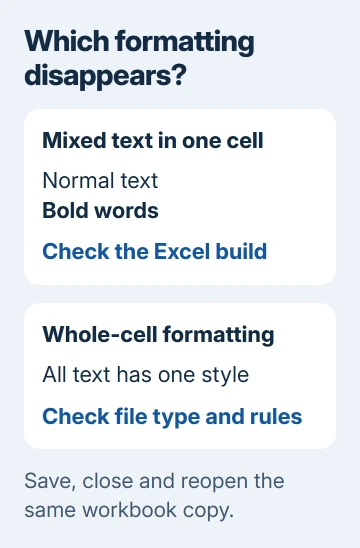
Press Ctrl+S, close the workbook, then open that exact copy through File > Open. Compare both cells. This shows whether Excel loses formatting within a cell, formatting across a whole cell, or just changes to the original cells.
If the test cells keep their styles, check how the original cell gets its contents. A formula result or refreshed data can replace what was there. Note whether the change happens on saving, reopening or refreshing the workbook.
Also check Home > Conditional Formatting > Manage Rules for rules covering the affected cell. A rule can control how a cell looks. Inspect the rule and its range before removing anything from a working report.
If a rule explains the result, correct that rule rather than repeatedly applying a manual font. If neither test cell retains its formatting in an .xlsx copy, compare with a new blank workbook next.
4. Compare a new local workbook before blaming sync
Create a blank workbook and repeat the two-cell test. Store this .xlsx sample locally, close it and open the saved sample again. Keep it separate from the original so the comparison doesn't alter shared data.
If a new workbook keeps both styles, check the affected file's contents. When both workbooks lose their font changes, check the Excel build and the components loaded into that session.
In the reported case, saving a local copy didn't solve the problem. Quick Repair, Online Repair and reinstalling Office also failed. I'd check the file type and build before spending time on another installation.
One owner confirmed that Excel online preserved the edits, although desktop saving still lost them. That provided a temporary way to work. The official build fix arrived later.
For a file already approved for your organization's cloud storage, compare Excel for the web with the desktop result. Keep private workbooks within that approved service. Browser editing requires signing in.
5. Check add-ins when the current desktop app still fails
On Windows, close Excel, press Windows+R, type excel /safe and press Enter. Create a harmless test workbook in that session and check whether font changes survive saving and reopening.
If the failure disappears in safe mode, inspect File > Options > Add-ins in a normal session. Use the Manage list to check COM Add-ins and Excel Add-ins, turning off one item at a time and comparing the result.
Record the enabled add-ins to make restoring them easier. If turning off an add-in changes the result, check it with its publisher. The older mixed-formatting bug also affected Excel without third-party add-ins.
For recurring save prompts, use the Excel repeated-save checks. A save prompt by itself doesn't explain why bold text disappears.
For a failure in a new local file on current Excel, contact Microsoft through its Contact Us page. Include the build, file type and sample, and specify whether saving, reopening or refreshing changes the font.
The Short Version
Update Excel for the historical mixed-formatting bug. Save editable files as .xlsx or .xlsm. Compare mixed text with whole-cell formatting through a save and reopen, then check a new local workbook if both fail.
Checked November 17, 2026.





