Ditto or TeamViewer can stop Excel's Enter key from pasting copied cells even when Ctrl+V still works. Exit those apps completely, copy the cells again and retry Enter. Owners confirmed both conflicts in the original Excel discussion.
If every paste method fails, or Excel reports that it can't paste the data, check that wider problem separately. An Enter-only failure needs a different first fix from a blocked destination or a frozen workbook.
In this guide
1. Exit Ditto before copying the cells again
Save the workbook. Find Ditto in the Windows notification area near the clock, including the hidden-icons menu. Open its context menu and use its exit command. Closing its visible clipboard window may leave the program running.
Return to Excel and copy the source cells again with Ctrl+C. Select one empty destination cell outside your working data and press Enter. Copy again so you're checking a fresh selection after the other app has closed.
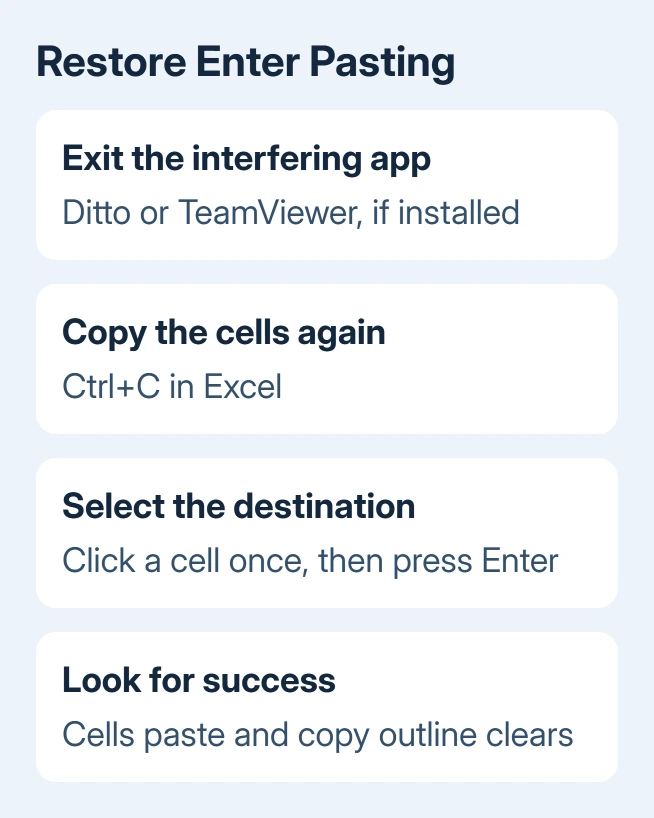
If the values paste and the moving copy outline clears, normal one-time Enter pasting is back. If nothing changes, move to the TeamViewer check rather than repeatedly clearing your entire clipboard history.
The original asker in the Excel paste discussion confirmed that turning off Ditto restored the behavior. They had already tried Excel safe mode and an Office reinstall without success.
Keep Ditto closed to finish the spreadsheet, then check for an update through the app. If reopening it brings the fault back, report that comparison to its developer instead of reinstalling Office again.
2. Close TeamViewer if it is running
End any active remote-support session first, then use TeamViewer's exit command, including its notification-area icon if present. Exiting can disconnect your remote helper, so agree on that step before closing an active session.
Back in Excel, copy the same small selection and try Enter again. Use ordinary cells within one workbook so a protected destination or an unrelated application isn't part of this comparison.
One owner closed TeamViewer and restored Enter pasting. Later replies confirmed the same result. Owners were still confirming this in June 2018. They reported that closing TeamViewer worked, rather than just suggesting it.
If Enter works only with TeamViewer closed, leave it closed for this task. Tell IT or TeamViewer support your version and how it affects Excel's clipboard. The old reports don't mean every current installation causes the problem.
No Ditto or TeamViewer installed? Check how you're copying and selecting cells next. Another owner in the thread didn't have either app, so their names aren't a complete explanation for every Enter-key failure.
3. Make sure Excel is copying cells, not editing their text
Click the source cell once and press Ctrl+C. Excel should show a moving dashed outline around the copied cell or block. Click the destination once, then press Enter to complete the copy.
Double-clicking the destination or pressing F2 enters cell-editing mode. Enter then confirms that edit. Press Esc to leave it, copy the source again, and try from a destination selected with one click.
Microsoft's cell-copy instructions describe the moving copy outline and Enter completion. Pressing Esc cancels that copied selection, so copy again if you've canceled it before choosing the destination.
After a successful Enter paste, Excel clears the copied selection. To put the same copied block into several places, use Ctrl+V for the repeated pastes. Don't mistake the cleared copy outline after Enter for a new failure.
Try the check with a plain number in a new workbook if the original sheet behaves differently. If the new workbook works, compare the original sheet's permissions and destination rather than changing the keyboard for the whole computer.
If the problem is specifically Excel cannot paste the data, check the destination size, protection and merged cells. That message is a different symptom from Enter silently leaving the copied selection in place.
4. Compare Enter with normal paste and normal typing
Copy a small cell selection and try Ctrl+V at the same destination. If Ctrl+V works but Enter doesn't, use Ctrl+V to finish urgent work. Then focus on what happens when you press Enter and which programs use the clipboard.
Also type a number in a spare cell and press Enter. If that doesn't finish the entry, the key may be faulty or another program may be taking over its action. Compare the other Enter key if your keyboard has a numeric keypad.
If Enter works for normal typing, changing the option that moves the selection after Enter isn't the first fix. That setting controls movement after an entry; it isn't an enable switch for copied-cell pasting.
When both Enter and Ctrl+V fail in Excel, use the silent paste failure checks. A known Office build problem or a broader paste failure needs its own repair instead of assuming an Enter-only conflict.
If copying fails across other apps too, record which programs are affected and whether the copied item is text, a cell or a file. Tell IT if other apps are affected too. If only Excel fails, they can focus on Excel.
5. Check add-ins and Office only after the app comparison
I'd close a clipboard utility before repairing Office. Reinstalling didn't help the owner with the Ditto conflict. Closing the app is quicker to check and leaves your Office installation alone.
Close Excel, press Windows+R, enter excel /safe and press Enter. Retry the small cell copy. If safe mode works, open Excel normally and inspect File > Options > Add-ins.
Use Manage > COM Add-ins > Go, note which entries are enabled, then clear them to see whether that helps. Restart Excel normally. If Enter pasting returns, restore each entry separately until the failing behavior returns.
When safe mode also fails, leave unrelated add-ins alone. Check available Office updates through File > Account > Update Options > Update Now, or have the company service desk apply its approved release.
If it still fails, give support or IT your Excel build number, clipboard apps, the safe-mode outcome and whether Ctrl+V works. Ask them to check Enter paste with an active copied-cell selection, so they check the action that fails.
The Short Version
Exit Ditto or TeamViewer, copy the cells again and retry Enter. Check that you're selecting cells rather than editing their text. Use Ctrl+V while working, and compare safe mode only after the confirmed app conflicts have been checked.
Checked November 17, 2026.