

AutoText entries can remain saved when they stop appearing in Word for Mac's Insert menu. Open Insert > AutoText > AutoText and search for the entry. This let the owner of the Word 16.9.1 fault keep using their text.
Check that list before recreating entries or replacing Normal.dotm, the template that can hold them. A missing menu item and an entry that's actually gone need different fixes.
In this guide
1. Insert the saved entry from the AutoText window
Click where you want to insert the saved text. On the Mac menu bar, choose Insert > AutoText > AutoText. Type the beginning of the entry's name in the search field and select the matching entry.
Check the preview, then choose Insert. Word should insert the saved block at your cursor. For entries containing fields, inspect those results along with the text before finishing the report.
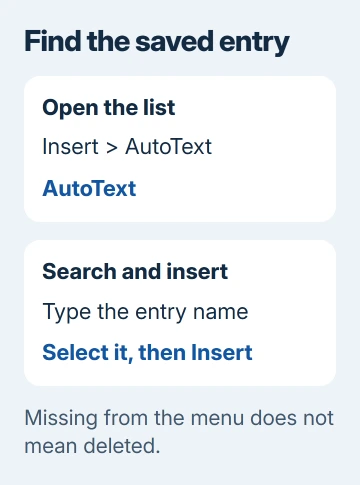
One owner confirmed this search-and-insert route was an acceptable workaround after entries stopped appearing in the menu in Word 16.9.1. Rebuilding the default template and restarting the Mac hadn't restored the menu.
The reported build was Word 16.9.1 for Mac. In a later version, start with the AutoText window too. Check whether the entry appears there and whether Insert puts it into your document.
If the entry appears and inserts correctly, its absence from the short menu isn't a reason to rebuild it. Continue with the keyboard option if opening the window each time slows down your work.
2. Give frequently used entries a shortcut
Choose Tools > Customize Keyboard inside Word. Select Building Blocks in Categories, then select the AutoText entry in Commands. This assigns a shortcut directly to a saved block rather than to the whole AutoText window.
Click Press new keyboard shortcut and press the combination you want. Check Currently assigned to before adding it. Pick an unused combination so you don't replace a shortcut you already depend on.
Choose Add, close the dialog and try the shortcut in a blank document. Confirm that the intended block appears where you're typing. If another action happens, check the key assignment and selected command.
Microsoft's custom shortcut instructions explain these controls. Use Word's dialog to check existing assignments.
I'd assign keys only to the few entries you use constantly. For dozens of report paragraphs, the searchable window is easier to remember than a large collection of key combinations.
Option+F3 creates AutoText from selected content; it doesn't insert a saved entry. Saving a new block and inserting an existing one use different commands.
3. Restore AutoComplete tips if names don't expand
Open the AutoText window and look for Show AutoComplete tip for AutoText and dates in the older Mac interface. Enable it if present, then return to an ordinary paragraph in your document.
Type the beginning of a saved entry name. The older reports describe typing at least four characters, with enough of the name for Word to recognize which entry you want. When a suggestion appears, use Return to accept it.
Names that start differently are easier to trigger. Two entries beginning with the same long word can still be hard for Word to tell apart after four characters. Give frequently typed entries distinct beginnings.
If typing the name only leaves ordinary text, the absence of a tip doesn't mean the entry is missing. Go back to the searchable AutoText window and check the entry there before creating another copy.
4. Check which template contains the entries
A Word template that won't open needs its own repair first. An error opening the template gallery needs a different fix from entries missing from the menu.
In the AutoText window, inspect Look in when that control is available. Select the template containing the entry, or the option covering available templates, then search again. An entry stored elsewhere may be hidden by that filter.
Next open Tools > Templates and Add-ins > Organizer and inspect the AutoText entries. This is useful when the saved entry appears in the Organizer but not in the list you've been using to insert it.
Normal.dotm is Word's default macro-enabled template. A personal template is a separate file that can hold reusable material for a particular kind of work. A saved AutoText block belongs to a template, not just to its menu listing.
Before moving entries, copy the template file somewhere safe with Word closed. Replacing or deleting Normal.dotm can remove custom material from the working template. Preserve it while you check where the entries are stored.
For the older reported workaround, create a personal template through File > Save As using a Word template format. Use Tools > Templates and Add-ins to attach it and add it to the available template list.
Use Organizer to copy the AutoText entries into that template, then select it in Look in in the AutoText window. Check one copied entry before moving a large collection. Copying lets you retain the original set.
A Normal.dotm loading error needs a different repair. Keep the old template intact so its saved entries can be recovered.
5. Check saving before rebuilding missing entries
Select a short phrase and choose Insert > AutoText > New. Give it a distinctive name, save the entry and insert it once. Quit Word normally, saving the template if asked.
Reopen Word and search for that sample in the AutoText window. If it's still there, Word saved the entry when you quit.
If it survives, Word can save entries and the problem is more specific to the old collection, selected template or menu. If it disappears, note where the entry was saved and ask support to check template saving and permissions.
Update the supported Word edition installed on your Mac and repeat the one-entry check. The old Office 2016 edition won't receive another repair, so continuing trouble there calls for a supported replacement.
Use Word > About Microsoft Word for the version. Send it, the template filename and Organizer result to IT or Microsoft's Contact Us page. Ask them whether Word's problem is saving the entry or inserting it.
The Short Version
Search the AutoText window before recreating missing entries. Assign Word shortcuts to frequent blocks, check AutoComplete tips and select the correct template. Preserve your templates before moving or rebuilding the collection.
Checked November 17, 2026.






