
Word's global-template error on Mac can mean Normal.dotm is damaged. Quit Word and move that template aside to let Word recreate it. Keep the original until the warning stops and you've checked your custom settings.
Another owner in the same discussion stopped seeing the error after an Office update. Updating is the quick first step; resetting the template comes next when the message keeps returning at startup or shutdown.
In this guide
1. Update Word before changing its files
Save your work, then open Help > Check for Updates in Word. Install the offered Office updates and reopen Word. If you installed Office through Apple's App Store, check its Updates section instead.
When gallery designs disappear after Create without a Normal.dotm warning, refresh the language-specific Word template cache.
Create a blank document, enter a short sentence, and save the test file. Quit with Word > Quit Word, then start Word again. Check both opening and quitting: owners reported the warning at either point.
An AutoRecover location error paired with Word's files-open warning needs a save-location check rather than an automatic template reset.
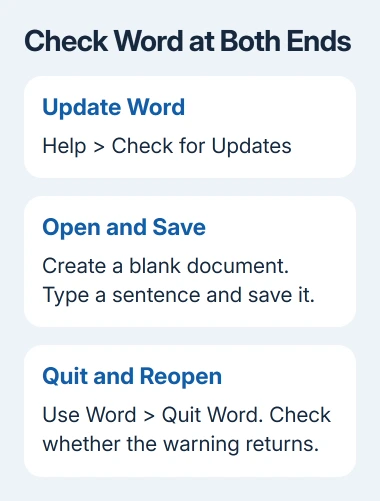
An owner reported that an update cleared the error, without naming its build. Use the available update for your supported Word release; the report gives no particular old version to look for.
If the warning returns, note its exact wording. Cannot open the existing global template, replace the existing Normal.dotm, and a prompt to save global-template changes can appear during this problem.
A routine save prompt after intentionally changing defaults can have a different explanation. Think about whether you changed a font or style before treating every template-save question as damage.
2. Find the template used by modern Word for Mac
Save and close every open Word document, then choose Word > Quit Word. Clicking the red window button alone can leave Word running. Quit it fully before moving its template.
In Finder, choose Go > Go to Folder. Paste this path and press Return:
~/Library/Group Containers/UBF8T346G9.Office/User Content/Templates
Look for Normal.dotm. The tilde at the start means your own user folder, so you don't need to substitute your account name. This Office folder layout doesn't change with the Mac's Intel or Apple silicon processor.
The owner who confirmed the template fix used this Group Containers folder. The older User Templates folder in the suggested answer wasn't the right location on their Mac.
For older Office installations, the alternate folder is:
~/Library/Application Support/Microsoft/Office/User Templates
Microsoft's older Word for Mac troubleshooting steps use that older location and move Normal.dotm to the desktop before testing Word.
If both folders lack Normal.dotm, check your Word version under Word > About Microsoft Word. Don't create an empty file with that name or remove every template found by a Mac-wide search.
3. Move Normal.dotm aside and test a fresh copy
Drag Normal.dotm from the appropriate Templates folder to a safe folder on your desktop. Give the backup folder a clear name so you can return the file to its original location if the test doesn't help.
Normal.dotm holds defaults and can hold personal customizations. Moving it lets Word start with a new template, so some familiar settings may change. Keep the original backup instead of throwing it away as part of this test.
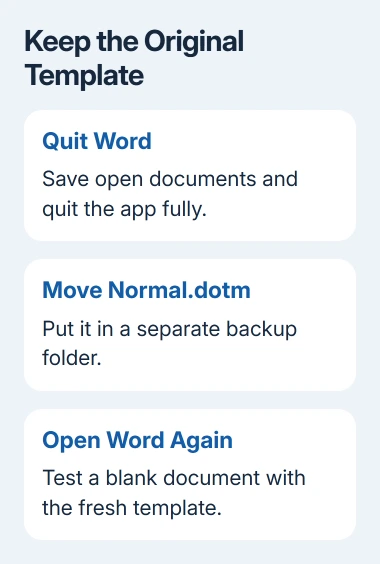
Open Word itself and create a blank document. Type a short sentence, save the document, then quit Word and reopen it. Check whether the template warning appears during either action.
If the warning stops and a new Normal.dotm appears in the template folder, Word is using the replacement. Open a copy of an ordinary document too, so the check includes your normal work as well as a blank page.
A later owner reported that their linked method failed. If the warning remains, quit Word and undo the reset. Move the fresh template elsewhere, then put your backed-up Normal.dotm into its original folder. Keep the files separate.
I'd keep the old template for a while even after a successful reset. It gives you something to recover customizations from if a familiar shortcut or saved item turns out to be missing later.
For saved text that remains stored but vanishes from the menu, search the AutoText window before rebuilding the collection.
4. Restore defaults without bringing the error back
Check newly typed text in a new blank document before changing anything else. An existing document keeps its own formatting, so its old font doesn't mean the new template failed.
To restore a preferred font, use the Word default-font controls. On Mac, Format > Font > Default applies the choice through Word instead of replacing the fresh template with the suspect file.
Reapply the few defaults you actually need and repeat the quit-and-reopen check. If restoring one particular change or add-in brings the warning back, tell support exactly which change preceded it.
Opening Normal.dotm from Finder creates a document based on the template. To edit the template itself, use File > Open inside Word, as the Mac default-settings instructions explain.
Windows Word has its own template location and startup switches. For Word that won't launch on Windows, use the Word startup repair steps rather than pasting the Mac folder path into File Explorer.
When a fresh template still produces the warning
Contact Microsoft Support through Help > Contact Support if your Word version offers it, or ask workplace IT to open an Office support request. Include the exact message, Word version, macOS version, and the template path you checked.
Give support the update result and say whether a new template appeared. Note when the warning occurs: launching, quitting, or opening one file. That helps support choose between checking permissions, add-ins, or the document next.
The Short Version
With Word updated and fully closed, back up Normal.dotm and test a replacement. Check opening and quitting, keep the original template, and restore it if the reset doesn't help.
Checked November 16, 2026.






