
Word can report too many files with just one document open. Save a separate copy first if an AutoRecover location error appears too. On OS X Lion with Word 2011, repairing permissions helped one owner, but others reported failures.
The useful next step depends on the Mac's age. Lion's Disk Utility has a permissions repair command that newer macOS releases don't offer. Don't follow an old Terminal fix just because it repeats the words in the error.
In this guide
1. Save a readable copy before closing Word
Choose File > Save As, enter a different filename and select your local Documents folder. This checks whether Word can write a normal document even though its automatic recovery copy is failing.
Once it saves, look in Finder for the document under its new name. Keep the original document too. The different names help distinguish the latest saved work from the file open when the warning began.
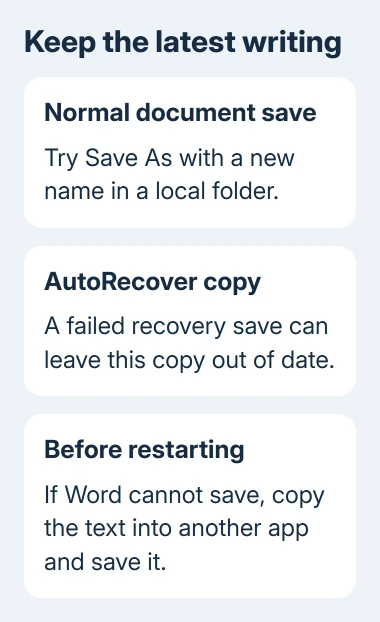
If Word won't save the document, copy its text into another app and save that separately before restarting. That may lose layout, pictures or tracked changes, but it preserves readable writing while you deal with Word's failed save.
For a long or heavily formatted document, also note which pages contain recent edits. Check those parts in any recovered copy. Finding a file on disk doesn't tell you whether your newest changes were saved.
I'd preserve the writing before testing anything that closes Word. AutoRecover is meant to help after an interruption; a message saying that its file couldn't be saved means you shouldn't rely on that recovery copy being current.
If Word has already closed, use the unsaved Word recovery guide to check for available copies. That recovery job comes before trying to stop the next warning.
2. Compare a local document with the failing location
Once your work is saved elsewhere, quit Word normally and restart the Mac. Reopen Word without the original document, create a small test document, and save it to Documents with a distinct name.
Make a few changes and leave it open for the time set in your AutoRecover settings. Watch for both messages: the files-open warning and the separate warning about the AutoRecover location.
If the local test works while the shared or synced copy fails, continue with the local copy until the folder is checked. That points toward trouble with storage or access; it doesn't identify a sync app as the cause.
Some replies suggested Dropbox was involved, but there wasn't a clear follow-up saying that fixing Dropbox solved it. Don't remove a sync account or move an entire document collection on that evidence alone.
Check your folder in Finder through Get Info > Sharing & Permissions. Your account should have Read & Write access. Have IT correct shared-folder restrictions without opening access to unrelated users.
If even the small local document triggers the warning, continue with the version-specific checks. The original document's size or network location is then less likely to explain the warning.
3. Try the Lion-era permissions repair
This step belongs to systems such as OS X Lion, the version in the original Word 2011 report. Open Applications > Utilities > Disk Utility, select the startup volume and open First Aid.
Choose Repair Disk Permissions, let it finish, then restart the Mac. Open the local test document again and check whether the warning returns during editing and automatic recovery saves.
One owner in the original discussion reported that repairing permissions solved their problem. Other owners later reported no improvement or a return of the error, so check again later even if the first session goes well.
The old command isn't available in OS X El Capitan and newer releases. Current Disk Utility's First Aid is a different tool. Its presence doesn't mean the historical permissions-repair instructions apply to your Mac.
If the button is absent, move to the next check. Don't install a permissions utility or run a downloaded script to recreate that old step. The original thread doesn't provide a reliable universal repair for this warning.
4. Test Word with startup extras restricted
Intel Macs, including the original Lion case
Save work and shut down. Start the Intel Mac with Shift held as soon as startup begins. At the login screen, let go of Shift. Sign in, then open Word and repeat the same small local-document test.
Safe mode prevents some startup software and extra fonts from loading. If Word saves in this mode, restart normally and test again. If the failure returns, ask IT to check which programs load when your account starts.
The comparison won't name the troublesome font or add-in. Use the same document in the same location for both sessions. Changing several things at once would make the two results harder to use.
Apple silicon Macs with a compatible Word release
Shut down the Apple silicon Mac. Keep its power button pressed as it starts, releasing it once startup options load. Select the startup disk. With Shift held, click Continue in Safe Mode.
Apple's safe-mode instructions describe both startup methods and how to compare the results. The Apple silicon route is for modern Word; the original Word 2011 and Lion case was an Intel-era setup.
If the warning continues in safe mode, pass that result on. The accepted reply proposed this test, but it didn't show an owner confirming that safe mode permanently fixed the save failure.
5. Skip the old file-limit command and report the save failure
Replies suggested raising a system limit on open files through a launchd configuration file, which controls startup settings. Owners said the warning continued afterward. Raising the limit wasn't a reliable fix for their Word problem.
Leave system limits alone for this fault. The visible message doesn't tell you that a specific limit has been reached, and those old configuration instructions aren't a general repair for current macOS.
For an old installation, have IT plan the move to supported Office and macOS releases. Check a few documents that cover the work you do, including their tables, fonts and tracked changes, before replacing the old setup.
For a current release, report your exact Word build and macOS version to Microsoft Support. Include both messages and the local-versus-shared-folder result. Ask them to check the document save and AutoRecover failures together.
For a separate prompt naming Normal.dotm, the Word template repair addresses that specific error. Don't reset templates solely because this warning mentions open files.
The Short Version
Preserve the writing and compare a small local document. Lion's permissions repair helped one owner but failed others. Use the Mac's correct safe-mode method, leave old file-limit commands alone and report both save errors together.
Checked November 16, 2026.






