

Excel Online conditional formatting can be a day out when the workbook's SharePoint regional settings are wrong. Check =NOW() in a spare cell: if its date or time is wrong too, have the site owner review those settings first.
When the clock is correct but colors fail, check for text dates and the wrong rule range. A missing editor is another case: today's browser version has Manage Rules, unlike the limited controls described in older replies.
In this guide
1. Correct the site settings when NOW shows the wrong day
Enter =NOW() in an unused cell and format it to display both date and time. Compare it with the actual local date. A previous-day result can explain a date rule that appears one day late, even when the rule's comparison is correct.
One owner fixed this after correcting the SharePoint area's regional settings. Their earlier computer time-zone check hadn't helped, and a new workbook still showed the wrong day. The later reply confirmed the site change worked.
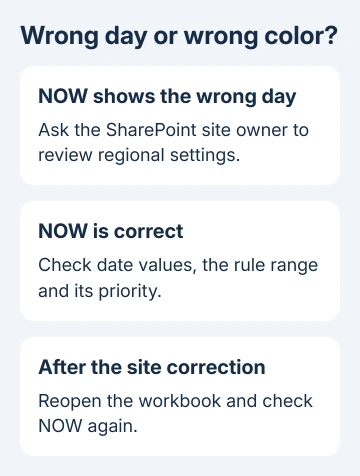
Ask the site owner to open Settings > Site settings > Regional Settings under Site Administration. Some layouts use Settings > Site information > View all site settings first; others expose Site settings through Site contents.
Check the site's Time Zone and Locale, then select OK after correcting the relevant setting. Locale changes can reset other regional defaults, so the owner should review those before saving. Reopen the workbook and compare NOW again.
The site regional controls require site-owner or administrator access. Send that person the wrong displayed date and the workbook location when your account can't open those settings.
2. Check whether Excel recognizes the date
Choose a cell that should change color and inspect its formula bar. A date typed with a leading apostrophe or brought in from another system can be stored as text. Changing its date display won't turn text into a real date value.
In an unused cell, enter =ISNUMBER(A2), replacing A2 with the date cell. A real Excel date is stored as a number, so TRUE is the useful result for a normal date cell. If it returns FALSE, check how that value was entered or imported.
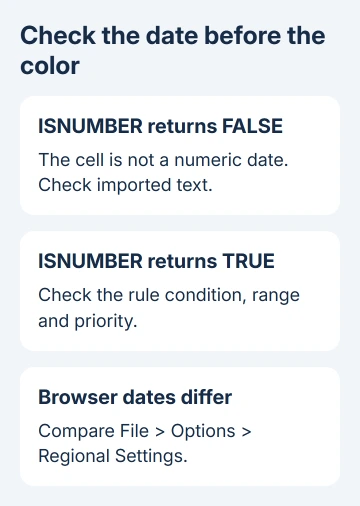
For a clean comparison, put =TODAY() in a spare cell and apply a simple date rule to that cell. If that works while the original doesn't, inspect the imported values rather than deleting all the worksheet's formatting.
Microsoft's instructions recommend converting recognized text dates with DATEVALUE. Try =DATEVALUE(A2) in a spare column. Check the resulting date before replacing source values.
Format the result as a date so you can inspect the day, month and year. A numeric result is normal before date formatting. A #VALUE! error means that particular text wasn't recognized in the current date format.
3. Open the current browser rule editor
Select the affected cells, then choose Home > Conditional Formatting > Manage Rules. In a narrower ribbon, the command can sit within the Styles group. The pane should show rules for your selection, with controls for editing them.
If the expected rule isn't listed, change which cells the pane shows rules for. Rules for other cells won't appear as matches for your selection. Check the worksheet scope before deciding the workbook has lost the rule.
Open the relevant rule and inspect both its condition and its cell range. After making a change, select Done to apply it. Closing a pane without applying the edit can leave the workbook using the old condition.
For a basic test, use one clearly matching value and one clearly nonmatching value. Choose a visible fill color. If neither reacts, review the target range and condition before choosing another shade.
The ordinary cell-highlighting options are useful for simple value checks. A direct fill color is different from a conditional color that appears only while the rule is true.
4. Match the formula to the first target row
For a rule applied to A2:A20, a formula referring to A2 starts with the correct row. A formula referring to A3 evaluates the next row instead, making a good rule appear to color the wrong dates.
To highlight calendar dates from today through six days earlier, an example condition is =AND(ISNUMBER(A2),A2>=TODAY()-6,A2<TODAY()+1). This includes all of today, including date values that also carry a time.
That example describes seven calendar dates, not a rolling 168-hour period. Choose the condition that matches the deadline you're tracking. A built-in date period won't necessarily cover the same times as an exact hourly interval.
For whole-row highlighting, select the whole target block and lock the tested column while leaving its row free, such as $A2. The another-cell formatting guide explains those reference locks with a worked example.
Test the formula in a spare cell if its result is unclear. TRUE means the condition matches that row; FALSE means it doesn't. When the formula returns FALSE, changing formatting priority won't make it a matching condition.
5. Check overlapping rules before removing them
Open Manage Rules and look for other rules covering the same cells. Two rules that both match can apply different fill colors. Their priority affects the appearance when the formats conflict.
Move the intended rule to the appropriate priority using the pane's order controls. Check any Stop If True setting where available. A higher rule that stops evaluation can prevent a later rule from supplying its format.
Try the adjustment on a small range first. Keep unrelated warning or deadline rules intact. Deleting every rule hides the conflict but also throws away formatting you may need elsewhere in the worksheet.
If a new rule works in a blank area, compare its range, condition and priority with the original. Use that comparison to locate the conflicting rule before rebuilding a large shared sheet.
6. Compare regional formats when browser and desktop differ
In Excel for the web, choose File > Options > Regional Settings. Select the intended regional format and choose Change. The browser session refreshes using the selection.
For work or school files, the starting regional format comes from the SharePoint site holding the workbook. Your browser preference changes your own view, rather than changing how every colleague sees the file.
Excel stores this preference in a third-party cookie, a small piece of browser data. If a change won't stick, ask IT to review cookie restrictions for this feature. Don't change the organization's date convention to fix just your view.
Check an ambiguous date such as 04/05/2026 against a known record. April 5 and May 4 are both possible readings of that entry. For a clean sample, =DATE(2026,5,4) creates May 4 without depending on the typed date order.
The browser's regional-format preference controls your own date interpretation and display. The site's time-zone setting in step 1 is a separate check. Use the setting that matches the fault rather than treating the two as interchangeable.
What to send the workbook owner
If the rule still fails, send a small copy containing one failing date, its formula, the rule's range and the expected color. Include whether the same copy works in desktop Excel and which regional format the browser uses.
If the rule controls aren't available, ask the owner to check that you have permission to edit. For a repeatable browser failure, IT can send the small sample with a Microsoft 365 support request. The entire workbook shouldn't be needed.
The Short Version
Start with numeric date values, then inspect the rule's range, references and priority in Manage Rules. Use regional settings for browser and desktop date differences, and keep a small failing example for the workbook owner.
Checked November 17, 2026.
 If you have any business, I can build it online






