Sorting by conditional color can bog down Excel when a large range has excessive formatting rules. On a saved copy, remove the affected rule and sort by cell values first. That groups matching entries without relying on calculated colors.
A small range crashing calls for a different repair than a 300,000-row workbook with duplicate highlighting. Check which case fits your file before repairing Office.
The old large-workbook report has no confirmed crash fix. Current vendor guidance supports removing excessive conditional formatting, which is the starting point here.
In this guide
1. Remove the rule on a copy and sort the values
Save the workbook under a new name before changing its rules. Keep the original for comparison and to recover its formatting. Removing a rule changes how matches are displayed, but keeps the contents of your cells.
Select the column or range carrying the duplicate-highlighting rule. Open Home > Conditional Formatting > Manage Rules. Show rules for This Worksheet if the rule isn't visible for the current selection.
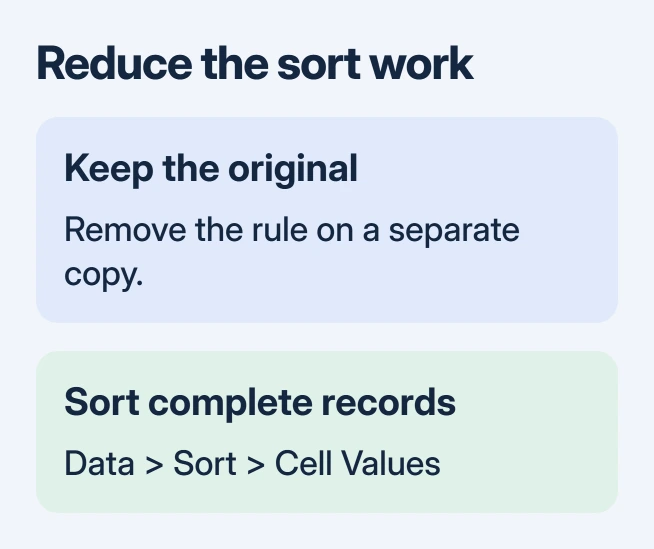
Identify the duplicate rule and its Applies to range. Delete that rule in the copy and apply the change. If several important rules overlap the same cells, record them first so you know exactly what you're removing.
Select the complete data table, including related columns, then open Data > Sort. Choose the relevant column, set Sort On to Cell Values, and select an ascending order. Confirm whether the table has headers.
Accept Expand the selection when Excel offers it, keeping related columns with their records. Sorting one column alone can separate names, amounts or dates that belong together. Check a recognizable record after the sort.
Equal entries should now sit together. This doesn't move every duplicate group into one block at the top the way a color-based sort might, but it lets you inspect each repeated value without the extra work of sorting by color.
If the copied sheet sorts normally, continue with the formatting cleanup. If it still hangs, try the small clean workbook in step 4 before changing more rules. A failed value sort suggests the problem isn't just conditional color.
2. Shrink oversized formatting ranges
Return to Manage Rules and inspect the rules covering your data. An Applies to range spanning whole columns can be much larger than the actual list. Restrict the rule to the current data rows when the workbook's design allows it.
For example, a list running from A2 through A5000 doesn't need a duplicate rule covering every cell in A:A. Set Applies to to the range containing your data, then inspect both ends of the range after applying it.
Microsoft's workbook memory cleanup guide recommends removing conditional formatting when it causes performance problems. It also identifies excessive formatting as a cause of large files and poor performance.
Look for repeated rules created by copying and pasting formatted cells. Remove rules you no longer need, but compare their conditions and ranges before combining anything. Similar-looking rules can apply to different sections for a reason.
When you only need matching values grouped together, leave the copy sorted by values. Reapplying duplicate highlighting across the same very large range can bring the extra calculation work back, even after a successful sort.
If color remains necessary, rebuild only the required rule on the smaller range and try it there. For conditions controlled by another column, use the formula-based formatting examples to match the rule to its range and the cells it checks.
3. Keep duplicate review in one complete list
Sorting by values puts equal entries beside each other, but doesn't decide which record to keep. Review the rest of each row too. Two people can share a name while having different customer numbers.
Choose the field that defines a duplicate for your task. For example, repeated invoice numbers call for checking that identifier, rather than sorting by a customer's name and assuming every repeated name is an error.
I'd keep this review in one complete dataset. A separate workbook for each month can hide a duplicate that appears in two different months. Before splitting the file, plan how you'll check for duplicates across its separate parts.
When the complete list remains too slow, ask its owner to review the duplicate check. They can decide whether to reduce unnecessary rules, use smaller review ranges, or move the duplicate check into a tool designed for their dataset.
The original large-file discussion involved about 300,000 rows. Safe mode didn't help the owner. Support found the formatting slow, but couldn't reproduce the crash or confirm a fix for it.
That row count isn't an Excel crash threshold. Use the small sample next to check whether your installation fails even without a large workload, rather than assuming the same size explains every failure.
4. Try a small clean workbook before repairing Office
In a fresh workbook, enter several ordinary values, including a repeated entry. Sort the whole sample by values. Then apply duplicate highlighting through Home > Conditional Formatting > Highlight Cells Rules > Duplicate Values.
Try Data > Sort, choosing Cell Color and the highlighted color if that is the operation that fails in your real file. Keep the sample small so you're checking the feature, not recreating the original workload.
If this works, give the workbook maintainer the rule count, their ranges and how the cleaned copy sorted. Ask them to reduce the affected sheet's rules or change how duplicates are reviewed. Office repair isn't the first choice here.
If the small sample also crashes, save the sample and update Excel. In Windows desktop Excel, use File > Account > Update Options > Update Now where available. Managed installations may require the help desk to update them.
Report the exact version and whether a value sort fails too. On Windows 11, Office repair is under Settings > Apps > Installed apps, the Office entry's menu, then Modify. Windows 10 uses Apps & features > Office > Modify.
Try Quick Repair, then Online Repair if needed and offered. Use these repairs when the small sample fails too; they weren't confirmed to fix the old large-file case. Give Microsoft 365 support the harmless sample if the fault continues.
A formula that updates while its color remains stale needs the separate conditional-formatting refresh checks. That's a problem with the displayed color updating, rather than a sort that makes Excel stop responding.
The Short Version
Use a workbook copy to remove the affected rule, then sort complete records by cell values. Trim oversized formatting ranges and unused rules. If even a small clean sample crashes, update or repair Excel and send support that sample.
Checked November 17, 2026.