Word's Transcribe option depends on the app and Microsoft 365 account. Open Word for the web in Edge or Chrome with your subscription account, then check Home's Dictate menu. Try this first when desktop Word only offers Dictate.
If Transcribe is missing or can't be selected, start with the app and account checks. If its pane opens but won't record, move to the microphone checks. These problems need different fixes.
In this guide
1. Try Word for the web with the right account
Open Word for the web in Microsoft Edge or Google Chrome and create a blank document. Check the profile picture or initials to confirm which account is signed in. Use the account that has your Microsoft 365 subscription.
Open Home, then the menu attached to Dictate, and select Transcribe. Clicking the microphone itself can start ordinary dictation instead of opening the menu you need.
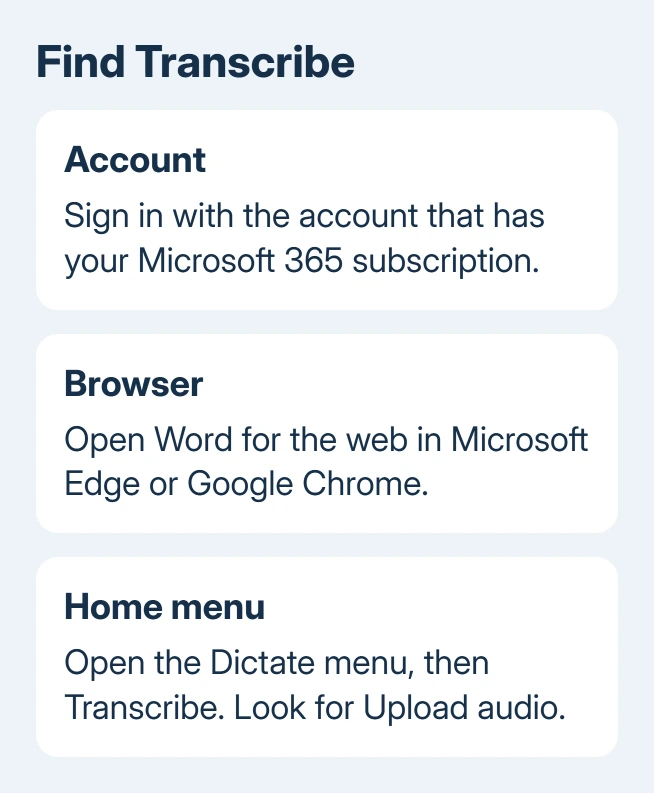
The Transcribe pane should offer Start recording and Upload audio. Once it appears, you've found the feature. You don't need to reinstall desktop Office to use this browser route.
An owner found Transcribe online after looking in the desktop app; another used it for recorded interviews. Later replies reported the menu disappearing, so switching apps won't explain every case.
If the pane is still missing in the browser, check whether your subscription and app support Transcribe. If it opens but the recording fails, skip to the recording checks.
2. Check the subscription and desktop edition
Microsoft's Transcribe instructions give separate requirements for Word on Windows and Word on the web. Having a working Dictate button doesn't mean that every edition also includes Transcribe.
On Windows, the desktop feature is limited to Word for Microsoft 365 in commercial tenants, meaning eligible organization accounts. Government tenants use Word for the web for transcription.
For a personal subscription or Word on a Mac, use the web route described in the first section. Don't keep searching Mac desktop menus based on instructions written for Windows commercial accounts.
If you bought Office as a one-time purchase, check whether you also have a Microsoft 365 subscription before buying anything else. The Word purchase and license guide explains the difference.
With several accounts, the account in your browser can differ from the one activating desktop Word. Confirm the full account address in the web editor, particularly if your personal and work addresses look similar.
Ask your organization's administrator to confirm your assigned Microsoft 365 license if you're unsure. Ask specifically about Transcribe support for that account and app; having Office installed doesn't answer that question.
I'd check the account and app first. Repeated updates won't add Transcribe to an edition or account type that doesn't support it.
3. Treat the old language workaround as historical
The 2020 discussion included an unavailable Transcribe command when the Word interface used Spanish. The suggestion was to create a document, set its proofing language to English (US), type English text, then refresh.
That advice came from the feature's early English-only period. The current instructions list many supported languages, including Spanish. Don't switch an interview's language to English just because an old reply describes that restriction.
Other owners later reported that English was selected and Transcribe was still missing. Even though the language answer was marked as accepted, changing the language won't fix every missing menu today.
If Transcribe appears but you can't select it, tell support exactly that. Include your app interface language, document language, subscription type, plus the result from a separate blank document.
When Transcribe disappears, note when it last worked and whether the same subscription remains active. For a work account, have IT review the Word incidents in Microsoft 365 service health for a problem matching yours.
4. Check an audio upload once the pane opens
In the Transcribe pane, choose Upload audio and select your saved recording. Supported formats are .wav, .mp4, .m4a, and .mp3. Use the recording file itself, rather than a shortcut pointing to it.
Keep the pane open during transcription. Processing can take time, sometimes about as long as the audio. You can work elsewhere or switch tabs while leaving that document and its Transcribe pane open.
The recording is stored in the Transcribed Files folder in OneDrive. For research interviews or work recordings, check that your organization allows the audio to be uploaded to that account before starting.
Uploaded audio has a monthly limit. If the pane reports that you've reached it, read the limit for your account in the linked instructions. Reinstalling Word won't reset that monthly limit.
When the transcript appears, check speaker labels and a few timestamps against the recording. Select Add all to document to put the text into the document; the transcript doesn't automatically fill the page as ordinary dictation does.
If your recording came from a meeting, the Teams recording steps explain how meeting recordings differ from a new recording made inside Word.
5. Fix recording permissions only when needed
For a new recording, select Start recording and approve microphone permission for the browser. Check that the recording indicator appears and the timer is moving before beginning the interview.
If permission was denied earlier, open the browser's site-permission controls for the current Word page and allow its microphone access. Reload the document if the browser asks, then reopen Transcribe and try a short recording.
Check the computer's selected input and the headset's mute control if Word records silence. A microphone problem affects Start recording; it doesn't explain a Transcribe command that's absent from the menu.
When finished, select Save and transcribe now. Wait for the transcript and play a short section to confirm that the expected sound was captured. Text appearing on the page while you speak indicates Dictate is running instead.
Ask support about the account's feature access
If it's still missing with an eligible account in Edge or Chrome, ask Microsoft 365 Support to check feature availability. Include whether it's absent or unavailable, your browser and account type, and the blank-document result.
For work or school, give IT those results first. For a personal subscription, contact Microsoft 365 Support. Keep interview audio private unless support needs a sample that you're allowed to share.
The Short Version
Open Word web in Edge or Chrome with your subscription account, then check Home's Dictate menu. Check desktop eligibility separately. Once the pane opens, check upload limits or microphone access for the task that fails.
Checked November 17, 2026.