Microsoft Word is available alone, in Office 2024, or through a Microsoft 365 subscription. Pay once for one computer, or choose a subscription for desktop apps on several devices. Check whether you already have access before paying again.
Before paying, check whether your Microsoft account, school, or employer already includes Word. An installed Word icon doesn't tell you whether the computer has a paid license, a trial, or an app waiting for activation.
In this guide
Choose the purchase that fits how you'll use Word
The main decision is whether you want one desktop installation or a continuing subscription. Microsoft's comparison of Office and Microsoft 365 confirms that standalone Word is available for both Windows and Mac.
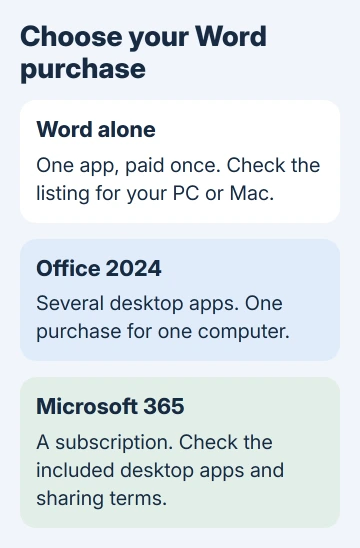
Standalone Word suits someone who needs that app alone. Search for Word in the Microsoft Store, open the actual product listing, and check that it's a one-time purchase for your computer's operating system.
Office 2024 bundles several desktop apps in one purchase. It covers one PC or Mac, and a later major release is a separate purchase. Compare its included apps with standalone Word before deciding which product gives you what you need.
Microsoft 365 Personal covers one person. Family lets other people use their own accounts. Check the plan's device and sharing limits on its purchase page. Use its sharing feature so each person can keep their own password.
Basic adds services, but doesn't include full desktop Office apps. Paying for extra OneDrive space through Basic won't unlock desktop Word. Read the included-apps list, even when the plan's name sounds similar to the one you wanted.
For interview recordings, check Transcribe eligibility before assuming a particular desktop purchase includes audio-file transcription.
I'd compare the standalone price with the Office package before buying Word alone. The package can be the better fit when Excel or PowerPoint is also part of your work, but the current checkout prices should decide that comparison.
Check for a license before buying another one
On Windows, open Word and select File > Account. Look at the product name and the account associated with it. An activation warning needs attention, but it doesn't automatically mean you need another purchase.
Open Services & subscriptions in your Microsoft account with the email used for earlier purchases. Look for an Office product or subscription. If the purchase is missing, check another personal account you used.
On an organization's computer, ask its administrator to confirm desktop-app access for your assigned plan. Access to email, Teams, or browser-based Word alone doesn't answer that question.
If the app already says Unlicensed Product, use the Office account and activation checks before paying. That helps when Word is using an account without a desktop license.
Check that the product includes desktop Word and belongs to an account you'll be able to keep using. Save its email address with the receipt. That makes a future reinstall easier than searching several old inboxes.
Buy Word or an Office package from the store
Open the Microsoft Store website and search for the exact product: Word, Office Home 2024, or another Office edition that meets your needs. Choose the listing for a software purchase rather than a help article or a template.
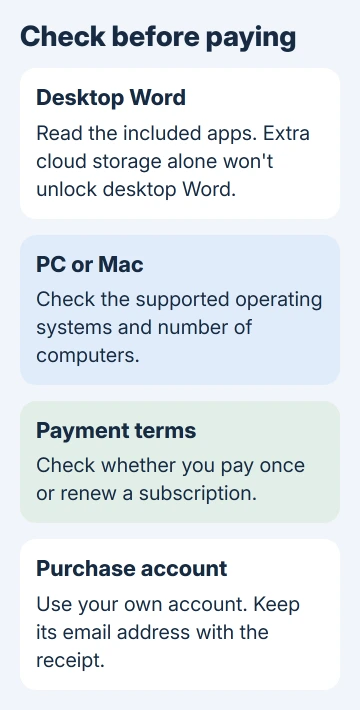
Check which operating systems the listing supports, which apps it includes, how many computers it covers, and its license terms. For business use, check the edition's license. Don't assume every home package carries the same rights.
Complete checkout with your intended purchase account. Check the total, currency, and tax, then finish payment. Save the confirmation and order details. Use an account you own, even if you can borrow someone else's.
For a Microsoft 365 subscription, choose the plan on its official purchase page instead. Read whether the price is monthly or annual, whether the first period is promotional, and whether recurring billing is enabled.
The confirmation should name the product you selected. A successful payment for cloud storage or a different Microsoft service won't activate Word just because it appears under the same account.
Redeem a retail key under the correct account
A purchase from a retailer may supply a product-key card or an email containing a key. Keep the receipt as well as the code. The code isn't the same thing as your Microsoft account password.
Go to microsoft365.com/setup and redeem the purchase under the account you'll keep using. Read the displayed email before accepting the prompts. Redemption attaches the new retail purchase to that account.
If the key shows as used, check the account where you redeemed it before reinstalling. Redeeming that code again isn't the normal reinstall route. If a newly sold key unexpectedly shows as used, ask the retailer to verify it.
A subscription bought directly online doesn't necessarily come with a key to type. The account and purchase record can be all that's needed. Don't keep searching the receipt for a code when the product is already listed in your account.
Install Word and confirm that editing works
After purchase or redemption, open the product from your account and follow its installation option. Windows and Mac use different installers, so use the download offered for the computer where you're installing Word.
The Word download instructions cover the installation itself, including a missing Install apps option. Keep the purchase decision separate from fixing an installer that won't finish.
Open Word, sign in with your purchase account, and create a blank document. Type a few words and save it. On Windows, revisit File > Account if an activation banner remains, and compare the displayed product with your receipt.
If a paid product is missing from your account, open Microsoft Support's billing help. Supply the order number, date, product name, and account address. Ask the retailer first when its supplied key is missing or rejected.
The Short Version
Buy standalone Word for that app alone, Office 2024 for a one-computer package, or Microsoft 365 for subscription benefits. Check existing access first, use the right account, and confirm the purchase includes desktop Word.
Checked November 16, 2026.