

Invitation crashes in Outlook can involve an add-in, one message, or your desktop profile. Compare another item, then try safe mode. If Accept closes a shared-calendar invitation, use new Outlook or accept through Outlook in a browser.
Sent Items and Deleted Items crashes also need a check of whether one message or the whole folder causes the crash. Don't empty a folder to find out whether one message is responsible.
In this guide
1. Match the crash to the item you're opening
Notice the last action before Outlook closes. Selecting a message, opening the Sent Items folder, accepting a meeting, and accepting access to somebody else's shared calendar can point to different problems.
Open an ordinary email from that folder. If it works, note which invitation fails. If entering the folder itself closes Outlook, record that trigger instead of guessing which message caused it.
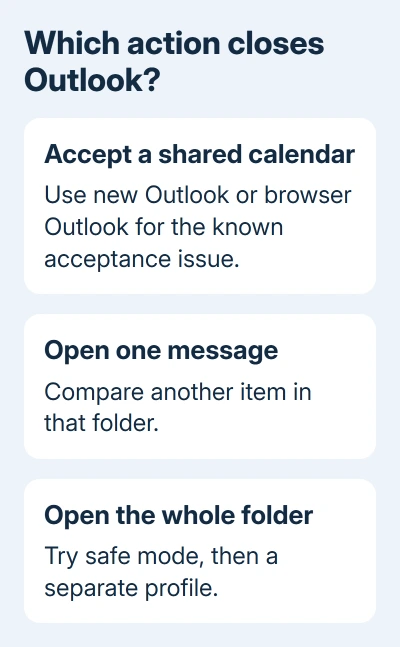
If the folder stays open long enough, choose View > Reading Pane > Off inside it. That stops Outlook automatically previewing a selected message there. If the folder closes the app before you can change it, continue to safe mode.
If the list stays open with the Reading Pane off, displaying a message may be what triggers the crash. That still won't reveal which part of that message causes the crash. Keep that detail for the later support report.
In the original discussion, disabling add-ins didn't stop the invitation and folder crashes. The owner planned to try the later repair suggestions but never returned with a result.
2. Use the shared-calendar workaround when it fits
A sharing invitation gives access to another person's calendar. It isn't an ordinary invitation to attend a meeting. Check what the message offers before treating every Accept-button crash as the same problem.
Microsoft lists a shared-calendar acceptance crash when classic Outlook receives a sharing notification and the recipient selects Accept.
The documented case is known to happen when the owner shared the calendar with Can view all details permission. The support page was updated July 22, 2026, and still offers a workaround rather than a desktop fix.
Open the same mailbox in new Outlook or your organization's browser Outlook and accept the sharing invitation there. Then return to classic Outlook and check that shared calendar in the desktop app.
This gets that invitation accepted without repeatedly triggering the desktop failure. It doesn't repair crashes when opening unrelated sent or deleted messages. Continue with safe mode for those cases.
For the permissions side, Outlook calendar sharing explains the access choices. Changing permissions isn't required just because the recipient needs to accept through another app.
3. Test safe mode, then check COM add-ins
Save any drafts and close Outlook. Press Windows key + R, enter outlook.exe /safe, and choose OK. Select your usual profile if asked, then try the same folder and item that caused the crash.
Outlook's safe-mode startup leaves add-ins unloaded. If the invitation or folder now opens, check the extensions before reinstalling Office. If it still closes, skip the repeated add-in experiments and compare a separate profile.
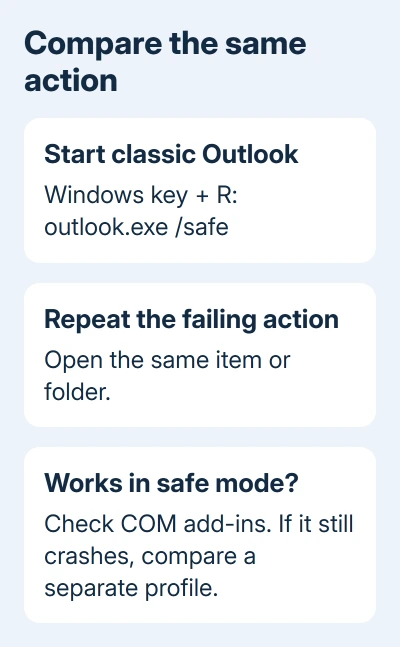
To change extensions, select File > Options > Add-ins. Set Manage to COM Add-ins and select Go. Make a note of the checked entries, then clear their checkboxes and confirm with OK.
Restart Outlook normally and repeat the action. When that works, enable one extension, restart, and check again. The extension that brings the crash back should stay disabled while its supplier or IT team checks its version.
I'd keep the comparison this narrow. Testing another message after changing an extension can give you a false sense that the original invitation is fixed, because the failing item wasn't part of the test.
4. Keep your profile and create a comparison setup
Reinstalling Office doesn't necessarily replace the profile that stores your accounts and Outlook settings. A separate profile checks that layer without throwing away your current setup.
Close Outlook, press Windows key + R, and run outlook.exe /profiles. Expand Options and select New. Enter Invite crash check as its name. The original profile remains available through this picker.
Add the affected email account and let the relevant folders synchronize. Start with that profile, then try the troublesome invitation or Sent Items folder. Use the same account so you're checking whether the profile makes a difference.
If it works, ask IT to help transfer any needed local data before replacing your previous setup. POP mail and local PST files need particular care; they aren't automatically recreated by signing in to a cloud mailbox.
If both profiles crash on the same item, save its subject, date and message type for support. If the crash also happens in browser Outlook, report that as an account or item problem rather than only a Windows installation problem.
5. Update Office and repair its installation
Open File > Office Account > Update Options > Update Now. If Outlook can't stay open, use File > Account in Word to reach Office's update controls. A managed work PC may leave updates to IT.
If updates leave the failure unchanged, close the Office programs and open Windows' repair options. On Windows 11, use Settings > Apps > Installed apps, find Microsoft 365, open its three-dot menu, and select Modify.
For Windows 10, open Settings > Apps > Apps & features. Highlight your installed Office suite and click Modify. Repair applies to that whole suite, including its Outlook installation.
For Click-to-Run installations, try Quick Repair first. If that doesn't help, choose Online Repair for a deeper repair using downloaded files. An MSI installation instead presents a Repair choice.
If opening a calendar invitation still crashes, send IT the version, trigger, and safe-mode/profile results. Ask them to collect the Application crash event and check whether the component named in that event matches a known issue.
The Short Version
Check whether one item or an entire folder causes the crash. Use the alternate acceptance route for shared-calendar invitations. Compare safe mode and a second profile for other cases, then update or repair Office.
Checked November 17, 2026.
 If you have any business, I can build it online






