

Windows high contrast can hide Excel's fill and font colors even after you've chosen a color. Temporarily turn it off before changing cell colors again. One owner restored both colors by returning to an ordinary Windows theme.
Colors missing only from certain cells can instead come from conditional formatting. If the sheet looks right but paper comes out gray, check print settings rather than changing the display theme.
In this guide
1. Turn off the Windows contrast theme
On Windows 11, open Settings > Accessibility > Contrast themes. Set the Contrast themes dropdown to None, then select Apply. Wait for Windows to finish changing the display before returning to Excel.
On Windows 10, open Settings > Ease of Access > High contrast. Set Turn on high contrast to Off. Check the same workbook without changing any cell formatting.
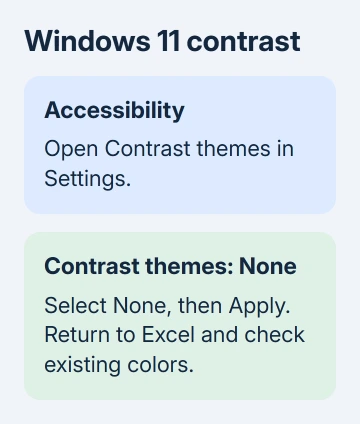
Microsoft's contrast-theme controls cover those two Windows paths. A normal light or dark appearance is different from an accessibility contrast theme, so changing Excel's Office Theme isn't the same check.
For the historical Windows 7 problem, right-click the desktop, choose Personalize, and select Windows 7 Basic. Owners using Windows 8.1 also restored colors by returning to their original non-high-contrast theme.
If a contrast theme helps you read the screen, note your current choice before changing it. You can restore it after checking the workbook, rather than giving up an accessibility setting without knowing whether it caused this problem.
Return to a cell that previously had a strong fill and another with colored text. If their colors reappear without you editing either cell, the formatting was present and the display mode was hiding it.
The cell shading instructions identify high contrast as a possible reason worksheet colors aren't visible. If colors remain missing with contrast off, continue with a fresh cell instead of repeatedly changing themes.
2. Try fill and font choices in fresh cells
Press Ctrl + N in desktop Excel to create a blank workbook. Type a short word into A1, select that cell, and choose a strong Home > Fill Color. In A2, type another word and apply Home > Font Color.
Select a different cell afterward so you can judge both examples. Check that you used the fill bucket for the background and Font Color for the letters. Picking a color in one tool doesn't change the other.
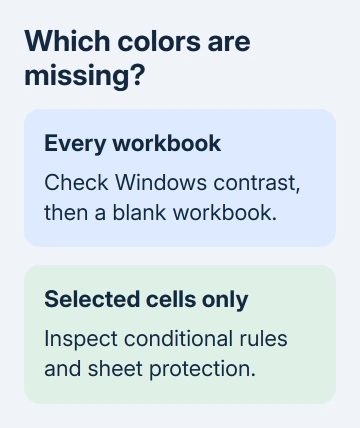
If both examples work, Excel can display and apply colors. The original worksheet needs a closer look at its formatting rules or protection. If neither works in a blank workbook, check Safe Mode after the Windows theme comparison.
For an affected cell, press Ctrl + 1 and inspect Fill and Font. If the chosen color appears in Format Cells but not on the sheet, Excel has kept your choice. That suggests Excel is hiding an applied color rather than ignoring your choice.
Avoid clearing the entire workbook's formatting as a first fix. That can remove number formats, dates and useful emphasis while leaving a Windows display problem exactly as it was.
If the workbook uses a table, keep its structure while checking its appearance. The Excel table guide explains how to recognize the table and its selected range before making broad changes.
3. Check rules when only selected cells ignore your color
Select one affected cell and open Home > Conditional Formatting > Manage Rules. Inspect rules applying to that selection, including their ranges and chosen font or fill colors.
Conditional formatting changes colors based on rules about your data. An active rule can override the fill or font color you've chosen manually. Clicking another ribbon color won't remove the condition that is controlling the cell.
For example, a rule that gives overdue dates a red fill can keep displaying red after you manually choose yellow. Check whether the cell meets that condition and whether the rule's range includes it.
Save a separate workbook copy. In the copy, change or remove just that rule, then apply the manual color again. Use the rule editor if the rule should remain but its appearance needs correcting.
Don't clear every rule from a shared report just to test one cell. The rules may carry warnings other readers depend on. Ask its author which rule supplies the color when that isn't clear.
If no rule explains it, look under Review for sheet protection. Sheet protection may allow cell selection while preventing format changes. Ask its owner to permit formatting or send an editable copy; keep password protection intact.
4. Try Excel without the normal add-ins
Save your files and close Excel. Press Windows + R, enter excel /safe, and press Enter. Create another blank workbook and repeat the fill and font examples there.
If Safe Mode restores colors and normal Excel loses them, open normal Excel and choose File > Options > Add-ins. Note which entries are checked under COM Add-ins > Go, then try with those entries disabled.
Restart Excel after the change. If colors return, enable a single entry, recheck those cells, then repeat for the remaining entries. Leave the add-in that hides colors disabled while its supplier or your administrator checks it.
Safe Mode didn't fix every owner's color problem in the older discussion. Neither did Office repair. If Safe Mode doesn't help, stop removing add-ins and focus on the display or Excel problem that remains.
I'd check the Windows theme before repairing Office. The confirmed theme fix changes how colors are shown, while a repair can't turn off an accessibility mode you've selected in Windows.
5. Separate display loss from print-only color loss
Open File > Print to compare the preview against the sheet. A colored sheet with a gray preview needs the Excel color-printing checks, starting with the Sheet-tab checkboxes for Black and white plus Draft quality.
When only the paper loses color, check the color setting in your printer driver. Recoloring cells won't fix grayscale output selected in the printer driver.
On Mac or browser Excel, compare fresh cells and conditional rules using that edition's controls. Windows accessibility paths won't apply. The browser workbook must also allow editing before you can change its formatting.
If fresh workbooks still lose color without contrast mode, use Excel's Help > Contact Support or speak to your administrator. Include your Excel build, Windows version and whether Format Cells still shows the color you chose.
The Short Version
Temporarily disable high contrast in Windows and inspect existing colored cells. Compare a blank workbook next. Rules and protection explain cell-specific failures; print-only color loss needs sheet and printer settings checked separately.
Checked November 17, 2026.
 If you have any business, I can build it online






