

The no-printer-installed error in Word can appear while other programs print normally. Save your work and restart Word, then check Windows' default printer. Owners restored printing with a local default, a driver update or Office repair.
Check whether Windows lists the printer before reinstalling it. A missing Windows entry needs different steps than a Word-only failure. For Office 2010, owners also reported software conflicts and fixes that stopped working.
In this guide
1. Restart Word and check a small document
Save every open document, close all Word windows, and open Word again. Create a blank document with a short line of text, then choose File > Print. Check the printer dropdown before trying your original document.
If Word still sees no printers, finish saving in every app before restarting Windows. The original report described a fault that often cleared after restarting the computer. Windows hadn't permanently lost the printer installation.
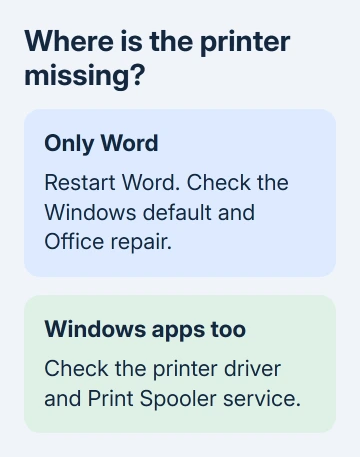
Close and reopen Word normally first. Ending Word through Task Manager can discard unsaved documents, and isn't needed when Word responds to its normal Close command.
When the blank file prints and your original fails, try a copy of the original and tell support that only that file fails. If both show the same missing-printer message, continue with Windows printer selection.
Leave paper sizes alone until Word offers a print destination. Then check the page-layout choices. For that later problem, the Word paper-size checks explain how the selected printer affects available sizes.
2. Select a local default printer in Windows
On Windows 11, open Settings > Bluetooth & devices > Printers & scanners. Switch Let Windows manage my default printer off. Select an installed destination and choose Set as default.
On Windows 10, open Settings > Devices > Printers & scanners. Clear automatic management, select the destination, choose Manage, then Set as default.
For the historical Windows 7 setup, open Control Panel > Devices and Printers. Right-click Microsoft XPS Document Writer, if installed, and choose Set as default printer. That was the local destination used in the old thread.
Current systems can use an installed Microsoft Print to PDF entry for this comparison. Reopen Word and check File > Print. If Word can create a PDF but can't use the physical printer, move on to its driver and connection checks.
The later owner replies include success after setting XPS as default, and another reply says that change didn't help. Let that result guide your next check; the cause varies between computers.
A local file-saving printer set as the default won't print on paper. Select your physical printer inside Word for the actual job. If Word stalls while opening files, the separate printer connection guide covers that waiting message.
3. Check the installed driver for the real printer
Select the physical printer in Windows and open Printer properties. On its General tab, use Print Test Page. A failed Windows test page means the printer needs attention before another Word repair.
Try a short print from Notepad using that same queue. If Notepad works but Word doesn't, keep both results for support. Two similar printer names may use different drivers, so check the full selected name in each app.
Open the manufacturer's support page for your exact printer. Download its driver for the Windows version on your computer. On a managed network printer, ask IT to check the server's driver and how the queue is assigned to your account.
One owner with Windows 7 and a Brother printer restored Word printing by installing the manufacturer's driver package. Another found that opening Printing Preferences prompted Windows to report a missing driver.
If the printer was installed automatically, its current driver might still fail in Word. A driver can be present in Windows while its preferences or application printing fail.
I'd check the test page and driver before removing a workplace queue. An administrator may need its server address or installation settings to put it back, and recreating it without those details can leave you with two broken entries.
4. Repair Office when Windows printing still works
Finish saving, then exit all Office applications. Press Windows + R, enter appwiz.cpl, select your Office or Microsoft 365 installation, and choose Change.
For Click-to-Run, run Quick Repair first; try Online Repair when Quick Repair fails. The online option repairs Office over an internet connection. An MSI installation offers Repair instead.
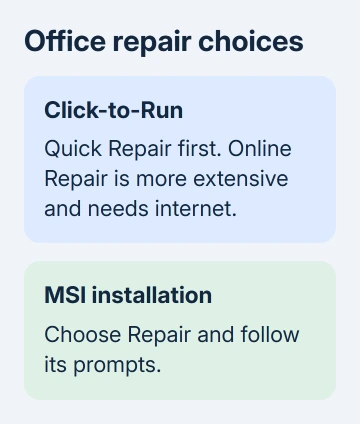
Microsoft's Office repair instructions explain those installer choices. After repair and any requested restart, try printing a fresh document before loading the files you normally use.
An owner in a later reply restored printing by repairing Office and restarting after removing and reinstalling the printer had failed. Repeating printer installation isn't useful if it hasn't changed the result.
If Safe Mode helps Word while a normal launch fails, ask IT to compare Word's add-ins. Start that comparison with winword /safe from Windows + R, then use File > Options > Add-ins in normal Word to inspect the installed entries.
5. Handle old security conflicts and returning failures
Office 2010 owners confirmed Avast conflicts. One owner restored printing after removing that antivirus, and another could print during a short pause of its file shield. Those fixes worked on the older setups in that discussion.
Keep antivirus protection active. If you still use that software, ask its vendor or IT about the installed version, protection logs and blocked Word or printer components, so they can fix printing without leaving a protection gap.
Administrator access helped some owners, but the workaround's author later said it stopped working. Running Word as an administrator isn't a lasting repair and shouldn't become your everyday document-opening method.
If printers disappear in other Windows apps too, ask IT to check Print Spooler in services.msc. One owner traced a stopped spooler to an old third-party print-management service and fixed it by removing that software.
Give IT the exact message, Office edition, Windows version, printer model and whether a restart helps temporarily. Have them use your results to check the driver, security logs and services that Print Spooler needs to run.
Microsoft ended support for this old Office release. Discuss replacing it with IT if faults keep returning. Buying the full 2010 edition isn't a fix for a Starter problem: owners reported this error in both editions.
The Short Version
Restart Word, try a blank file and select a local default. If PDF output works, check the physical device's driver. Repair Office for a Word-only failure. Have IT review software conflicts and services if it returns.
Checked November 17, 2026.






