

Word footnotes can disappear during copy and paste when the linked references get stripped out. Copy with Ctrl+C, paste with Ctrl+V, then choose Keep Source Formatting so Word carries the linked notes into the other document.
The small reference number in the sentence is what matters. Copying just the note's text won't do the same job. If keyboard paste works but right-click paste doesn't, check Word's paste settings.
In this guide
1. Copy the passage with its reference marks
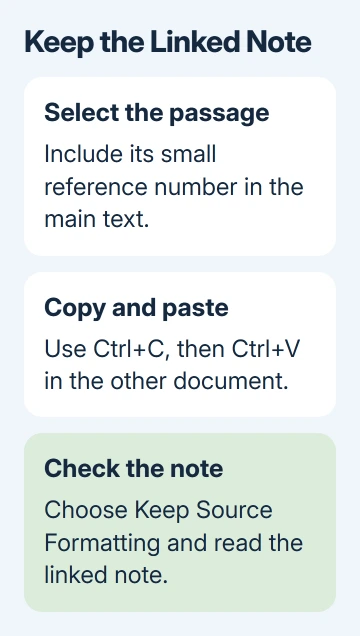
Open both documents in desktop Word. In the source, select a short paragraph containing one footnote reference. Include that little raised number in the selection, then press Ctrl+C. Click in the destination and press Ctrl+V.
Look for both the reference in the sentence and its note at the foot of the destination page. Word can renumber the reference to fit the destination's existing notes. A different number doesn't mean the original note was lost.
The note area doesn't have to turn blue along with the main text. Word stores footnotes separately from the main text, so selecting several pages can appear to skip the notes at the foot of each page. Copy their body references instead.
In the original footnote-pasting discussion, one owner confirmed that Ctrl+C and Ctrl+V worked after right-click copying and pasting had failed.
I'd try that short passage before moving a chapter. It's easier to check one paragraph than hundreds of copied passages. If the small sample still loses its note, check the paste format next.
2. Keep Word's formatting when you paste
Undo the failed paste with Ctrl+Z. Copy the source paragraph again, paste it, and open the Paste Options control beside the inserted text. Choose Keep Source Formatting rather than Keep Text Only.
Microsoft's paste-formatting instructions explain that Keep Text Only removes formatting and nontext elements. It's useful for plain prose, but it's the wrong starting point for transferring linked notes.
In Word for Windows, open File > Options > Advanced. Find Cut, copy, and paste, then change Pasting between documents to Keep Source Formatting. Check the separate setting for documents with conflicting style definitions too.
Select OK, then repeat the one-paragraph copy. Changing the default affects your next paste; it won't restore references that were already stripped out. Undo and recopy the affected material from the intact source document.
On Mac, use Command+C and Command+V, then select Keep Source Formatting from the paste options available in your version. The Windows File > Options path isn't a Mac menu. Start with the individual paste rather than hunting for that path.
Hold onto the source until every transferred note has been checked. A pasted superscript number that has no linked note can look convincing on screen, especially in a long paper.
3. Confirm that the numbers are actual Word notes
Double-click a reference in the original text. For a normal Word footnote, Word takes you to the associated note. A manually typed superscript number doesn't create that relationship, even when its appearance matches the other references.
If the document contains manually typed citations, insert a linked Word footnote and move the explanation into it. Then repeat the short copy. Don't retype every number just to make the destination look complete.
Endnotes use the same principle, but their text follows the document or section instead of each page. Check that location before deciding a successfully pasted endnote is missing.
If a citation add-in manages your notes, follow its transfer instructions. Its database and Word's built-in footnotes work differently. Note the add-in's name if References > Insert Footnote wasn't used.
If the note exists but its lines are clipped, use the footnote visibility and spacing checks. Changing paste settings won't repair text that's already present but hidden by its paragraph style.
4. Check a trusted source that opens with editing disabled
Check the source for a protected-view banner. For a trusted file, enable editing and retry keyboard copy. A later reply confirms that enabling editing made the notes transfer with the passage.
Leave an unexpected downloaded document protected. Ask the sender for a trusted copy instead of enabling its content just to get a paste working. Word's editing restrictions call for a different fix than its paste settings.
If editing is already enabled, try pasting the same paragraph into a new blank document. If that works, check the original destination or its paste settings before treating the source notes as damaged.
5. Use Safe Mode for a Windows paste failure
Close Word, hold Ctrl, and open its shortcut again. Select Yes when Word asks about Safe Mode. Open the source and a blank destination, then repeat keyboard paste with Keep Source Formatting.
If notes transfer only in Safe Mode, check installed add-ins with File > Options > Add-ins. For COM add-ins, choose COM Add-ins beside Manage and select Go. Disable one at a time, restart Word normally, and compare the same sample.
A successful Safe Mode paste can point to add-ins without telling you which one caused it. The historical thread includes owners helped by removing Skype Click to Call, but others still failed after removing it or starting Safe Mode.
That old component isn't a reason to uninstall a current browser. Check the software installed on your PC and whether disabling it lets the notes transfer. If Safe Mode also fails, stop repeating the same add-in cleanup.
When the references still won't transfer
Use Help > Contact Support in supported Word, or involve your Office team. Include both documents' file formats, your Word version, the paste option you chose, and whether keyboard paste works differently from right-click paste.
Give them one paragraph with a genuine note and the failed destination copy. That makes the missing link between text and note much clearer than a picture of an entire dissertation. Keep private citations out of the sample.
The Short Version
Select the main text with its note references, then use keyboard copy and paste with Keep Source Formatting. Check the destination's note area, not just the raised numbers. Use Safe Mode only when the normal paste still fails.
Checked November 17, 2026.
 If you have any business, I can build it online






