

Disappearing footnotes in Word 2011 for Mac can be a display problem rather than deleted text. Reapplying the Footnote Text style brought the notes back for owners; some also saw them disappear again when AutoRecover ran.
A note that's visibly clipped on every printout needs a different check: its paragraph spacing. Choose the fix that matches the symptom, keeping the document's recovery protection on while you work.
In this guide
1. Bring a hidden note back with its text style
First save a copy under a different filename. Double-click a footnote reference within a sentence. See whether Word takes the cursor to its note. If the cursor lands in an empty-looking area, the note may still be there.
In the old Mac report, typing still added text while the note was hidden. Don't retype the entire citation into that space, because you could add a second copy to text that's already there.
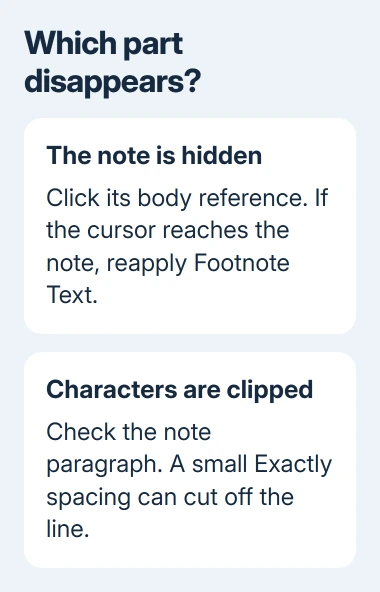
In Word 2011 for Mac, click inside the affected note, open Format > Style, and choose Footnote Text. Apply it to that note's text. The reference number uses a different style, Footnote Reference.
One owner restored their notes by selecting them and reapplying the footnote style. Another could make the notes reappear this way, but the next AutoRecover save hid them again.
Start with one note so you can see what changes. When it returns, read its full citation and check the note on the following page. A visible first line alone isn't enough if the rest remains cut off.
For several affected notes, select their text in the footnote area before applying the style. Select All in the main document selects a different area, so check the highlighted area before applying the style.
In current Word for Windows, open the Home > Styles pane. On a Mac, use Home > Styles Pane or the Format > Style dialog. Choose Footnote Text for the selected note paragraphs, rather than changing Normal.
If the notes stay readable after saving and reopening, continue editing the copy. If they vanish again during background recovery, try the AutoRecover steps next. If the same line stays clipped, go to the spacing check.
2. Keep AutoRecover while handling the old Mac fault
The Word 2011 discussion includes owners who stopped the disappearance by disabling AutoRecover. That was a workaround with a cost: less protection when Word or the computer crashed. I'd keep recovery enabled for a long paper.
The reports describe a particular pattern. The notes look correct, the recovery progress indicator runs, and some notes disappear. That timing suggests Word has stopped displaying the notes, even though the page looks empty.
Save with Command+S. Reopen that copy and inspect its notes. If Footnote Text only restores them until the next recovery save, open the file in a current, supported version of Word before continuing.
The old thread also mixes the words AutoRecover, auto-save and AutoCorrect. They do different jobs. Don't turn off spelling corrections to treat this fault, or assume today's cloud AutoSave switch is the old recovery control.
Microsoft's Mac recovery instructions distinguish AutoRecover's crash-recovery copy from AutoSave's ongoing document saves. Manual saving still matters.
In current Word for Mac, Word > Preferences > Save contains the recovery interval. That setting helps protect work; changing the interval isn't a confirmed permanent repair for disappearing footnotes.
If the document belongs to a school or office still using Word 2011, ask for a supported workstation to finish it. Keep the original file so you can compare the notes after opening it in the newer application.
3. Give clipped footnote lines enough space
When text stays cut off at the same height, including in print preview, check the note's layout. Select an affected note paragraph and inspect its line spacing before changing page margins or deleting breaks.
In Word for Windows, open Home > Paragraph, using the small dialog button in that group. On a Mac, choose Format > Paragraph. Find Indents and Spacing, then inspect Line spacing.
An Exactly setting fixes each line's height. At least allows room for larger characters, and Single uses ordinary single spacing. If that fixed height is too small, parts of letters can get cut off.
Change the selected note to Single as a comparison, then inspect the whole note in print preview. If the cut-off characters return, set the required spacing through Footnote Text so the notes use consistent formatting.
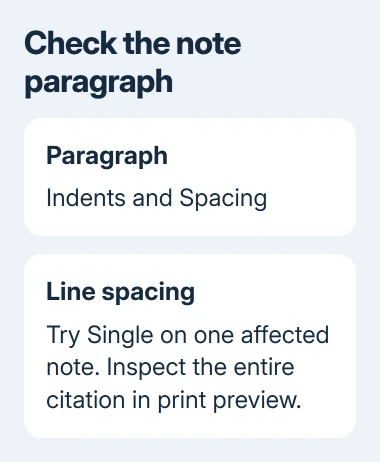
The Word line-spacing controls explain where paragraph spacing and line spacing differ. Extra space after a paragraph won't repair a line whose fixed height is too small.
Follow the document's submission rules when choosing the final spacing. A dissertation can require a different note style from its main text, so avoid applying a document-wide spacing command just to repair one note.
For a gap that triggers a deletion warning, check Word's footnote boundary and spacing rather than deleting through the note's final mark.
If changing spacing doesn't restore the missing portion, undo the trial and inspect the saved file in another supported Word installation. That helps you tell a local display problem from one that travels with the document.
4. Check the linked note before rebuilding citations
Double-click the note's reference mark to move between the note and its sentence. If that link works, the note and its reference mark are still connected, even if they don't look right.
A manually typed number won't act as that link. The Word footnote insertion steps show how generated notes differ from numbers raised with the Font button.
If the citation is missing from the saved document, compare it with an earlier copy. Reapplying a style changes appearance; it can't recreate words that were deleted or never saved.
Notes lost only in a copied passage need the Word paste checks before changing their display style.
For a persistent failure in current Word, send your document administrator or Microsoft Support a shortened copy that still shows it. Include the Word version, Mac or Windows version, and whether print preview also loses the note.
Ask them to check how Word displays the footnotes and applies their paragraph styles. Remove private research material from that sample, and describe whether the failure follows a save, a recovery save or opening the document.
The Short Version
Reapply Footnote Text for a disappearing note, especially in Word 2011 for Mac. Check fixed line spacing for clipped characters. Keep recovery enabled, and compare a saved copy in supported Word if the fault returns.
Checked November 16, 2026.
 If you have any business, I can build it online






