

Word reports "This is not a valid action for footnotes" when you try to delete through the end of a note. For a gap between notes, check paragraph spacing first: there may be no blank paragraph to delete.
A real extra paragraph needs a different edit from unwanted space before or after a paragraph. Turn on formatting marks so you can see which kind of gap you have without deleting the citation.
In this guide
1. Show the marks and identify the gap
Save your document under another name, then select Home > Show/Hide, the button with a paragraph symbol. In Windows Word, Ctrl+Shift+8 switches those nonprinting marks on and off.
Look at the affected footnote area. An ordinary empty paragraph has its own paragraph mark on an otherwise empty line. Space between two note paragraphs without an extra mark usually needs a formatting change instead.
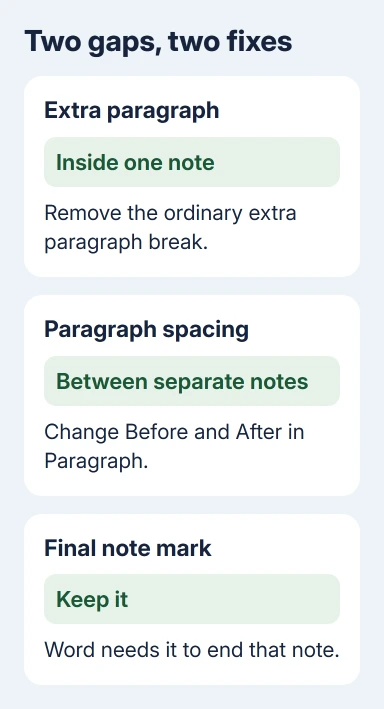
Each note also has a final paragraph mark that Word needs to keep the note separate. It can resemble an ordinary mark, but deleting through that boundary isn't allowed. Repeatedly pressing Delete won't merge two separate footnotes.
The original report was about Word 2007. Later replies described the same problem in Word 2010 and with endnotes. The useful distinction is the same: an editable paragraph inside a note versus the end of the note itself.
If there is no separate empty paragraph in the gap, go straight to the spacing check. If you can see an extra paragraph inside a note, remove that paragraph carefully after checking its position.
2. Change paragraph spacing when there is no empty line
Click inside the note immediately after the unwanted gap. In Windows desktop Word, open the Home > Paragraph dialog, then Indents and Spacing. Check Spacing > Before and After.
Compare those values with a neighboring note that looks right. In the saved discussion, an owner found the affected note had 6 points before and after it, while the surrounding notes used 0 points.
Changing that paragraph's spacing removed the unwanted gap. Use the values your document requires; try 0 points to check an unexplained gap, but don't treat it as a required setting for every thesis or report.
On current Word for Mac, select the affected note paragraph and use Format > Paragraph to inspect the same before-and-after spacing. Don't look for the old Windows Office button on a Mac.
Leave the main document's paragraphs out of the selection. If only one note is wrong, changing just that paragraph is enough to check the cause. A document-wide spacing command can alter the body text as well.
If the gap closes, inspect the rest of that note, including any second paragraph. If several notes share the same unwanted spacing, use the note's own style rather than individually adjusting every page.
3. Fix Footnote Text without changing Normal
Styles let paragraphs share formatting under a name. Footnote Text controls note paragraphs; Footnote Reference controls reference marks. Endnotes use Endnote Text and Endnote Reference instead.
Click inside an affected note and open Home > Styles in Windows Word. If necessary, open the Styles pane's Options and show All styles. Check which paragraph style is selected for that note.
Apply Footnote Text to footnote text, or Endnote Text to endnote text. Then right-click that style in the pane, select Modify > Format > Paragraph, and set the spacing required by the document.
Microsoft's style instructions explain that a style change affects paragraphs using it. Choose the document-only option to limit this repair to the current file.
One owner removed the gap but also changed spacing throughout the document. Later replies advised changing Endnote Text instead of Normal. Giving the notes their own formatting fixed the owner's problem.
I'd check the selected style before opening Modify. Font names such as Times New Roman aren't paragraph styles, and changing a font doesn't separate note formatting from the rest of a document.
For current Mac Word, open Home > Styles Pane, or Format > Style, select the note's text style and use Modify > Format > Paragraph. Check the notes and an ordinary body paragraph after applying the change.
The Word spacing guide helps distinguish line spacing from paragraph spacing. A large gap between notes doesn't always call for a change to the spacing between text lines.
4. Remove a real extra paragraph inside the note
When a note contains an actual empty paragraph, click at the start of that empty paragraph and press Backspace once. This removes the preceding ordinary paragraph break when it belongs inside the same note.
Stop if Word gives the error again. The cursor may be at the start or end of a separate note, where Word won't let you delete through its boundary. Check the marks rather than holding down a deletion key.
In Windows desktop Word, View > Draft, then References > Show Notes, opens the notes pane. Select the relevant footnotes or endnotes if prompted. Long notes are easier to read in this pane than in the small footnote area on the page.
Draft view alone doesn't automatically display the notes. If the page area suddenly seems to have lost them, use Show Notes before assuming the citations have disappeared. Return to View > Print Layout to check the finished page.
To remove an entire citation, delete its reference mark from the main text. The footnote insertion guide explains how that mark connects to the generated note.
5. Check the separator when the gap sits outside the notes
A large gap before the first note or around continued notes can come from the separator area. That area has its own content and formatting, so ordinary note spacing may not remove it.
Inspect Footnote Separator, Footnote Continuation Separator and Footnote Continuation Notice in the Windows notes pane's list. Remove extra empty paragraphs there, keeping the separator your document needs.
Return to Print Layout and check a page where a note continues. Undo changes that didn't help if the gap remains.
Ask your document administrator to inspect a small copy that still shows the gap. For a personal document, Microsoft Support can review that sample.
Include the Word version, whether the problem affects footnotes or endnotes, and a page showing the formatting marks. Ask them to check the notes' paragraph styles and separator content, leaving the final note mark in place.
The Short Version
Reveal the formatting marks. Fix paragraph spacing when the gap contains no empty paragraph, and use Footnote Text or Endnote Text for repeated gaps. Delete only ordinary extra paragraphs, leaving each note's final boundary intact.
Checked November 17, 2026.
 If you have any business, I can build it online






