

Word for Mac crashes during Track Changes can be tied to how revisions and reviewer details are displayed. In Word 2011, turn off Use balloons to display changes in Word > Preferences > Track Changes, then try the same editing action again.
Your revisions and their history stay in the file. If it doesn't help, owners also succeeded with the older Include reviewer display setting. Check whether the crash affects one document or every review file before trying file recovery.
In this guide
1. Display revisions inside the text
Make a duplicate of the review document before testing. Keep the original revisions and comments intact, especially when several people are editing a contract, thesis or report.
In Word 2011 for Mac, open Word > Preferences > Track Changes. Clear Use balloons to display changes, then return to the document. The deleted and added wording should appear within the text instead of in margin balloons.
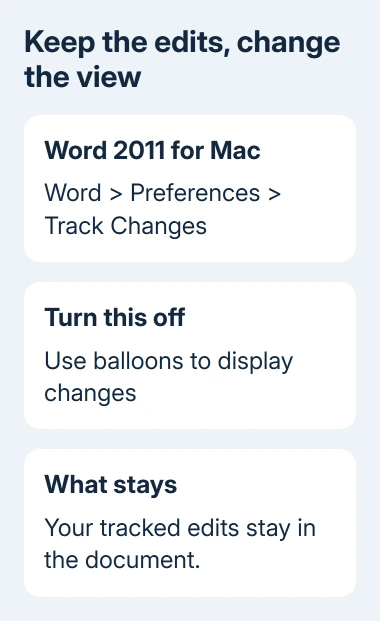
In the Microsoft discussion, one owner stopped the crashes with balloons disabled and kept their edits visible. They used Review > Comments > Previous and Next to move through comments when the margin display was no longer convenient.
Return to the paragraph or comment that previously made Word close and repeat that edit. If it now works, save the review copy and check that the changes are still recorded before doing more work.
In newer desktop Word, the comparable display choice is Review > Show Markup > Balloons > Show All Revisions Inline where that menu is available. Microsoft's Track Changes display instructions describe inline revisions.
That menu changes how revisions appear. The Word 2011 workaround won't necessarily fix newer Word. If the same action still closes Word, keep the copy and try the reviewer-display setting if your older version has it.
2. Hide reviewer details while editing in Word 2011
Open Word > Preferences > Track Changes and clear Include reviewer if your version has that option. This hides reviewer details on screen while leaving pending edits in place.
One owner reported stable editing with that box cleared. Another then edited twelve pages of a long thesis without a crash. A later reply described still using the setting, too.
After changing it, return to the same marked paragraph and add or edit a comment in the duplicate. Save, close and reopen that copy to check that the writing and revisions remain available.
The reported workaround hides names during editing while keeping them in the file. The owner restored the checkbox afterward to see them again. Check the restored display before sending a document whose reviewer identities matter.
Don't confuse Include reviewer with options that remove personal information. Removing author details is a different action and can damage the review record you need to preserve.
If your newer Word version doesn't show that checkbox, change the revision display using the controls your version provides. These particular reports concerned Word 2011 for Mac.
For ordinary tracking controls, the Word Track Changes guide explains recording and displaying edits. Continue with these crash fixes when those controls work but editing still closes the app.
3. Compare Draft view when Print Layout keeps failing
In Word 2011, choose View > Draft, then repeat a small edit in the document copy. Draft view presents the document without arranging every printed page as it appears in Print Layout.
Owners reported that Draft view made their editing more stable, although it didn't stop every crash. It can let you finish editing while the underlying fault remains.
If it helps, use Draft for the wording and check the tracked changes in that view. Return to View > Print Layout to check page breaks, header placement and the finished page design.
If the app crashes again only when Print Layout returns, keep the working copy and note the page or comment it was displaying. Support can then repeat the failing action on that passage instead of searching for an intermittent crash.
If Draft also fails at the same passage, compare a second review document next. Repeatedly switching views won't replace text or revisions that have already become unreadable in the file.
4. Separate one review file from an app-wide crash
Open another document with tracked edits, ideally one you've edited without trouble before. Try the same kind of action: inserting text, moving between comments or reviewing a deletion. Use a copy for this comparison too.
If the second document works, ask a collaborator for another saved version of the failing file. Compare its most recent changes before continuing, so an older attachment doesn't silently replace newer work.
For a file that stops opening altogether, use the Word document recovery checks. That's a different stage from a document that opens and crashes only while displaying a particular revision.
If every review file crashes in a current Word release, choose Help > Check for Updates and install available Office updates. Record the version shown in Word > About Word and whether the crash began after an Office or macOS update.
Owners reported crashes after different system updates, so the reports don't point to one confirmed cause on every Mac. Don't apply Windows commands such as winword /safe or SFC to this Mac fault.
I'd keep the display workaround if it makes editing usable while the app problem is checked. Rebuilding every document at once risks losing the reviewer details the workaround was meant to preserve.
5. Use document comparison only when the review allows it
The accepted answer proposed editing a clean copy without tracking, then comparing documents to mark the differences. The asker said that worked for one person's review, but didn't meet the needs of several people reviewing together.
Use that approach only when you and the recipient agree that the differences between two versions are enough. Keep a dated original, edit a separate copy, and compare the two through your Word version's document-comparison command.
A comparison doesn't recreate the full sequence of who changed what during a long review. It also doesn't replace the explanations held in earlier comments. Don't accept all changes just to make a shared review easier to display.
When the history must stay intact, ask a collaborator with a working Word installation to review or export a copy while support checks the crash. Keep the editable review file separate from any PDF used only for reading.
For current Word, send support the Word and macOS versions, the failing action, and a small document copy with private material removed. Say whether inline revisions, Draft view and a second file change the result.
For Word 2011, ask IT about moving the review to a supported Word version. Check that comments, reviewer identities and tracked edits survive in the converted copy before continuing the collaboration.
The Short Version
Try inline revisions first. In Word 2011, clearing Include reviewer also helped owners keep editing. Draft view can help temporarily. Preserve the review history and compare another file before rebuilding anything.
Checked November 17, 2026.
 If you have any business, I can build it online






