

Word can show comments in balloons while keeping tracked text edits on the page. In Word 2010, clear Formatting in Review > Show Markup, then turn off the privacy option that reveals hidden markup when you open or save a document.
That combination fixed the display for one owner, but later replies report that Word 2010 doesn't always remember every choice. Stop recording new formatting changes as well if formatting isn't part of your review.
In this guide
1. Hide formatting without hiding the text edits
Open the document in Print Layout, then select Review > Show Markup. Leave Comments and Insertions and Deletions selected, and clear Formatting. These are separate choices, so check each one.
In Word 2010, open Show Markup > Balloons and choose Show Only Comments and Formatting in Balloons. With Formatting hidden, the comment balloons remain while inserted and deleted text appears within the document.
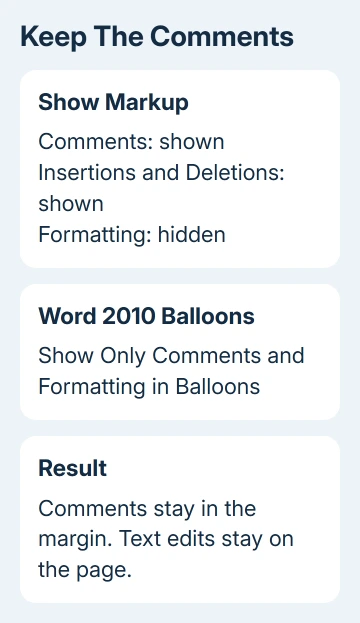
Check a page containing both a comment and an edited sentence. The comment should stay in the margin, while the text change remains on the page. If deleted text also fills the margin, check your Balloons choice again.
The setting changes what you see, not what the document contains. Formatting revisions remain in the file until someone accepts or rejects them. Remember that difference before returning the file to a reviewer.
For the basic recording switch, use the Track Changes instructions. Turning tracking off stops future recorded edits; it doesn't decide which existing revisions appear in balloons.
Current Word releases use different balloon labels, and modern comments have a different layout. Microsoft's markup display controls describe the choices for those editions.
Don't search for the exact Word 2010 wording in a browser or phone app. The fix for settings that won't stay saved applies to desktop Word for Windows. Open desktop Word to use those older tracking and privacy dialogs.
2. Stop Word 2010 restoring hidden markup on save
Choose File > Options > Trust Center > Trust Center Settings > Privacy Options. Clear Make hidden markup visible when opening or saving, then confirm the dialogs with OK.
Return to the document and set Show Markup as described in the first section. Save, close, and reopen this same file. Check a page where formatting balloons returned. A page without revisions won't show whether the setting worked.
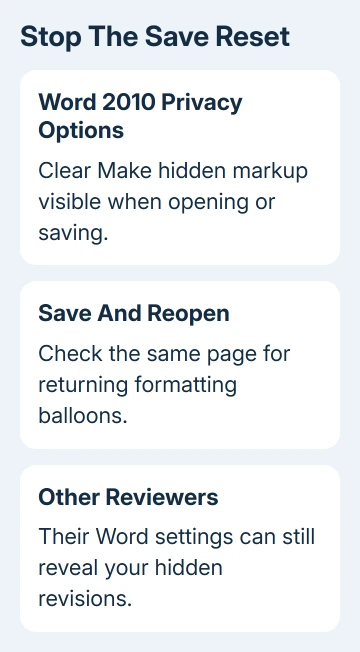
The owner who asked the question fixed it by clearing the hidden-markup privacy checkbox. The setting belongs to your Word installation, so another reviewer's computer can still display the hidden formatting.
I'd try this before changing templates or adding a macro. It's a direct setting for the behavior you want to control, and you can reverse it by selecting the same checkbox again.
Hidden revisions can now stay hidden while you work. Before sending a final document, review all its markup separately so an uncluttered page doesn't hide material you intended to remove.
If the preference survives reopening but returns when you switch Track Changes off and on, continue with the next section. Repeating the save sequence won't resolve every Word 2010 display reset reported in the thread.
3. Stop recording new formatting revisions
In Word 2010, open Review, expand the Track Changes button, and choose Change Tracking Options. Clear Track formatting, then select OK. That stops Word from recording formatting changes in the document you're reviewing.
In a spare copy of the document, edit some text and make a small formatting change. Check that Word records the text edit without adding a formatting revision. Using a copy keeps this comparison out of your real review.
Existing formatting marks remain when you stop recording new ones. This setting controls later changes; Show Markup controls visibility. Use both when you need text revisions and comments without recording formatting.
In newer desktop Word, open the Tracking dialog launcher and its advanced options. The older Change Tracking Options menu isn't in every version, so use your edition's dialog to find formatting tracking.
If formatting is part of a contract or editorial review, keep tracking it. Hiding those revisions for reading is different from choosing not to record them. Agree on that choice with the person managing the document.
4. Resolve old formatting changes only when approved
Save a separate review copy before accepting or rejecting revisions. Open Review > Show Markup and show Formatting so you can inspect what was changed. Check the relevant font, spacing, or style change in its surrounding paragraph.
Select one formatting revision and choose Accept to keep the new formatting or Reject to restore the earlier formatting. Read the command carefully and work individually when text edits must remain unresolved.
Avoid a broad Accept All Changes command just to clear balloons. That can accept text edits too. A quieter margin isn't a good reason to approve deletions or replacements you haven't reviewed.
Comments remain a separate part of the review. When a discussion is finished, the comment deletion controls explain removing it without treating it as a tracked formatting change.
Save and reopen the copy after resolving approved revisions. If formatting balloons return, read them to check whether they describe new changes or older unresolved ones. That determines whether to stop new tracking or finish the review.
Report a display preference that keeps resetting
A later adviser reply reports that Word 2010 may fail to retain Show Markup choices even with the privacy option set correctly. Treat the checkbox as a useful workaround rather than a permanent lock for every document and reviewer.
Send your Office administrator the Word version, whether the reset follows saving or toggling tracking, and a sample without private text. Ask them to compare the same document in a supported desktop version of Word.
For an old Word 2010 installation, plan a move to a maintained Word version with IT. Keep using the display filter during the review, but don't remove review history just to work around a setting that keeps resetting.
The Short Version
Hide Formatting, keep text revisions inline, and clear Word 2010's hidden-markup privacy option. Disable Track formatting only when the review doesn't need it. Other reviewers' settings can still reveal the hidden changes.
Checked November 17, 2026.
 If you have any business, I can build it online






