

An Excel data validation drop-down can still work when its button disappears. On a Mac, try View > Unfreeze Panes first: owners restored the missing controls that way after the old Excel 16.17 and 16.18 updates.
That particular bug was later reported fixed in 16.21. For a current installation, update Excel and check In-cell dropdown before rebuilding a working list or moving the whole worksheet.
In this guide
1. Unfreeze the sheet and try the same cell
Select one of the cells assigned a validation list. Open the View tab and choose Unfreeze Panes. Where the ribbon groups that command under Freeze Panes, open that control first.
Click the original cell again. If the list button returns, open it and choose an allowed value. Check the original cell, even if a list on a new sheet works. You need to know whether your existing list works again.
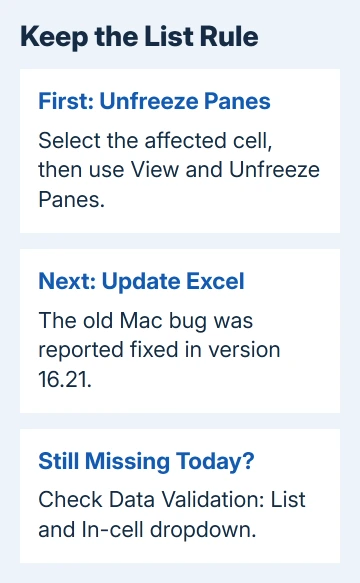
One owner in the Mac dropdown discussion restored the missing controls by unfreezing panes. Another reported that Freeze Top Row still worked while a custom Freeze Panes arrangement hid the controls.
If only the top row needs to stay visible, try View > Freeze Top Row after the dropdown works. If your sheet needs a different frozen area, leave it unfrozen temporarily and continue to the update step.
For the normal selection rules, the freeze rows and columns guide explains why the active cell determines what stays still. Changing that selection won't repair the old drawing bug by itself.
If unfreezing changes nothing, keep the same cell selected and check Excel's version next. The list's button may be hidden even though its rule is still there. That's different from a cell whose validation rule was removed.
A split worksheet is another case to check. One later owner reproduced the invisible dropdown in Excel 16.20 by changing the split's position, then restored it by removing that split.
If the sheet uses a split, turn View > Split off and select the affected cell again. The original asker had used Split successfully as a workaround, but the later report shows why that isn't a dependable substitute for updating.
2. Update Excel instead of installing an old repair build
Choose Excel > About Microsoft Excel from the menu bar. Record the full version. The historical reports started with 16.17, continued through 16.18 and ended with a January 2019 report that 16.21 fixed the issue.
Those numbers describe the old bug. They aren't current installation targets. On a supported Mac, update Excel through the same service you used to install Office, choosing the newest compatible release offered.
For a Microsoft download, choose Help > Check for Updates and let Microsoft AutoUpdate install available updates. Quit and reopen Excel afterward. Microsoft's Mac update instructions describe that route.
For an App Store installation, open the Mac App Store > Updates and update Excel there. On a managed work Mac, ask IT about an update that's missing or blocked rather than replacing their installation yourself.
Reopen the affected workbook and repeat the frozen-pane arrangement that hid the dropdown. If the button stays visible and selecting a value works, the dropdown now works with the pane setting that caused the problem.
If the latest version available to that Mac is still an old Office release, check macOS compatibility with IT before changing installations. A report that 16.21 fixed a 2019 bug doesn't make that release supported today.
3. Check that the cell still has an in-cell list
Select just one affected cell and open Data > Data Validation. In the validation settings, check that Allow is set to List and In-cell dropdown is selected.
Check the Source too. It should point to the intended choices, whether those are cells, a named range or directly entered list items. Don't replace a shared list's source just to make its control appear.
The drop-down list instructions make In-cell dropdown part of the list setup. When it's cleared, Excel can still restrict the allowed entries without showing a list to pick from.
If that option was cleared, select it, confirm the settings and select the cell again. Open the list and verify that its choices match the workbook's intended entries before continuing with data entry.
If Allow isn't List, the cell doesn't currently have that type of validation rule. Ask the workbook's owner which rule belongs there or compare a known working copy before changing a shared form.
For ordinary setup, the Excel drop-down creation guide covers the source and destination cells. Use it when the rule is absent, rather than treating every missing picker as a Mac display fault.
4. Check whether the invisible control still opens
When the rule is correct, select the cell and move the pointer to its right edge. In the old Mac failure, the pointer changed over the hidden control and clicking there still opened the list.
Use that only as a short-term way to select a value. A colleague filling out a form can't be expected to find an invisible control, so restore normal display before handing the workbook to others.
If clicking opens the expected choices, Excel can still read the source list. That suggests the rule is still there and its button is hidden, though dropdowns can disappear for other reasons too.
If the control doesn't open and the rule looks correct, compare another validated cell. Note whether every list fails or only a particular area. Next, compare that workbook in a second supported Excel installation, if available.
The original owner reported that their affected files displayed the dropdowns on Windows. That was a useful comparison for those files; it wasn't a reason to change their workbook format or remove their macros.
5. Keep the working rule while reporting a repeatable fault
Make a separate copy before restructuring a workbook with formulas, macros or linked sheets. In the copy, add a small new sheet and create a simple data validation list, and compare its control with the affected sheet.
If the new list works, Excel can display its control even though the old sheet still fails. It doesn't mean the existing workbook must be rebuilt, especially when its dropdown choices still open.
In the old thread, safe mode and Move or Copy Sheet didn't restore the missing buttons for the asker. I'd try unfreezing and updating before spending time on those changes or rebuilding a large form.
If you can repeat the problem in a current version, choose Help > Feedback in Excel and report the version, macOS version, file format and exact pane setting. Explain whether In-cell dropdown is enabled and whether unfreezing restores it.
Include a small copy with private data removed if support requests a sample. For a managed Mac, ask IT to compare that build and its update channel against a working computer.
The Short Version
Unfreeze the affected sheet, then update Excel and check In-cell dropdown. The historical Mac bug was reported fixed in 16.21. Keep valid list rules intact while reporting a current version that still hides the control.
Checked November 17, 2026.






