

Excel 2016 can open Excel 97-2003 workbooks without a converter. A File Block warning needs a security-setting check; a message mentioning the removed Office Starter means Windows is trying to use the wrong app.
Open Excel itself and choose the workbook from its File menu first. This checks whether Excel rejects the workbook or Windows launches an older installation when you double-click it.
In this guide
1. Open the XLS workbook inside Excel
Start Excel 2016 from Start, then choose File > Open > Browse and select the workbook. Keep the original unchanged while checking it. Note the complete message if the file still doesn't open.
Microsoft's supported-format list includes Excel 97-2003 workbooks. They open in Compatibility Mode, which keeps the older format's limits. That label describes the format, not an opening error.
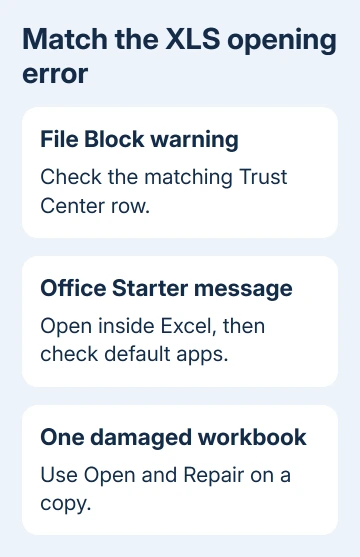
If the workbook opens from this menu but not from File Explorer, skip to the app-association check. Excel has already shown it can read the file, so start with the Windows app choice rather than security settings.
If the message names File Block, Trust Center or a registry policy, check the matching security option next. When just one workbook reports damage or a format problem, keep a copy and try the file-repair steps instead.
Don't change .xls to .xlsx in the filename. An extension identifies the file; renaming it doesn't convert the workbook's contents. Use Save As inside Excel after it successfully opens.
2. Change File Block only for a trusted workbook type
For a workbook from a known source, open a blank Excel workbook and choose File > Options > Trust Center > Trust Center Settings > File Block Settings. Find the file type named in the error.
A checked Open box blocks that type. Clear Open for the relevant type, choose OK in both dialogs, then try the workbook again. Don't clear every row or change Save settings when opening is the only operation that fails.
The File Block repair instructions confirm how the checkboxes work. File Block protects against risky older formats. Only change this setting for a workbook you trust and when your workplace permits that security change.
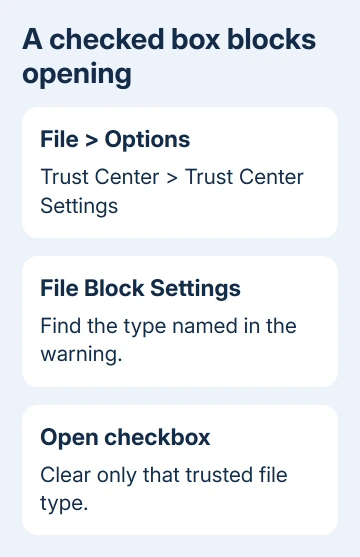
If the controls are gray or the setting returns after restarting Excel, ask IT to check the File Block policy. Give them the exact file-type description from the warning. Don't try registry workarounds to defeat a managed restriction.
If the error names Protected View instead, read that message before changing anything else. Being able to view a workbook while editing is blocked is different from Excel refusing to open its type at all.
One owner said the File Block change didn't help. Windows was trying to use Excel Starter, which they had removed. In that case, fix the Windows app choice next rather than changing more Trust Center settings.
3. Correct a leftover Excel Starter association
When the workbook opens through Excel's own menu but double-clicking mentions Office 2010 Starter, Windows is still choosing the old app. Reinstalling Starter is unnecessary for reading a supported XLS workbook in Excel 2016.
On Windows 11, open Settings > Apps > Default apps. Search for .xls, choose its current app and select the installed desktop Excel. The exact chooser depends on which Office applications Windows detects.
On Windows 10, use Settings > Apps > Default apps, then select Choose default apps by file type. Find .xls and choose Excel for that extension. Make sure you're selecting the installed desktop program rather than a removed Office entry.
Double-click a copy of the workbook again. It should now launch the installed Excel and show the file. If Excel isn't offered, use Office repair or ask IT to restore its app registration instead of browsing to an unknown executable.
For wider opening problems, the Excel file-opening checks cover app associations and Office repair. Tell IT that the workbook opens through Excel's menu. IT can then check the Windows app choice rather than focusing on the workbook's age.
4. Recover a workbook that remains unreadable
If other XLS workbooks open but one doesn't, duplicate the failing workbook. In Excel, choose File > Open > Browse, select that copy, then open the small menu beside Open and choose Open and Repair.
Try Repair first. If it fails, Extract Data can recover values and formulas. Compare the recovered sheets with another copy before relying on them. Some workbook features can be lost during repair even when the recovered file opens.
An error about memory or disk space, especially with a downloaded attachment, needs the Excel blocked-download checks. Keep general Protected View protection enabled while dealing with one verified file.
For an extension-and-format mismatch, request a fresh Excel export from the sender. Don't accept the warning automatically for an unexpected attachment. A file ending in .xls isn't always a genuine Excel workbook.
5. Convert a working copy only after it opens
Choose File > Save As > Browse once the workbook is readable. Use Excel Workbook (.xlsx) for an ordinary workbook, or Excel Macro-Enabled Workbook (.xlsm) if you need to keep its VBA macros, the code that automates workbook tasks.
XLSX can't store VBA macros. Keep the original XLS until you've checked the new file's sheets, formulas, charts and automation. Convert after restoring access; conversion can't bypass a file Excel can't read.
If every trusted XLS fails while modern XLSX files work, send IT the error, Excel build from File > Account > About Excel, and the File Block result. Ask them to check the security rules and Excel installation before you buy a converter.
Office 2016 for Windows is no longer supported. Ask your organization about a supported Excel version if repairs don't hold. Keep your original workbooks so you can move them across and check the results.
The Short Version
Open XLS from inside Excel, then follow the actual error. Check the matching File Block row, repair a stale Starter app choice or recover one damaged file. Convert a readable copy through Save As, using XLSM when macros must survive.
Checked November 17, 2026.






