Microsoft Authenticator stopped handling passwords in mid-August 2025, so a sync failure on its passwords screen can't be fixed inside the app anymore. Your saved passwords and addresses went to your Microsoft account instead.
Open them in Microsoft Edge, signed in with that same account, and make Edge your phone's autofill app. Passkeys you set up for your job or school stay in Authenticator, so keep the app installed.
In this guide
1. Find your passwords in Edge
On a phone, open Edge, tap the menu and go to Settings > Passwords. On a computer, open Settings in Edge and choose Passwords and autofill > Microsoft Password Manager.
If the computer doesn't have Edge, install it first. Then sign in to Edge with the personal Microsoft account Authenticator used.
Password Manager only works in a personal account profile. On an office or school profile, IT may have switched it off.
To see one password, select the arrow beside it and then the eye icon. Edge may ask for your device PIN or password first, which is normal.
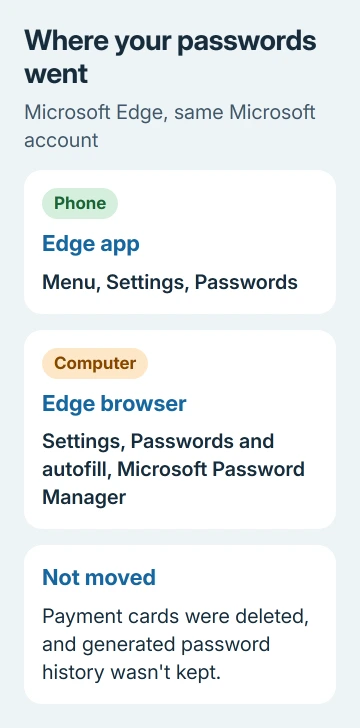
Two things didn't make the move. The history of generated passwords wasn't kept, and payment cards stored in Authenticator were deleted for security reasons.
Cards were only ever stored on the phone that saved them, so they never reached Edge. Add any you need again by hand. Saved addresses did move, so Edge can fill in a delivery address once it's your autofill app.
2. Make Edge fill in passwords on your phone
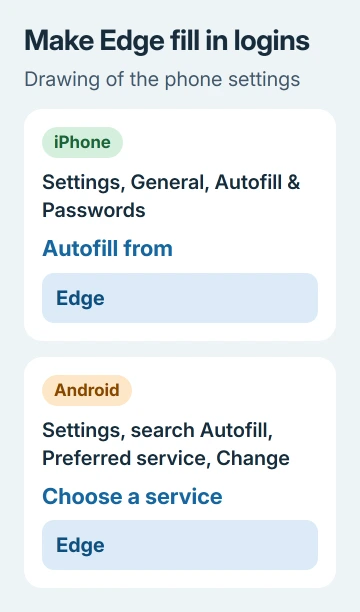
Once Edge is signed in, set it as the app that fills in logins. On an iPhone:
- Open Settings > General > Autofill & Passwords.
- Under Autofill from, select Edge.
On an Android phone:
- Open Settings and search for Autofill.
- Open Preferred service, select Change and choose Edge.
Then tap a sign-in box in any app or website. Edge should offer your saved login there, the way Authenticator used to.
3. Keep Authenticator on for work passkeys
A passkey is a sign-in that uses your phone's lock screen instead of a password. If your employer or school had you add one in Authenticator, leave Authenticator switched on as a passkey provider in your phone's settings.
On Android, that's the Authenticator switch under Settings > Autofill > Additional services. Turning it off stops those passkeys from working, so leave it on alongside Edge.
Approving sign-ins with the app is a separate job from storing passwords. The Authenticator setup for Microsoft 365 covers that side if you're moving it to a new phone.
4. If Edge shows no passwords either
First check which account Edge is signed in with. A second profile under another Microsoft account keeps its own list, so switch to the one Authenticator synced to.
Then make sure sync is on in Settings > Profiles > Sync.
Microsoft's notice on the change says your passwords and addresses were synced to your Microsoft account and you can still get to them in Edge. A signed-in, synced profile is where they should show up.
5. When Edge's own password sync fails
Back in 2021, when Authenticator still synced passwords, one owner traced this exact sync failure to a saved entry with a blank name and a couple of duplicates. Once they deleted those and waited a few minutes, the sync went through.
The same tidy-up makes a sensible first check in Edge now. Scroll through your list in Microsoft Password Manager for an entry with no site name, or a login saved twice, and remove the extras before trying again.
If you've changed a site's password since it was saved in Authenticator, select Edit on that entry and update it. Editing it in Edge only changes the saved copy, not the password on the website itself.
I'd do this before anything drastic. One bad entry is far easier to deal with than a damaged profile, and checking the list is quick.
6. Moving to another password manager instead
Prefer Google Password Manager, iCloud Keychain or another app? Set it as your phone's autofill provider, export your saved passwords from Edge as a CSV file (a plain text list), then import that file into the new manager.
Delete the CSV once the import works, because it holds every password in readable text. The same care applies as when you export Chrome passwords to move them somewhere else.
What the old Sync failed message meant
Authenticator's Passwords screen used to pull your logins down from your Microsoft account. You'd see Getting your passwords for a minute, then the list, and Sync failed meant that download never finished.
Since mid-August 2025 nothing is left for that screen to fetch, because Authenticator no longer holds saved passwords. Retrying won't help, which is why Edge is the place to look.
When your passwords are nowhere
On a work or school profile, check with IT before anything else, since they can switch Password Manager off.
For a personal account, open Contact Microsoft Support, describe the missing Authenticator passwords and select Get Help, then Contact Support if that doesn't solve it.
Have your Microsoft account address ready, plus the date you last saw the passwords in Authenticator, so support can look at the right account straight away.
The Short Version
Authenticator no longer syncs passwords. Open them in Edge under Settings > Passwords, signed in with that Microsoft account, then pick Edge as your phone's autofill app. Keep Authenticator for passkeys.
Checked November 19, 2026.
 If you have any business, I can build it online