Startup Repair shows Boot manager failed to find OS loader when the entry that should start Windows points at a loader the boot manager can't find. The 0x490 next to each repair attempt means Startup Repair tried to fix that and failed.
Owners got back in by rebuilding the boot configuration data (BCD), the small database that tells the boot manager where Windows lives, from a recovery Command Prompt.
In this guide
What the repair log is saying
On Windows 7 you see it under View diagnostic and repair details after Startup Repair gives up. On Windows 8, 10 and 11 it's in the Startup Repair log, C:\Windows\System32\LogFiles\Srt\SrtTrail.txt. The lines look like this:
Root cause found:
Boot manager failed to find OS loader.
Repair action: File Repair
Result: Failed. Error code = 0x490
Repair action: Boot configuration data store repair
Result: Failed. Error code = 0x490
Starting Windows is a short relay. The firmware starts Windows Boot Manager, which reads the BCD, and then "Windows Boot Manager finds the Windows loader (Winload.exe) on the Windows boot partition, and then starts it".
That loader, winload.exe or winload.efi, is what the log calls the OS loader. The hand-off between the BCD and the loader is the part that broke.
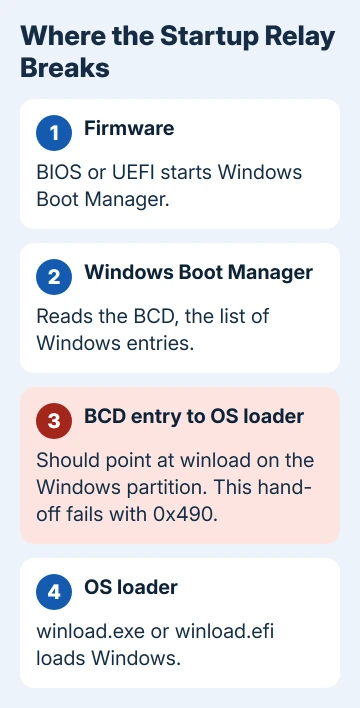
Usually the BCD entry points at the wrong partition, or the partition it points at has changed. Interrupted Windows updates, a cloned or replaced drive, resized partitions and a second drive added later can all cause that.
0x490 is Windows' general not-found code, so Startup Repair is telling you it couldn't find what it needed to repair either.
1. Take out extra drives and check which disk starts first
If you added, cloned or swapped a drive lately, or a USB disk is attached, disconnect every extra drive and leave just the keyboard and mouse.
Then open the firmware settings with your PC's setup key and check that the disk holding Windows comes first in the boot order. A boot manager on the wrong disk can't find a loader that lives on another one.
If the PC still lands in Startup Repair with the same log, move on to the Command Prompt.
2. Open Command Prompt from recovery
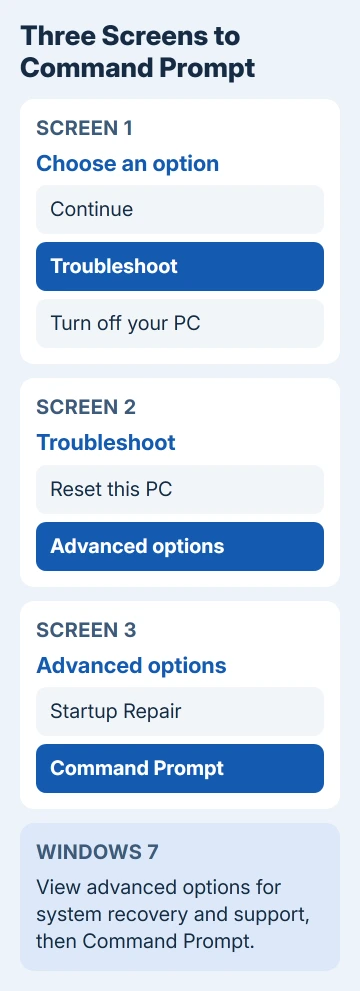
If Startup Repair is on your screen, you're already where you need to be. On Windows 7, choose View advanced options for system recovery and support, then Command Prompt.
On Windows 8, 10 and 11, choose Advanced options > Troubleshoot > Advanced options > Command Prompt.
Recovery hands out drive letters its own way, and Windows often isn't C: there. Type dir C:\Windows, then dir D:\Windows, until one lists folders, and note that letter.
Check which letter holds the Boot folder too, with dir C:\Boot. On older PCs that's often a small System Reserved partition rather than the Windows one.
3. Rebuild the BCD with bootrec
Start by asking bootrec to look for Windows installations, then rebuild:
bootrec /scanos
bootrec /rebuildbcd
If rebuildbcd finds your Windows, it asks whether to add it to the boot list. Type Y, press Enter and restart.
If it reports 0 installations, or Startup Repair comes back, export the old BCD, rename it out of the way and rebuild from scratch. Use the letter that holds the Boot folder in place of C:
bcdedit /export C:\BCD_Backup
c:
cd boot
attrib bcd -s -h -r
ren c:\boot\bcd bcd.old
bootrec /rebuildbcd
Then run bootrec /fixmbr and bootrec /fixboot, and restart. The export line keeps a copy of the old BCD, so you can go back if you need to.
That full sequence fixed this exact log on one owner's laptop, in a thread where 400+ people asked the same question. They wrote that it "resolved the issue for me and allowed me to log on to the PC in its previous working state".
4. On a UEFI PC, recreate the boot files with bcdboot
On a newer PC that starts in UEFI mode, the BCD sits on a hidden EFI system partition, not in C:\Boot, so the rename steps can't find it. On a PC that came with Windows 10 or 11, I'd go straight to this step.
There, bcdboot is the cleaner fix. It copies fresh boot files from your Windows folder and writes a new BCD pointing at it. Give it the Windows letter you found in step 2:
bcdboot D:\WindowsA line saying Boot files successfully created means it worked.
If bootrec /fixboot gave you Access is denied, or bcdboot can't reach the EFI partition, give that partition a letter first and point bcdboot at it.
5. Windows 7 on an older disk: mark the partition active
When Windows sits on an older MBR disk, the partition style older BIOS PCs use, the PC's boot code looks for the partition marked active. If that mark moved, the boot manager starts from the wrong place.
Someone who recreated this error on purpose, by changing their bcdedit settings, had it fixed in about three minutes, and their last step was marking the right partition active. Start diskpart and list the disks:
diskpart
list disk
Note the number of the disk that holds Windows, usually 0, and open its partition list:
select disk 0
list partition
Find the partition that holds the Boot folder from step 2, usually the small System Reserved one, and use its number in place of 1:
select partition 1
active
exit
Only do this on an MBR disk. A GPT disk on a UEFI PC doesn't use an active partition, and diskpart refuses the command there.
When Windows still won't load
If scanos keeps coming up empty and dir shows no Windows folder on any letter, the Windows partition itself can't be read. Run chkdsk D: /r on that partition's letter.
If chkdsk reports bad sectors, copy your files off and plan on a new drive, the same way you'd handle an Automatic Repair loop that points at the disk.
If your files are safe and every rebuild fails, reinstalling Windows from a USB stick gets the PC starting again. When the PC is under warranty or the drive is new, the PC maker's recovery media or support line comes next.
The Short Version
Disconnect extra drives and check the boot order. In the recovery Command Prompt, find the Windows and Boot letters, then run bootrec /scanos and /rebuildbcd.
If that fails, rename the old BCD and rebuild it. On UEFI PCs, point bcdboot at your Windows folder instead.
Checked November 19, 2026.