When the eraser end of a pen turns the pointer into an eraser in OneNote but nothing gets erased, the cause is either a OneNote pen setting or the pen itself. A quick test in another inking app tells you which.
If the eraser works there, the fix is in OneNote's Pen options. If it fails everywhere, look at how you hold the pen, its battery, its pairing and, on older pens, the pocket clip.
In this guide
Tell whether it's OneNote or the pen
Open Microsoft Whiteboard, or the Draw tab in Word or PowerPoint, write a few strokes and flip the pen over. Owners with this problem often found the eraser worked fine in other apps, which pointed them straight at OneNote.
Also try the eraser on OneNote's own Draw tab, using the pen tip. If that erases but the eraser end doesn't, the ink and screen are fine. It's just the eraser end's signal that isn't getting through.
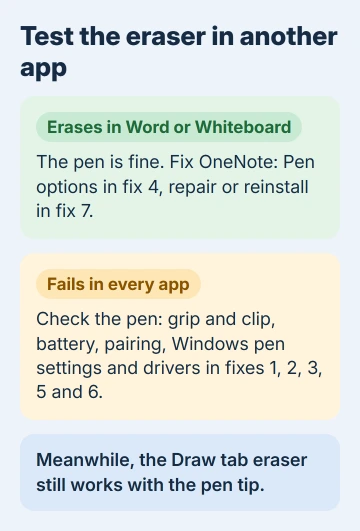
The fixes start with the quickest checks on the pen, then move into OneNote and Windows settings.
1. Hold the pen upright and check the clip
It sounds too simple, but one owner found the pen "just has to be a little more vertical for the eraser to kick in properly." Tip it up toward straight and try again before you change any settings.
If your pen has a pocket clip, look at it closely. Another owner found the clip had jammed in and kept the eraser button from going all the way down, and removing the clip fixed it.
In another case, the eraser only worked when the pen was pressed hard against the screen, and even then on and off. That points to a worn eraser end, and a new pen is what fixed it for someone with the same problem.
2. Replace or charge the battery
The battery is the next suspect, even while the tip still writes. Two owners, one on a Surface Book and one on a Surface Pro 4, fixed it by taking the battery out and putting it back, or by fitting a new one.
On a Surface Pen, press the top button and watch the LED. Amber or red means the battery is low: charge a Slim Pen, or replace the battery in other Surface Pens.
The Surface app shows the battery level once the pen is paired.
3. Unpair the pen and pair it again
One owner removed the pen from Bluetooth and the eraser worked again. It kept working after they paired the pen back, and the whole thing takes about a minute.
- In Windows 11, open Settings > Bluetooth & devices > Devices. In Windows 10, it's Settings > Devices > Bluetooth & other devices.
- Find your pen, open its menu and choose Remove device.
- Choose Add device > Bluetooth, hold the top button for 5 to 7 seconds until the LED flashes continuously, and select the pen when it appears.
If the LED blinks for only 2 to 3 seconds, the pen is still paired with another nearby Surface, so remove it there first.
Pens from other makers pair the way their manual says. The Surface Pen troubleshooting page covers the LED signals, but only for Surface pens.
4. Fix OneNote's Pen options
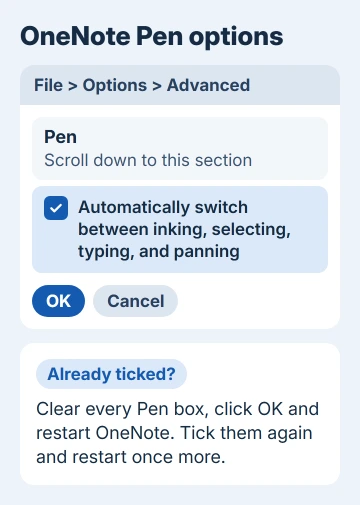
Start here when the eraser works in every app except OneNote. Open File > Options > Advanced and scroll to the Pen section.
- Tick the box that reads Automatically switch between inking, selecting, typing, and panning, click OK and restart OneNote.
- If that box was already ticked, clear every box in the Pen section, click OK and restart OneNote.
- Go back, tick the boxes again, click OK and restart OneNote once more.
That first step did the job for an owner on OneNote 2013, and another owner said it "works fine for me now".
Turning automatic switching off has a separate use: keeping a stylus in Type mode, with an eraser tradeoff on older tablets.
The full off-and-on reset is what finally worked in 2024 for an owner with an Asus Zenbook Flip and Asus Pen 2.0, though only after a reinstall (fix 7). Toggling a few of the options earlier had done nothing.
5. Check Windows' pen settings
One owner's eraser suddenly stopped working in OneNote and every other app, and changing two Windows pen settings fixed it instantly.
In Windows 11, open Settings > Bluetooth & devices > Pen & Windows Ink and look under Additional pen settings. Windows 10 has the page under Settings > Devices.
Turn off Show visual effects and turn on Ignore touch input when I'm using my pen. Some PCs hide that second option because their screen can't take pen and touch at the same time.
If your PC still has Control Panel > Pen and Touch, open its Pen Options tab and tick Use the top of the pen to erase ink. On a Surface 3 with Windows 8.1, that box brought back erasing in OneNote 2013 for one owner.
6. Update the pen drivers and OneNote
On a Surface, open the Surface app, expand Help & support to see the update status, and select Check for updates to install what's waiting in Windows Update.
Updates for the touchscreen's firmware and the pen drivers come through there, and inking depends on them. On other brands, get the pen and touchscreen drivers from the PC maker's support site.
For OneNote itself, choose File > Account > Update Options > Update Now, then restart it.
7. Repair or reinstall OneNote
If the eraser still works in every app but OneNote, repair Office. In the Installed apps list (Settings > Apps in Windows 11), find Microsoft 365 or Office, select its three-dot button, pick Modify and run Online Repair.
The Asus owner from fix 4 couldn't find OneNote in the installed apps list at all. They removed and reinstalled it with Microsoft's Office Deployment Tool, then did the off-and-on reset in Pen options, and the eraser came back.
Erase from the Draw tab in the meantime
While you work through this, the Draw tab's eraser still works with the pen tip. Select it, erase, then pick your pen again.
Drawing in OneNote on Windows covers the Draw tab tools if you rarely use them.
When the eraser still won't work
If the eraser fails in every app after a new battery and a fresh pairing, the pen is the likely culprit. The Surface Pro pen guide has more checks for writing and pairing.
For a Surface Pen, open the Surface app, describe the problem and select Get help to reach Surface support about a replacement.
A new pen isn't a sure cure, though: one owner ended up with two pens that both failed in desktop OneNote.
If yours erases everywhere but OneNote even after fix 7, report it through support.microsoft.com with your OneNote version from File > Account.
The Short Version
Test the eraser in Word or Whiteboard. If it works there, tick Automatically switch between inking, selecting, typing, and panning in OneNote's Pen options, or switch every Pen box off and back on with a restart between.
If it fails everywhere, hold the pen more upright, check the clip, replace the battery and pair the pen again. Then check Windows' pen settings, update drivers and repair OneNote.
Checked November 20, 2026.
 If you have any business, I can build it online