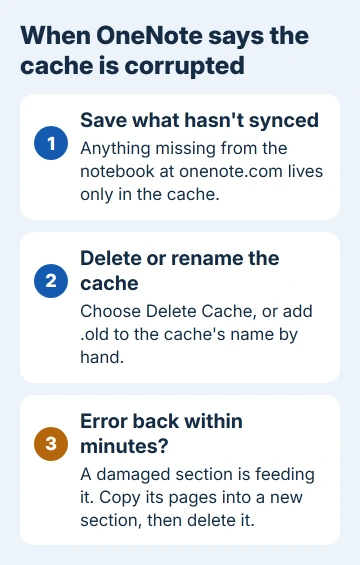
Deleting the cache fixes this error when the cache file itself is damaged, and OneNote then rebuilds it from your synced notebooks. The one risk is edits that haven't synced yet, because they live only in that file.
So save your newest pages first, then use Delete Cache or rename the cache yourself. If the message is back within minutes, a damaged section is causing it, and removing that section is what stopped it for several owners.
In this guide
What the two messages are telling you
The first box says OneNote "cannot access" its notebook cache file and will restart to create a new one. In the forum thread where more than 300 people reported it, the code was 0xE000013B.
Codes 0xE0000138 and 0xE00000D0 turn up with almost the same wording.
Click OK and a second box says "The notebook cache file is corrupted. OneNote must create a new cache file to continue." It has three buttons: Delete Cache, Make a Copy and Cancel.
It's upfront about the trade-off, too. Deleting the cache "will not lose any content already synced with your notebooks", but changes made while a notebook couldn't sync are lost with it.
The cache is OneNote's working copy of every notebook stored online. Your typing lands there first and travels up to OneDrive or SharePoint each time OneNote syncs.
1. Save the pages that haven't synced
Open the notebook at onenote.com in your browser. Whatever you see there is already safe on the server, and anything missing from the web copy exists only in the cache.
Copy those missing pages out before you delete anything. Select the text on each page, paste it into Word or an email to yourself, and save any pictures you can't replace.
If OneNote crashes too quickly for that, don't fight it for long. File > Info > Open Backups may have older copies of the same sections.
2. Let OneNote delete the cache, or rename it
Choose Delete Cache in the second box. OneNote restarts with a fresh cache, and your online notebooks may show up as closed. Reopen them from File > Open and they'll sync back down.
If OneNote then says it can't delete the notebook cache file and asks you to check write access, delete it by hand with OneNote fully closed, as one adviser suggested. First end any ONENOTE.EXE still on Task Manager's Details tab.
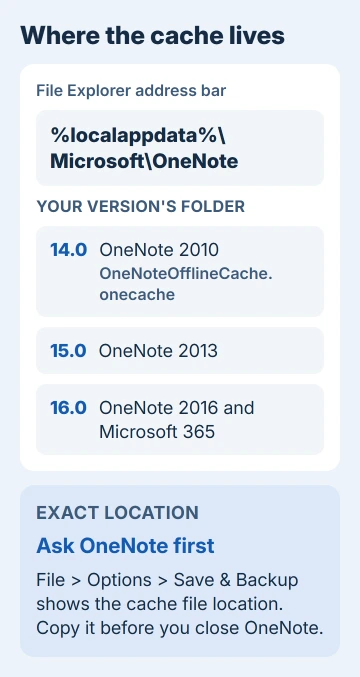
To find the cache, open File Explorer, click its address bar, type %localappdata%\Microsoft\OneNote and press Enter. The folder number matches your version: 14.0 for OneNote 2010, 15.0 for 2013, 16.0 for 2016 and Microsoft 365.
In OneNote 2010 the cache is one file, OneNoteOfflineCache.onecache. In newer versions, File > Options > Save & Backup shows the cache file location, so copy that path before you close OneNote.
Renaming is safer than deleting: just add .old to the end of the name. An adviser in one thread preferred that, because OneNote makes a new cache by itself and the old one stays around in case you need it.
One owner skipped the folder hunt: they pressed Windows+R, ran onenote /safeboot and picked the cache option in the box that opened. They cleared it there, which fixed their error.
That was in 2013, and Microsoft's current list of OneNote command-line switches doesn't include /safeboot. For Microsoft 365 or OneNote 2016, I'd go with the rename.
3. If the error comes back, track down the damaged section
If your cache error returns minutes after a clean delete, it isn't really about the cache. Several owners deleted every cache file, even the backup folder, and the box came straight back.
For them, the real trouble was a damaged section or page. "Deleting the cache Files didn't help," one owner wrote; removing one tab did. Another got rid of it by deleting certain pages.
To find the culprit, one owner typed a word at the top of a section's first page, closed OneNote, and repeated that section by section until the error appeared. Theirs turned out to be a section with a lot of pages.
Try your newest section first: another owner found the trouble in the last tab they'd created.
Before you delete that section, rescue its pages. Add a fresh section to that notebook, right-click each page in the damaged one, choose Move or Copy and copy it across.
Press Shift+F9 to sync. If the new section syncs and the error stays away, delete the damaged section and give the new one its name.
A corrupted section can keep causing errors even after it's gone to the Notebook Recycle Bin. Open the History tab, choose Notebook Recycle Bin and delete the bad section there if you don't need anything in it.
4. Move everything into a new notebook
If you can't pin down one section, copy the whole notebook. One owner made a new notebook, opened it beside the old one and dragged the sections across one at a time, then deleted the old notebook.
They put it bluntly: "When it says it is corrupted, it is corrupted." Their error hadn't come back almost a year later.
Once the cache is rebuilt, a notebook that won't sync and shows 0xE000002E needs a refresh, not another cache delete.
Still getting the box?
On a work PC, AppData can be locked so that only IT can change it. One asker in 2018 had to wait for their network manager, so ask IT to rename the cache for you.
If every notebook throws the error, repair Office itself. The OneNote repair steps cover Quick Repair and Online Repair, and repairing the app doesn't touch the notebooks.
For repeated white-window pauses without a cache warning, try the OneNote battery setting before rebuilding its local data.
The 0xE00000D0 version of the message mentions file permissions and serious disk errors. If that's the one you see, check the drive: right-click it in File Explorer, choose Properties and use Tools > Check.
If the box still won't go away, take the error code to Microsoft support and tell them which notebook sets it off.
The Short Version
Save unsynced pages, then choose Delete Cache or rename the cache in %localappdata%\Microsoft\OneNote. If the error comes back, you'll want to copy the pages out of the damaged section into a new one and delete the old section.
Checked November 20, 2026.
 If you have any business, I can build it online