

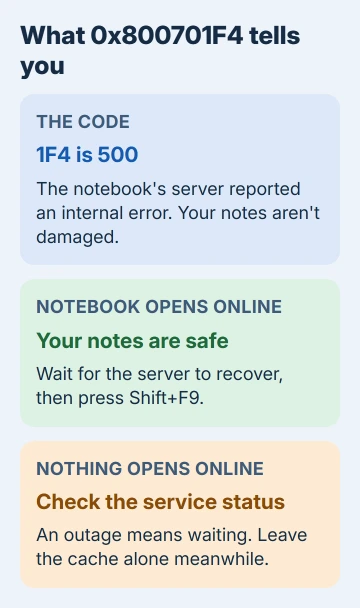
"The Web server is reporting an internal error" is the message OneNote shows with error 0x800701F4: the server holding your notebook is at fault, not your notes. The closing 1F4 is 500 in hexadecimal, the web's code for a server error.
Leave the cache alone, check that the notebook opens in your browser, then force a sync with Shift+F9 once the server recovers. That's what got stuck notebooks moving again after Microsoft fixed its servers in 2010.
In this guide
Why only some notebooks fail
The asker in the main forum thread had eight notebooks, and six of them synced normally. The two that failed still opened in the browser, which points at the server's copy of those notebooks rather than at the PC.
Back in 2010, the failures came from notebooks with too many files carrying long names: lots of sections, section groups and long titles. The fix went onto the servers that September.
The same server message can also come with a second code, 0xE4010646, and the same steps apply to it.
The error can also appear during an ordinary service outage, when every notebook on the account fails at once. Either way, your notes are still on the server, and the job is to get sync moving again.
1. Check the notebook online before touching the cache
Don't delete the cache or close the notebook yet. An adviser in the thread warned that the cache holds edits made while OneNote couldn't sync, so deleting it throws those edits away.
In OneNote, choose File > Info, right-click the address under the notebook's name and copy it. Paste it into your browser, and if the notebook opens with your latest pages, they're safe on the server.
If the notebook is on OneDrive, also check Microsoft's service status page for an outage; it's the first place OneNote's own sync help sends you. If a problem is listed there, waiting is the fix.

The asker had already deleted the cache before posting and then couldn't get those notebooks onto the desktop at all. If that's where you are, the notebook is still on the server, so carry on with fix 2.
2. Force a sync with Shift+F9
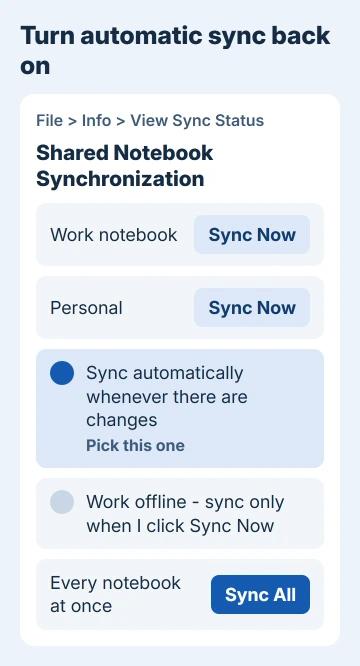
Click into the affected notebook and press Shift+F9. You can also choose File > Info > View Sync Status and select Sync Now beside that notebook, or Sync All for every notebook.
For OneNote 2013 uploads that never finish after printing notes, check the imported pages rather than assuming this server code applies.
While that box is open, look at the notebook icons. A yellow warning triangle means only one section won't sync, which is a smaller problem: select the notebook to see the section's name, then copy its pages into a new section.
When the server fix went live, the OneNote development manager told people that Shift+F9 "will force a sync and sync should work from now on". One owner answered the same day: "I can confirm I see this working today."
If it fails again, give it a few hours before you try anything bigger. The adviser's line on this error was "the best advice is to wait it out", and that holds while the server is still failing.
3. Switch sync back to automatic
One owner found their OneNote set to work offline and sync only when they clicked Sync Now. Clicking it brought up the error, and switching to automatic sync cleared it.
In OneNote 2010, open File > Info > View Sync Status and pick Sync automatically whenever there are changes. In OneNote 2016 and Microsoft 365, it's File > Options > Sync > Sync notebooks automatically.
4. Move the sections into a fresh notebook
If your notebook still won't sync after the server recovers, you can rebuild it. The OneNote team's own workaround in 2010 was a new notebook with the sections moved into it.
Before you start, save any edits that never synced. File > Info > Open Backups holds OneNote's recent backup copies, and the adviser pointed people there too.
Create the new notebook on OneDrive, then right-click each section tab in the old one, choose Move or Copy, pick the new notebook and choose Copy. Copying keeps the old notebook whole while you look the new one over.
Keep the names short while you're at it: a short notebook name, short section names, few section groups and not too many sections. The total length of the file names was what tripped the server, not how much you'd written.
5. Reopen the notebook from OneNote for the web
Closing and reopening a notebook resets its connection to the server. Copy the notebook's address from File > Info first, then select the settings button next to its name and choose Close.
Paste the address into your browser, and when the notebook opens, choose Open in Desktop App. I'd only do this once every device has synced, or after copying out pages that haven't.
When it still won't sync
A notebook on SharePoint or a work account is your administrator's to fix, since the server is theirs. Send them 0x800701F4 together with the notebook's address from File > Info.
OneNote 2010 left support on October 13, 2020, so a server change today won't bring a fix for it. A current OneNote on the same account is the long-term answer.
For a personal OneDrive notebook that still fails, Microsoft support can look at it from their side.
If your code reads 0xE000002E instead, that error's refresh steps apply. On a Mac, the same kind of stall shows up as Saved offline.
The Short Version
Don't delete the cache. Check the notebook in your browser and on Microsoft's status page, press Shift+F9, and switch sync to automatic. If one notebook still fails, you can copy its sections into a new notebook.
Checked November 20, 2026.
 If you have any business, I can build it online






