

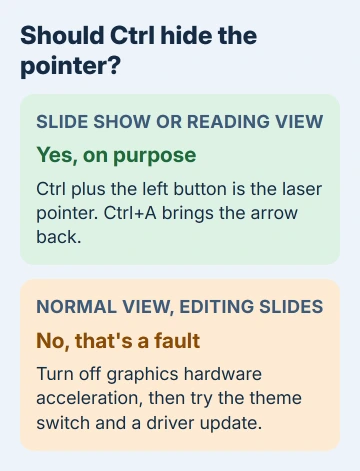
Holding Ctrl hides the mouse pointer on purpose during a PowerPoint slide show, because Ctrl plus the left mouse button is the built-in laser pointer. In Normal view, while you edit slides, the pointer shouldn't vanish at all.
When it does, turning off graphics hardware acceleration fixed it for the PowerPoint 2010 user who started the forum thread. A Windows theme switch worked for two others, though a third saw the problem come back after about 10 minutes.
In this guide
Slide Show or editing?
First, notice which view you're in when the pointer goes. In Slide Show or Reading view, holding Ctrl and dragging with the left button shows a red laser dot in place of the arrow.
Microsoft's laser pointer tip spells it out: "be sure to press and hold Ctrl before you move your mouse to keep the mouse pointer hidden." So during a show, a hidden pointer while Ctrl is down is the feature doing its job.
In Normal view, where you resize pictures and text boxes, holding Ctrl should leave the pointer alone. One adviser who uses Ctrl constantly for sizing said, "I've never seen it hide the cursor," so a pointer that vanishes there is a fault.
1. Get the arrow back during a slide show
Let go of Ctrl and move the mouse, and your arrow comes back. Automatic is the default pointer setting, so it also hides itself after three seconds if you don't move the mouse.
Press Ctrl+A to turn the pointer back into an arrow, or Ctrl+L to start the laser pointer without holding anything down. Ctrl+H hides the arrow, so one stray press of it can look like this fault.
If you want the arrow on screen for a whole show, select the pointer button in the slide's lower-left corner, open Arrow Options and pick the setting that always shows it.
2. Turn off graphics hardware acceleration
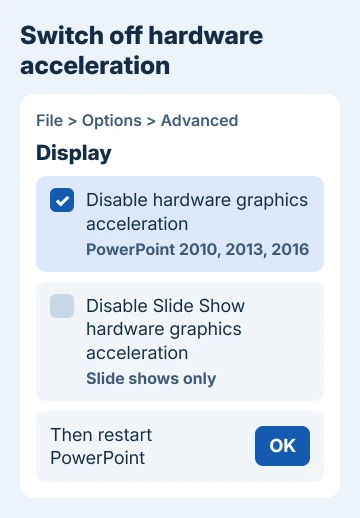
In PowerPoint 2010, 2013 and 2016, choose File > Options > Advanced and scroll down to Display. Tick Disable hardware graphics acceleration, choose OK and restart PowerPoint.
I'd start here in Normal view, since it takes a minute and you can undo it just as quickly.
That's the fix the asker confirmed a day after posting: "disabling graphics HW acceleration seemed to fix the issue!" PowerPoint then draws the screen itself instead of handing that work to the graphics card.
It doesn't work in every case. Two owners in 2012 already had acceleration off and still lost the pointer, so if nothing changes for you, untick the box again.
Newer builds, PowerPoint for Microsoft 365 among them, no longer show that box. Its Display section keeps Disable Slide Show hardware graphics acceleration, which, as the name says, only covers slide shows.
3. Switch the Windows theme and back
If you're on Windows 7, two owners fixed it by switching to the Windows Classic theme, where the pointer stayed put, and then back to Aero.
"Changing to Windows Classic then back to Aero solved the problem of the cursor disappearing," one of them wrote.
Right-click the desktop, choose Personalize, pick Windows Classic under Basic and High Contrast Themes, then select your usual Aero theme again.
It doesn't always hold. One owner said "the problem comes back after about 10 minutes", and another traced the start of their trouble to switching between the Basic and Aero themes.
Windows 10 and 11 have no Classic theme. The nearest quick reset is picking a different pointer style, then your old one: Settings > Accessibility > Mouse pointer and touch on Windows 11, Ease of Access > Mouse pointer on Windows 10.
That switch brought back a vanishing pointer in Outlook for one owner, though it hasn't been tried on this Ctrl fault.
4. Update the graphics driver
An adviser in the thread suggested a newer graphics driver, and since the acceleration box helped, the driver is a fair suspect. No reply confirms a driver update brought the pointer back, so it's a sensible try, not a confirmed fix.
Right-click Start, choose Device Manager, expand Display adapters, right-click your graphics card and choose Update driver. Your PC maker's or card maker's support site often has a newer driver than Windows offers.
On Microsoft 365, where that box is gone, you can tell Windows which graphics chip PowerPoint should use. Open Settings > System > Display > Graphics, add POWERPNT.EXE, switch its GPU preference to the other chip and restart PowerPoint.
That only helps if your PC has two graphics chips, as many laptops do.
5. Test with add-ins turned off
Hold Ctrl down while PowerPoint starts and say yes to the safe mode prompt, or type powerpnt /safe in the Run box. Safe mode starts PowerPoint without your add-ins.
If your pointer stays put in safe mode, an add-in is the trouble. Go to File > Options > Add-ins, choose COM Add-ins next to Manage, select Go and clear one box at a time.
One owner tried safe mode without luck, so this only catches the add-in cases.
When the pointer still vanishes
Hold Ctrl down in Word and Excel too. If your pointer disappears there as well, the fault lies with Windows or a display driver, not PowerPoint, and the general missing pointer steps are the next stop.
If only PowerPoint does it, repair Office: in Settings > Apps > Installed apps, open the menu beside Microsoft 365 or Office, choose Modify and pick Quick Repair.
After that, your PC maker's support team or Microsoft's can look at the graphics driver with your exact PowerPoint version in hand.
The Short Version
In a slide show, Ctrl hides the pointer for the laser, and Ctrl+A brings the arrow back. In Normal view, you'll want to tick Disable hardware graphics acceleration, try a theme or pointer switch, then update the graphics driver.
Checked November 20, 2026.
 If you have any business, I can build it online






