

OneNote error 0xE40200A8 can affect a few sections while the rest sync normally. Copy the affected pages into a fresh section in that notebook, then check that the copies reach the web.
The code also appeared during a service problem in 2017. An update alone didn't fix it for several owners, so protect your unsynced work and check which sections fail before reinstalling anything.
In this guide
1. Find the section that won't finish syncing
In desktop OneNote on Windows, open File > Info > View Sync Status. Expand the affected notebook entry and note which section has the error. Choose Sync Now beside that notebook and let the attempt finish.
If one or two sections fail while others finish, use the section-copy repair next. If every notebook fails, skip to the service and access checks rather than duplicating all your notes.
Check the full code again after the attempt. For a changed message ending in 0xE000002E, the OneNote refresh error steps address that code's connection refresh.
Use these File menu instructions in Windows desktop OneNote. In OneNote for Mac, Control-click the notebook name to request a sync. The section-copy method applies there too, but Mac has no Windows-style sync-status dialog.
2. Copy the affected pages into a fresh section
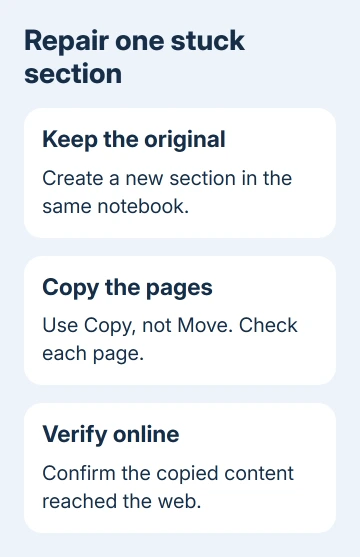
Create a fresh section within that notebook and name it A8 recovery. Keep the old section while doing this. That name makes it easy to tell the copies from the original pages while you compare them.
Right-click an affected page and choose Move or Copy. Select the new section as the destination and choose Copy, rather than Move. Start with one page, then copy the rest of the affected section's pages.
Microsoft's section sync repair uses this approach when one section won't sync. A failed move doesn't mean you can't copy the content into a working section.
On Mac, create the new section, then Control-click each page and use its Move or Copy command to copy it there. Choose File > Sync All Notebooks when the copied pages are ready.
For Windows, return to File > Info > View Sync Status and choose Sync Now for that notebook. Wait for the new section to finish, then open the notebook online and inspect the copied pages.
Check the actual text, handwriting and attachments you need. An empty page with the right title isn't a successful copy. Keep the original until the new section contains the complete work and that work appears online.
Several owners confirmed that copying pages to new sections got past A8. One reported that the problem returned after a day or so. If copying gets your pages syncing again, keep an eye on them to see whether the error returns.
If Copy is also unavailable, open each affected page and copy its contents into a new page. Give that page its title again. One owner got this slower method to work when copying pages into another section was awkward.
3. Compare the notebook with its online copy
In Windows OneNote, open File > Info and copy the address under the affected notebook's name. Switch to a browser, paste the notebook address, then press Enter. Choose the notebook owner's account, or one with editing access.
On Mac, use Notebooks > Notebooks > Copy Link to Notebook. Paste the address into the browser. Using that address helps you open the right notebook, even when several have the same title.
Look for a recent change you can recognize. If the desktop copy alone contains it, save that material in a separate document and save important attachments separately before changing the notebook connection.
A notebook that opens online with older pages hasn't received your missing edits. Keep working on the device that has those edits, and save a separate copy. Closing a notebook too early can remove your easiest way to reach that work.
If the online notebook asks for access, ask its owner or your organization's IT team to restore permission. For an explicit permission message, use the OneNote permission checks before trying another section copy.
4. Reopen the notebook after saving unsynced work
Use this when the online notebook opens, the newest work is safe and the desktop connection still fails. I'd finish the separate backup first, even if another owner says their missing pages survived closing the notebook.
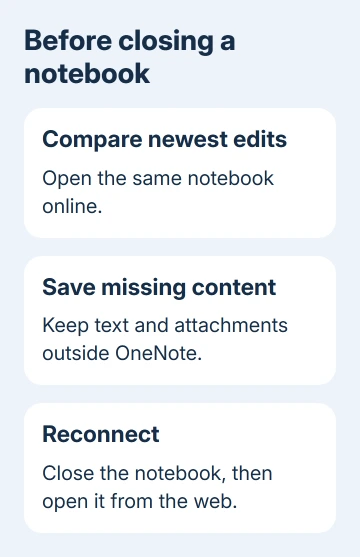
In Windows, copy the notebook address from File > Info. Beside that notebook, choose Settings > Close. Visit that notebook address in your browser, then select Open in Desktop App to reconnect it.
On Mac, choose Notebooks > Notebooks > Close This Notebook. Open the notebook's browser address and use its desktop-opening option to reconnect. Let its sections finish loading, then compare their contents.
An owner confirmed that reopening from the web completed syncing. Another said that workaround didn't help their case. Check whether your latest pages now appear online and the sync error clears.
If A8 returns, note whether it affects the same section or a different one. Repeatedly closing a large notebook can mean downloading its contents again, which is a poor daily workaround on a slow or limited connection.
5. Check service trouble and the installed app
When several notebooks or devices fail together, check the notebook's OneDrive or SharePoint access and have your work administrator check service health. Record the complete message and when it appeared.
In June 2017, the OneNote team said a fix had reached customers without requiring a different app build. Later owners still reported errors. That history doesn't tell us whether a service incident is affecting your account today.
For Windows Office installations, check File > Account > Update Options > Update Now. On Mac, use Help > Check for Updates for Microsoft-installed Office. For an App Store copy, open App Store and select Updates.
After installing an available update, retry the affected section. If it still fails, send support the code, app version, where the notebook is stored and what happened with the fresh section. Include the expanded sync-status message.
For personal notes, open OneNote's Help support option. For work notebooks, ask your administrator to request support for the OneNote failure. Request help preserving any remaining local pages before anyone resets or removes the app.
The Short Version
For A8's stuck pages, create a new section, copy them there and confirm they reached the web. Save missing edits before reopening a notebook. For recurring failures on several devices, check current service health and access.
Checked November 22, 2026.
 If you have any business, I can build it online





