

PowerPoint can play a narrated presentation yet leave speech out of its exported movie. Keep the original deck, restart and update the app, then export with recorded timings and narrations enabled.
If the recording is missing inside PowerPoint too, recover it or record it again before trying another export.
That export message affected PowerPoint for Mac 16.43 in 2020, and the incident was fixed. Owners got around it with a blank first slide. Keep that workaround in mind, but don't install a 2020 Office release to try it.
In this guide
1. Check whether the speech still plays in the deck
Save a separate .pptx copy before changing recordings. Open an affected slide and play its narration inside PowerPoint, either through the recording preview or by starting Slide Show at the affected slide.
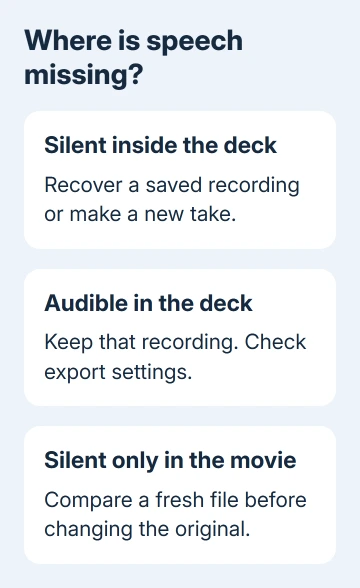
Listen to a slide near the start and another later in the presentation. Slide timing only controls how long the slide stays visible. The time shown beside a slide doesn't tell you whether its voice recording is still there.
If the voice plays normally in PowerPoint but not in the movie, keep that recording and continue with export checks. Keep the audio that already works rather than recording the whole presentation again.
If speech is missing from the deck too, look for an earlier saved copy containing it. Use the PowerPoint recording steps to replace affected slides when no usable copy remains.
Record just one short slide first and replay it. That confirms the selected microphone is capturing sound before you spend time repeating a long lecture. Save the working presentation before exporting again.
2. Restart PowerPoint and install its current update
Save your open presentations, quit PowerPoint fully and open it again. On Mac, use PowerPoint > Quit PowerPoint or Command+Q; the app may remain active after its presentation window closes.
For an installation supplied by Microsoft, open Help > Check for Updates. Microsoft AutoUpdate handles the offered update. For an App Store copy, open App Store > Updates and check PowerPoint there.
Reopen the saved copy and export a short narrated presentation. If it succeeds, try the original deck again. If only the original presentation fails, focus on that file rather than the whole app.
The original support reply said the 16.43 incident had been resolved and required restarting PowerPoint. People who had reverted to an earlier build were told to reopen and restart again after returning to 16.43.
That was a November 2020 remedy. Use a current supported build now rather than restoring 16.42 from an old backup. The same narration options apply whether your Mac runs on Intel or Apple silicon.
On Windows Microsoft 365, use File > Account > Update Options > Update Now when offered. A managed installation may receive updates from IT. If the control itself is disabled, check Create a Video being gray.
3. Include the recordings in the export
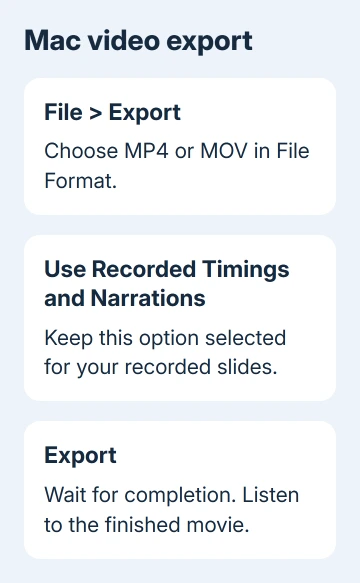
On Mac, choose File > Export, then select MP4 or MOV in File Format. Use Export rather than Save As for this video workflow. Select the quality needed for the audience.
Check Use Recorded Timings and Narrations, then select Export. Wait until PowerPoint finishes producing the movie before opening it. Use a new filename so you can distinguish this attempt from the earlier silent export.
Microsoft's Mac movie-export instructions distinguish slide-show narration from other embedded media. An audio clip playing on a slide isn't always part of the recorded slide show.
If a movie or an inserted audio file is missing from the exported Mac video, check that limitation before repeatedly recording your voice. It can explain why narration exports while a separate media object doesn't.
For classic Windows desktop export, use File > Export > Create a Video. Select Use Recorded Timings and Narrations, choose Create Video and save the movie. Newer recording screens also provide an Export command.
If the narration plays in the finished movie, check the rest of the presentation before sharing it. If export still produces the error, try a copy next and keep the original deck.
4. Export a short test before copying the slides
Make a one-slide presentation, record a sentence, then export that short recording. If that also fails, report an app-wide problem rather than spending time moving every slide in the original.
A later owner still had trouble in February 2021 on macOS 10.13.6 and couldn't install the suggested update without upgrading macOS. If your Mac can't run current Office, ask IT about a supported computer for the export.
If the fresh file works, make another new presentation and copy the affected slides into it. Keep the original file unchanged. Replay the copied recordings before exporting; the test only helps if the speech survived the copy.
In the 2020 discussion, two owners got a movie with sound by keeping an empty, unrecorded slide first and placing their recorded slides after it. One said removing that first blank slide caused the silent export to return.
I'd try that on a duplicate if ordinary export still fails. Keep an unrecorded blank slide first, place your narrated slides after it, then export the copy. It worked for those owners in 2020; it may not help in the current app.
If it works, the movie begins with an extra blank segment. Check that opening before sharing the movie, or trim it with a video editor you already use. Don't delete the working recordings to remove that segment from the source.
If it fails, keep the small working and failing examples for support. Trying every quality level and switching between MOV and MP4 didn't solve the original owners' problem, so don't keep switching them if neither helps.
When a deadline comes before the export repair
If another computer is available, open a copy there and check its narration before exporting. An owner in the historical thread reported that the same narrated presentation exported successfully in Windows while their Macs failed.
That gives you a practical alternative without changing the original recordings. Listen to the resulting file on the device students or colleagues will use, especially if the presentation contains separate video or audio objects.
Send support the PowerPoint version, operating system, exact export message and the one-slide result. Say whether narration plays inside the deck and whether the same file exports on another computer.
Use Help > Contact Support where available, or the school's Microsoft 365 administrator. Ask for help with narration omitted during movie export, rather than microphone recording if the voice already plays correctly in the deck.
The Short Version
Keep the narrated .pptx, verify its speech, restart and update PowerPoint, then export with recorded narrations enabled. Compare a fresh file if it fails.
The old blank-first-slide workaround belongs on a copy, with its extra opening segment checked.
Checked November 22, 2026.
 If you have any business, I can build it online






