Google searches that jump to Yahoo even though Edge lists Google as its default usually point to an extension or an unwanted browser change. Remove the extension changing your searches, then check the search setting once the redirect stops.
When Yahoo is simply the default, address-bar searches use it without closing Google tabs or passing through an unfamiliar domain. When Google itself won't stay open, changing the default engine alone isn't enough.
In this guide
1. Remove the extension redirecting Google
Enter edge://extensions in Edge's address bar. Turn off your extensions, then open a fresh tab and try the same Google search. Test both an address-bar search and a search typed directly on Google's page.
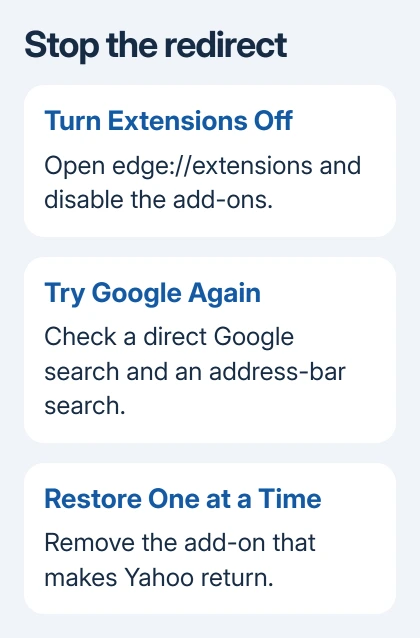
If the redirect stops, turn extensions back on individually, testing after each. When Yahoo returns, choose Remove for that add-on and confirm. Keep the others disabled until you've finished the comparison.
Microsoft's extension guidance confirms that extensions can change search settings. Start with add-ons for search, new tabs, image downloading or browser customization.
Don't rule out an extension just because you've used it for months. An add-on installed months earlier can still be the one changing today's browsing. Check its publisher too, since the add-on's name may not identify the product clearly.
One owner in the redirect discussion stopped Chrome's redirect by removing an image-download extension. The Edge asker later confirmed that uninstalling the extension fixed it too, despite their earlier unsuccessful extension check.
If switching a suspect extension off changes nothing, remove it and repeat the search in a fresh tab. The asker's later success is a reason to try removing it before ruling extensions out. Keep going if Google still redirects.
2. Restore Google after the redirect stops
Open edge://settings/search. Find Search engine used in the address bar, then select Google. If it isn't listed, visit Google, perform a search there and return to the setting.
Through the menus, open Settings > Privacy, search, and services > Search and connected services > Address bar and search.
Older Edge versions put Address bar and search directly inside Privacy, search, and services. The direct settings address avoids that difference. The Google default-search steps cover adding it when the choice is missing.
Search for a fresh phrase using the address bar. Google results should open and stay there. If Google is selected but Yahoo still appears, selecting the engine hasn't removed the redirect.
A new tab's search box has its own control. Where Edge offers Search on new tabs uses search box or address bar, choosing Address bar makes searches from that page use your address-bar choice.
That setting changes how new-tab searches work; it won't fix Google pages closing unexpectedly. Both can send you to an unwanted search engine, but they need different fixes.
3. Check a startup page that only looks right
If Yahoo appears when Edge launches, open Settings > Start, home, and new tab page. Inspect the saved startup addresses. Remove an unwanted entry and add https://www.google.com/ if Google is the page you want at launch.
Restart Edge to check the saved destination. This fixes the page that opens at launch. A search that redirects after you've started browsing needs a different fix.
An HTTP address alone doesn't mean the PC has malware. Check both the saved address and the page Edge opens at launch. If the corrected destination still redirects, continue with the security check.
4. Scan Windows when the browser change survives
Open Windows Security (Windows 10 and 11), choose Virus & threat protection, and run Quick scan. Follow any action it requests. If another security app protects your PC, update that app and run its scan instead.
Even after a clean scan, check whether Google still redirects. The original Edge owner reported that their malware checks hadn't fixed it. Keep going if a fresh Google search still takes the same unwanted route.
Check Settings > Apps for unfamiliar software added when this started. Windows 11 calls this list Installed apps; Windows 10 uses Apps & features. Remove software you recognize as unwanted through its uninstall control.
I'd avoid registry edits here. An unfamiliar registry entry can be hard to interpret, and deleting policies at random can break settings your employer needs. Unexpected management on a personal PC needs a closer look.
Open edge://policy when search or extension controls are locked. Give the policy names to IT on an organization-managed PC. On your own computer, include them in a security-support request rather than removing values by guesswork.
5. Reset Edge's changed settings
Open Settings > Reset settings, select Restore settings to their default values, then choose Reset. Read the confirmation: this changes startup, new-tab and search preferences and turns extensions off.
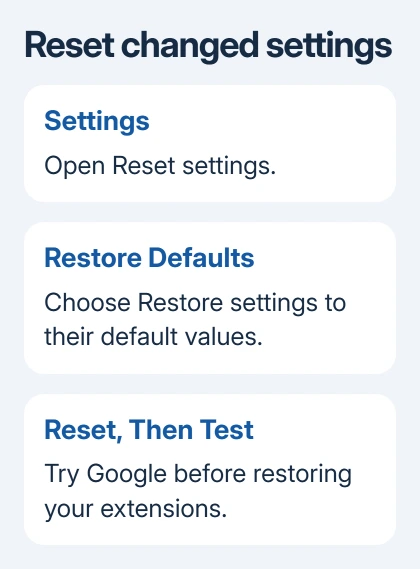
Afterward, try Google before restoring your old add-ons or preferences. You'll see whether the redirect continues with Edge's default settings or returns only after you add something back.
If the reset fixes it, restore only the settings and extensions you need. Check searches as you go. If you restore everything at once, you won't know which change brought the redirect back.
The Chrome search-engine changing guide is relevant if Chrome is affected too. Its Chrome-specific controls differ, so keep the Edge settings addresses in this article for Edge.
6. Update Edge and report the surviving redirect
Open edge://settings/help and let Edge check for updates. Relaunch when requested. Then repeat the search with extensions still disabled, and compare the same Google page in another installed browser.
If another browser works but Edge doesn't, report an Edge-specific problem through Settings and more > Help and feedback > Send feedback. Include your Edge version, any domain visited before Yahoo, and whether Google visits fail too.
If several browsers redirect, ask your security provider about unwanted software or policies. Share the redirect domain and removed extensions. Don't type account passwords on a page opened by that redirect.
The Short Version
Remove the extension that brings Yahoo back, then restore Google's address-bar setting. If direct Google visits still redirect, scan Windows and reset Edge. Report the redirect route if it survives those repairs.
Checked November 22, 2026.
 If you have any business, I can build it online