OneNote sync error 0xE0000070 b6d09 can come from antivirus blocking the desktop connection. Removing a recently installed antivirus restored syncing for one owner after updates and reinstalling Microsoft 365 had failed.
Start with that connection check when other devices or the online notebook still work. Protect any desktop-only notes first; a working cloud copy may still be missing the pages that failed to upload.
In this guide
1. Compare the notebook and save unsynced notes
Open File > Info > View Sync Status in desktop OneNote and read the entry for the affected notebook. Record the full message, including 0xE0000070 and b6d09, rather than relying on the general sync warning.
Use the notebook's Copy Link to Notebook command and open that address in your browser. Choose the account that owns that notebook, then compare the latest page text, not just the notebook title.
A matching title doesn't mean all changes reached the server. In the original report, a section created online appeared in desktop OneNote, but its contents didn't. A partially updated notebook can still have a connection problem.
Before closing, signing out or repairing anything, copy important unsynced text into a separate local document. Save attachments separately too. For desktop backups, open File > Options > Save & Backup and use the available backup controls.
Check that the saved copy actually contains the recent work. This matters more than seeing a successful backup message when you're trying to preserve notes held only by this desktop installation.
If the exact notebook also fails in the browser, use the OneNote service-error checks to examine account or service trouble. Check the desktop antivirus when that same notebook still opens elsewhere.
2. Check what changed in your security software
Look at when syncing stopped and when your antivirus or its web-protection component was installed or updated. Check whether those events happened around the same time, especially if other devices continue syncing normally.
One owner fixed this error by uninstalling antivirus installed around the time the failures began. They suggested it was blocking the connection, but didn't identify the product or prove which part of it caused the failure.
That's a reason to check a recent security change. It doesn't mean every antivirus program causes this error, or that every computer showing the code needs its protection removed.
Open the security program and check blocked apps, connection history or web-protection events involving OneNote. Menus differ by product, so use its own help instructions for exceptions.
For a managed school or workplace PC, send the sync time and error to IT and ask them whether their security logs show OneNote being blocked. A Microsoft 365 work license doesn't necessarily mean the notebook itself uses that work account.
The original owner used an enterprise Office installation with a personal OneNote notebook on personal OneDrive. Give IT the notebook's actual account type so they don't spend the session checking the wrong storage service.
3. Test the suspected antivirus conflict safely
Ask the security vendor whether an update or a narrow app exception addresses the blocked connection. Explain that OneNote on your PC can't sync the notebook, leaving unrelated protection features enabled.
If the timing points strongly to a recently added antivirus and you choose to remove it, uninstall it through Windows. Save open work and have the installer or vendor instructions available before making the change.
In Windows 11, find the antivirus in Settings > Apps > Installed apps and choose Uninstall from its three-dot menu. Windows 10 uses Apps > Apps & features. Complete removal, including a restart when requested.
After removal, open Windows Security > Virus & threat protection and check that an antivirus provider is active. Don't continue ordinary browsing with protection disabled just because OneNote begins working again.
Reopen desktop OneNote, find the notebook in View Sync Status, then choose Sync Now. Watch for a completed sync rather than simply waiting for the warning icon to disappear.
Compare the browser page against its newest desktop text. Matching text shows that the change affected this PC's connection. Give the antivirus vendor that result so they can help restore your preferred protection without the failure.
If the code remains, stop changing security settings. Restore your usual protection and continue with the notebook and app checks; the timing alone wasn't enough to explain your case.
4. Check the account and connection before rebuilding
Confirm that the notebook location belongs to the account currently signed into OneNote. An Office license account and a notebook account can differ, so compare the actual OneDrive location with the account you're using in the browser.
If a workplace proxy controls internet access, the OneNote proxy connection guide covers that separate route. Use it when the network setup points there, rather than adding proxy commands to every sync-error repair.
Microsoft's OneNote sync troubleshooting explains checking the online notebook and the affected section. Use the exact code and the result of that comparison to choose the next procedure.
Don't replace this error with instructions for 0xE0000007 just because the digits look similar. The original thread received that different error's help link, while the owner later reported a security-software fix.
If only one section fails and other sections sync, save its recent content and follow the section-specific steps. If every notebook fails only in desktop OneNote, tell support they all fail in the desktop app before recreating notebooks.
5. Use Office maintenance after the connection checks
Check File > Account > Update Options > Update Now where available. An update can address app faults, but the original owner had already updated and reinstalled Microsoft 365 without resolving this error.
I'd leave another full reinstall until after reviewing the security change. Repeating an unsuccessful reinstall won't address software outside Office that continues to block the same connection.
Clearing the cache, OneNote's local working data, fixed it for another owner. Someone else lost work reopening notebooks and moving pages. Have support verify your saved copies before a cache rebuild.
If maintenance is needed, use Office's Modify option in Windows Settings and follow the repair choices for your installation. Keep the local copies of unsynced notes until the repaired app and online notebook contain the same recent work.
When syncing still fails
Ask Microsoft OneNote support or your Microsoft 365 administrator at work to review the exact sync message. Include whether the notebook works online, whether other devices sync, the security product and any recent installation date.
Tell support whether you've checked your storage space. Don't assume the account is full just from this code. The reported owner had available OneDrive space, and removing their antivirus restored normal desktop syncing.
The Short Version
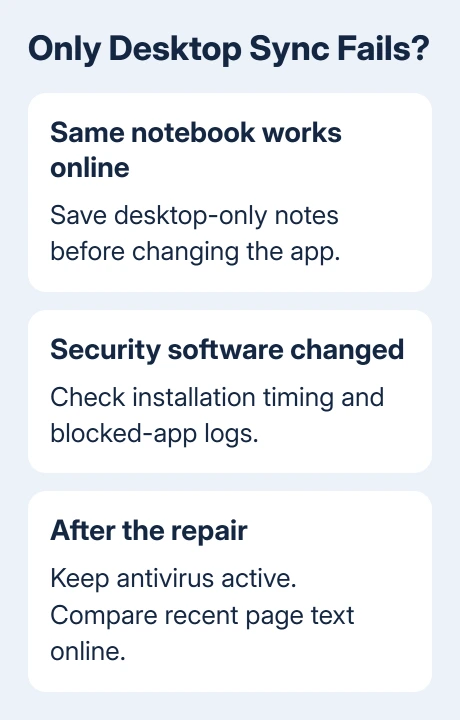
Protect desktop-only notes, compare the notebook online and check a recent antivirus change. Removing antivirus fixed the reported case. Keep protection active, verify the content and report the full code if syncing still fails.
Checked November 22, 2026.
 If you have any business, I can build it online