Adding Shift can restore a website's Alt+S command when Edge stops responding to the usual shortcut. Press Shift+Alt+S on the same page, then check whether the site's save action actually completed.
The Edge 108 bug affected Windows 10 and 11, and an update restored normal Alt+S. For a current browser, check for updates, then check the website's shortcut and any key remapping before changing your workflow.
In this guide
1. Update Edge before keeping a workaround
Enter edge://settings/help, or open Edge's three-dot menu, choose Help and feedback, then About Microsoft Edge. Let the update check finish; restart if prompted.
Save unfinished forms before restarting. Once Edge reopens, try the site's normal Alt+S command on a harmless entry. Look for its saved confirmation instead of assuming the keypress saved your work.
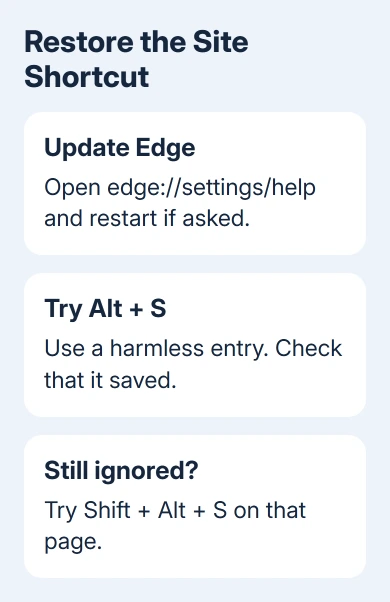
One owner confirmed that Alt+S returned in 108.0.1462.76, and another agreed in January 2023. That update resolved the reported shortcut bug. Today, install the current supported Stable release instead of looking for that old build.
The original failure reached both Beta and Stable. A preview channel isn't the best starting point when one shortcut has stopped working. An updated Stable installation is the better place to check what still fails.
If Alt+S works after the restart, remove any temporary remap you added for this problem. Otherwise, the browser may receive a different combination even though its original handling has recovered.
2. Try Shift+Alt+S on the affected page
Click the site's editing area and press Shift+Alt+S, using left Alt. Adding Shift changes how the browser passes the shortcut to the site. Check whether the page responds to this combination.
In the confirmed case, a school administration portal used Alt+S to save and leave the page. Alt+W saved without leaving, and Alt+Z canceled changes. The owner found that adding Shift made those site commands work again.
Those meanings belong to that portal. Alt+S isn't a universal save command for every website, and trying Alt+Z on another site isn't a safe way to find out what it does. Use the site's shortcut list or help text.
If Shift+Alt+S works, you can use it directly without installing anything. I'd keep that simple workaround while checking the browser update, especially on a school or office computer where software installation needs approval.
If that fails, click the site's Save button. If the button also fails, check the page's required fields and any validation message. The problem then extends beyond Edge's keyboard handling and could involve your session.
3. Check the keyboard and the page's focus
Browser shortcuts and website shortcuts are different. Edge handles combinations such as opening a new tab, while the website can assign commands to controls on its own page. The Edge keyboard reference lists the browser's commands.
A website's Alt+S command can exist even when it isn't in that browser list. The old discussion initially confused those two things. A missing entry in Edge's shortcut table doesn't mean the website never supported it.
Click back into the page after using a browser menu or the address field. Close an open menu, then try the documented combination again. Keyboard focus determines which part of the window receives the keys.
Use the left Alt key for this comparison. The right Alt key can be AltGr on some layouts, with a different role for typing characters. If several Alt combinations fail across apps, the AltGr troubleshooting steps cover that wider problem.
Try a second keyboard if the keys also misbehave outside Edge. If only one website's command fails while its Save button works, report that narrow result instead of resetting Windows keyboard settings.
4. Remap Alt+S only if the longer shortcut works
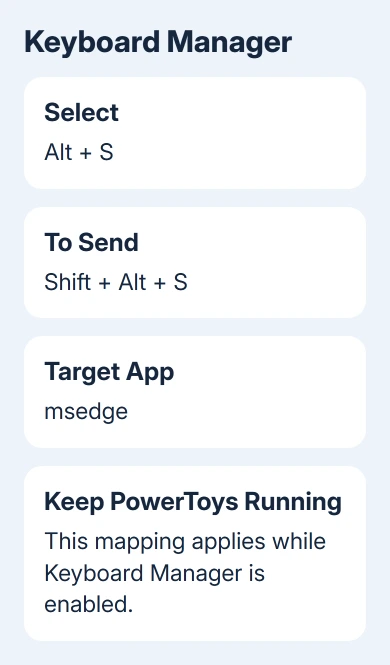
On Windows, PowerToys Keyboard Manager can translate your familiar Alt+S into Shift+Alt+S. First confirm that pressing the longer combination yourself performs the right action. A remap can't make a broken website command work.
Install PowerToys only through your approved software source, then open its settings. Choose Keyboard Manager, enable it, and open Remap a shortcut. Add a shortcut mapping with these values:
- Select: Alt+S, the combination you physically press.
- To send: Shift+Alt+S, the combination the website accepts.
- Target app:
msedge, so the mapping applies to Edge.
Confirm the mapping with OK and test it on an entry you don't need to keep. Check that saving and leaving the page both happened if those are the site's intended actions. Don't assume the entry saved just because the page address changed.
The direction matters. An early answer showed the reverse mapping, and the owner corrected it: physical Alt+S must send Shift+Alt+S. Copying the first screenshot without that correction would undo the useful workaround.
The Keyboard Manager instructions explain that PowerToys must keep running for the mapping to work. The target is a process name, so type msedge, rather than Microsoft Edge.
When the shortcut still fails
Turn off the temporary mapping before comparing another browser or asking support to reproduce the fault. Tell the website's support team which command fails, whether its button works, and whether Shift+Alt+S succeeds.
If an extension supplies the shortcut, check its own settings and site access. The Edge add-on controls show where to manage installed extensions. Don't add a second shortcut extension before checking the first one.
For an Edge-only failure, use Help and feedback > Send feedback from the three-dot menu. Include the Edge and Windows versions, layout and site address. Have school IT submit pages containing student information.
These reports and PowerToys steps apply to Edge on Windows computers. If the shortcut fails today, don't assume it's the same old bug.
The Short Version
Update Edge, then try the website's shortcut with Shift added. If Shift+Alt+S works, use it directly or map Alt+S to it for msedge in PowerToys. Confirm the save on the page, and remove the remap when ordinary Alt+S works again.
Checked November 23, 2026.
 If you have any business, I can build it online