A NYTimes login failing in normal Edge can work in InPrivate, which uses a separate browsing session. Try it first for 400 Bad Request errors mentioning an oversized request header or cookie, then check the normal window's site data.
An incorrect-password message is a different problem. Use the same sign-in method as your subscription, then reset the password only if the credentials are being rejected. A large-cookie error doesn't mean the password itself is wrong.
In this guide
1. Open a fresh InPrivate window
On Windows, press Ctrl+Shift+N in Edge. On a Mac, use Command+Shift+N, or choose Settings and more > New InPrivate window. Look for the InPrivate label so you know this isn't another normal tab.
Open NYTimes.com in that window and select Log In. Use the account and sign-in method you normally use for the subscription. The private window starts a separate session without the site cookies saved in your normal window.
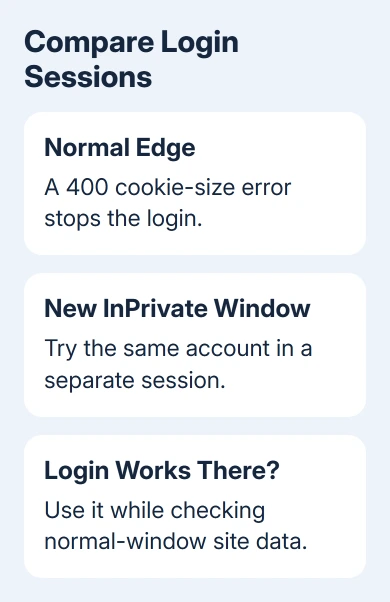
One owner, the original asker, confirmed that InPrivate allowed login while normal Edge still failed. Clearing cookies hadn't helped them. They could sign in that way, but the normal window still wasn't fixed.
Once the account opens with subscribed articles available, read there while checking the normal window. If both windows show the same error, check the account and connection instead of repeatedly deleting cookies.
The InPrivate browsing details explain what Edge removes when all private windows close. You'll need another login on your next private visit; this workaround doesn't retain the session permanently.
2. Remove only the Times site's stored cookies
In the normal window, open Settings and more > Settings > Privacy, search, and services > Cookies. Choose See all cookies and site data, then search the stored-site list for nytimes.com.
Expand the matching site and remove its stored cookies with the delete control. Check Times subdomains in the results too, since the account page and main publication can use related addresses.
Deleting these cookies signs you out of that site and removes its remembered session. Keep the deletion limited to Times entries so you don't sign out of unrelated services while repairing one website.
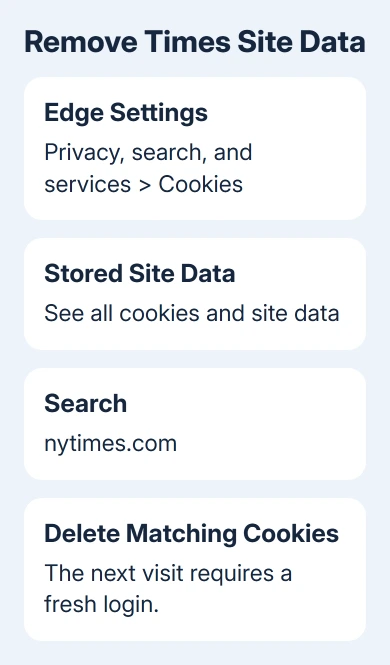
Close the Times tabs, reopen the site and sign in. Check that the normal window reaches your account without a 400 error. If it still fails, continue using InPrivate while you check permissions instead of wiping more data.
The current cookie-management steps also cover allowing site cookies. Older Edge versions put these controls under Cookies and site permissions, so settings search can help you find Cookies if your layout differs.
For a wider cleanup of cached page files, use the Edge cache controls. Cached files and cookies are different choices. You don't need to remove browser history to discard one site's login session.
3. Check cookie permissions and browser extensions
Return to Settings > Privacy, search, and services > Cookies. Check whether the site is blocked from saving cookies. A login needs cookies to remember that the account has signed in, so blocking them can prevent a working session.
If you use site-specific permissions, allow the Times site instead of broadly allowing every third-party cookie. Make one change, retry the normal login, and keep only the setting that restores the session.
The Times' own browser login help says the browser must accept cookies. It also recommends reviewing browser add-ons and password managers when login attempts fail.
Open edge://extensions and temporarily turn off an extension that changes website privacy, cookies or login fields. Reload the Times page. If login works, turn the extension back on and check its site-specific exception options.
InPrivate changes both stored site data and which extensions can run. An extension can still be allowed there. Look for Allow in InPrivate on its Details page before deciding whether the private-window result points to it.
If cookies keep returning after you remove them, visiting the site can create new ones. The Edge cookies-not-deleting guide distinguishes fresh cookies from a deletion that actually failed.
4. Match the sign-in method to the subscription
A message under the password box saying the email or password is incorrect calls for account checks. Type the email manually and check whether the subscription was created using another email address.
If the account uses Continue with Google or Continue with Apple, use that same option. Typing an email and password isn't the same as using Google or Apple sign-in, even when the email address looks the same.
Pause your password manager's autofill and type the email and password yourself. This checks for an old saved password or details from a different account. Hide credentials in any screenshot, and never include them in a support message.
For a rejected password, use the site's password-reset option. Check Spam or Junk if the email doesn't arrive. With Gmail, also check Promotions and any other address you might have used for the subscription.
For Google or Apple sign-in, follow that provider's account-recovery route if the provider rejects the login. Repeatedly changing a separate Times password won't repair a failed sign-in at the provider's own screen.
5. Compare another browser before resetting Edge
On this computer, sign in with a different browser using the same account. If it opens there and in Edge InPrivate, the account is usable and the fault remains with normal Edge's session or settings.
If all browsers fail here, compare a second device or an approved alternative network. Note which account, device and connection let you sign in. Give support those details as well as the setup that fails.
Enter edge://settings/help to check for updates, then restart if prompted. Keep the full version number in your notes. The historical report used Edge 83; it doesn't show a present service-wide problem.
I'd keep the working private session while checking the normal profile. The asker declined the proposed browser reset, leaving no result for it. Try the checks that match your login error before resetting the whole browser.
When normal Edge still won't sign in
Open the Times Help Center's Contact Us route and choose account or login help. Provide the full error, affected address and whether InPrivate and another browser work. Say if login succeeds but the subscription isn't recognized afterward.
For an Edge-specific report, open its three-dot menu, choose Help and feedback, then Send feedback. Include the version and steps to reproduce the error. Hide account details, passwords and reset links in screenshots.
The Short Version
InPrivate worked for the owner with the cookie-size error. For the normal window, check Times site data and cookie permissions. Handle rejected credentials separately, then give support your other-browser comparison.
Checked November 23, 2026.
 If you have any business, I can build it online