

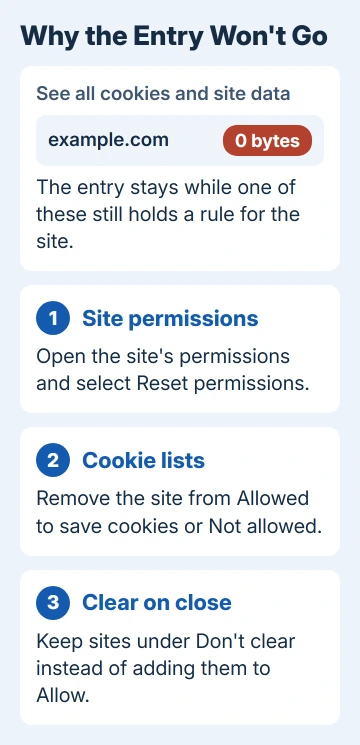
A site that stays in Edge's cookie list at 0 bytes, however often you delete it, usually still has a saved permission: notifications, location or camera set to Allow or Block. Edge keeps the entry for as long as that setting exists.
Reset the site's permissions and the entry goes. Several owners confirmed it after months of deleting the same names. You'll lose that site's settings, though, so note what they were before you reset.
In this guide
1. Reset the site's permissions
Open the site in Edge, click the padlock beside its address and pick Permissions for this site.
Note anything set to Allow or Block on the page that opens: those are the settings keeping the entry alive. Then select Reset permissions.
You can also do it without visiting the site. Go to Settings > Privacy, search, and services > Site permissions > All sites, select the site in the list, then select Reset permissions.
With several stuck names, All sites is the quicker route. It lists the sites Edge holds settings or data for, so you can go through it and reset only the sites you're done with.
Now go to Settings > Privacy, search, and services > Cookies, open the full list of stored cookies and search for the site. If the empty entry has gone, that was the cause.
I'd do one site this way before touching the rest, so you know the fix works on your PC.
The cost is small but real. A site you'd allowed to send notifications, or to use your location or camera, will ask again next time. To keep a site's notifications, you'll have to live with its 0-byte entry.
One owner put it simply: "Perfect it worked and cleared the site entry". Another wrote that it ended years of searching for a fix.
2. Take the site off your cookie Allow and Block lists
A site on either of Edge's cookie lists keeps an entry too, because Edge has to remember the rule. Go to Settings > Privacy, search, and services > Cookies and look at Not allowed to save and read cookies and Allowed to save cookies.
Remove the stubborn site from either list with the three-dot menu next to it, then check the full cookie list again. One owner's stuck shop entry vanished as soon as it was off the blocked list.
Leave onenote.com and live.com on the allowed list if you clip pages to OneNote, because the OneNote Web Clipper's sign-in depends on their cookies.
3. Use the clear-on-close exceptions instead of Allow
If Edge clears cookies every time it closes, the sites you want to stay signed in to belong in that feature's own exceptions, not on the Allow list. The two do similar jobs, but only one leaves a permanent entry behind.
In Settings > Privacy, search, and services > Clear browsing data, open the setting that decides what Edge wipes when it closes. Turn on Cookies and other site data, then add the sites you want to keep under Don't clear.
Next time you close and reopen Edge, the cleared sites drop out of the cookie list, while the don't-clear sites keep their cookies and stay signed in.
An owner who'd fought these entries for months stopped allowing or blocking sites entirely and kept only the don't-clear list. Back on Edge after a spell in Firefox, they said it was working well.
4. Clear the cache for the stragglers
Some entries go once the site's cached files are cleared. Close Edge, open it again, and under Clear browsing data select Choose what to clear. Tick Cached images and files only and select Clear now.
One owner found this removed some of their stuck sites but not all, so treat it as a cleanup after steps 1 to 3, not a fix on its own. The full steps to clear the cache in Edge also cover the time range.
What doesn't remove them
Deleting every cookie won't clear these entries. One owner wiped all cookies and site data and still had 11 empty names left, each at 0 bytes, and none of them would go with the trash icon.
Deleting the cookies inside an entry one by one doesn't remove it either. Another owner could clear every cookie listed under a site's name, but the name itself stayed put.
Wiping everything also signs you out of nearly every site you use, which is a high price for a test. Reset the permissions first; it touches only the site you pick.
When entries still won't go
A few owners still had stragglers after all of this. At 0 bytes the entries hold no cookie data, so they're clutter rather than tracking, and leaving them alone does no harm.
If the list bothers you, send Edge feedback from the Settings and more menu and name the sites. A new Edge profile, from the profile icon, also starts with an empty list if you'd rather begin clean.
Microsoft's own page on managing cookies in Edge covers the lists and clear-on-close settings used here, which helps if a menu name has moved.
The Short Version
An Edge cookie entry that won't delete usually belongs to a site with saved permissions. Reset them from the lock icon or Site permissions > All sites.
Then remove the site from the cookie Allow and Block lists, and use clear-on-close exceptions instead of Allow. Clearing every cookie won't remove these entries.
Checked November 19, 2026.
 If you have any business, I can build it online






