Typing into Edge's address bar can trigger a crash before a search runs. Turn off search suggestions first, especially with Google selected. Try another search engine too, to see whether the crash happens only with your current provider.
An owner stopped this pattern in July 2020 by switching from Google to Bing. That gives you a useful first check. A crash today still needs the update and extension checks if suggestions aren't responsible.
In this guide
1. Stop the suggestions that appear while typing
Open Edge's three-dot Settings and more menu and choose Settings with your mouse. That lets you reach Settings without typing into the address bar that's crashing.
Open Privacy, search, and services > Search and connected services > Address bar and search. Some versions call the middle section Search and connected experiences; older versions show Address bar and search directly on the privacy page.
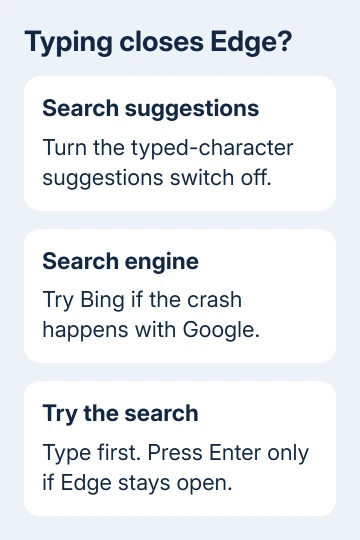
Open Search suggestions and filters if your version has that extra page. Turn off Show search and site suggestions using your typed characters. Older versions label it Show me search and site suggestions using my typed characters.
Close Settings, select the address bar and type a short search. If Edge stays open, press Enter and check that the results load. Suggestions are optional; a normal typed search can still work with that switch off.
If typing works but Enter crashes Edge, the problem is loading results rather than showing suggestions. If Edge still closes on the first characters, continue with the engine choice. If it closes before Settings opens, move to repair.
2. Try another address-bar search engine
Return to Address bar and search. Find Search engine used in the address bar, and select Bing temporarily if Google is currently selected. Use an engine already offered in the list.
The current search-engine settings separate this choice from other search experiences. Changing Edge's startup page won't change the engine used for address-bar searches.
Try the same short search again. An owner in the original crash discussion confirmed that switching away from Google stopped their crashes.
That browser fault happened in 2020; it doesn't mean Google searches always crash Edge. Keep the working engine for now, finish the update check next, then decide whether to return to your preferred one.
I'd change this setting before clearing browser data. It takes little time and leaves your signed-in websites alone. If neither the engine nor suggestions changes the result, stop repeating those changes and check the browser itself.
The Google default-search instructions explain how to select it again once the browser is stable. Don't add a new engine while you're still trying to recover a browser that closes on typing.
3. Install the offered Edge update
Open Settings, then About Microsoft Edge. Wait until the browser finishes checking for updates. Select Restart when prompted to finish installing the release.
Check the full version shown there after restarting. A restart can still be required after the new files download. Repeat the address-bar search only after the restarted browser is ready.
An old discussion can match what you're seeing even when today's release has a different problem. Update even if turning suggestions off helped. That stops suggestions from triggering the crash, but doesn't fix the browser fault.
If the update page reports an error, record its exact wording. On a managed computer, send that error and version to IT. Repeatedly reopening the page won't change a blocked update service or an organization's release policy.
4. Check extensions before resetting your settings
Open Settings and more > Extensions > Manage extensions. Turn off the installed extensions, restart Edge, and try typing again. Keep the search engine and suggestion settings unchanged during this comparison.
If the crash stops, enable one extension and repeat the search. Repeat with each remaining extension. When a particular add-on triggers another crash, switch it off again and check the developer's release notes for a correction.
Pay attention to search-related extensions, but check what happens when you turn each one back on. Leave an add-on disabled if enabling it makes Edge crash again.
If Edge also freezes without typing, use the broader Edge not responding checks. A blank startup window calls for startup recovery; these steps address a browser that crashes while getting search suggestions.
5. Reset Edge only after the smaller changes fail
Open Settings > Reset settings, then Restore settings to their default values. Read the confirmation and choose Reset.
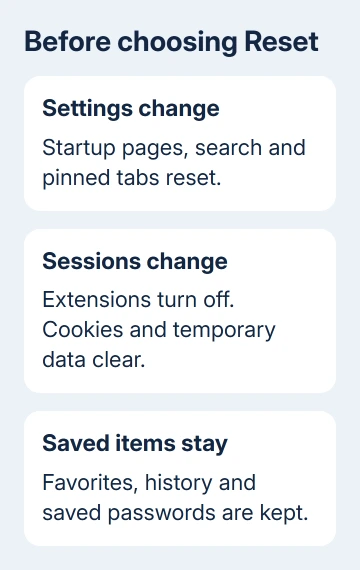
Startup pages, new tabs, the search engine and pinned tabs return to their defaults. Extensions are disabled. Temporary browser data, including cookies, is removed.
Favorites, history and saved passwords aren't cleared by this reset. Cookies are affected, so have your website sign-in details ready. Export important favorites from their management menu first for an additional backup.
Another owner in the 2020 discussion reported success after exporting favorites and resetting. They didn't know which part of the reset helped, so don't assume the same setting is at fault on every computer.
Open the restarted browser and try a search before re-enabling extensions or restoring every preference. If the crash immediately returns, use Windows' repair option rather than resetting repeatedly.
On Windows 11, find Edge under Settings > Apps > Installed apps, open its menu and choose Modify > Repair. On Windows 10, use Apps > Apps & features, select Edge, then Modify > Repair.
Close Edge for all signed-in Windows users first. Repair needs internet access and administrator approval; your existing browser information should remain intact. A missing Modify option on a work PC needs IT's help.
When the address bar still closes Edge
Open Help and feedback and select Send feedback, or contact Microsoft Support about the address-bar crash. Include the full Edge version, selected engine, whether suggestions were disabled and whether extensions changed the result.
If it opens, go to edge://crashes and include the latest crash ID. Tell support whether typing closes the whole browser or only produces an error in one tab. Support can use that difference when reviewing crash reports.
The Short Version
Disable typed search suggestions, compare another search engine and finish the Edge update. Test extensions next. Keep reset and Windows repair for a crash that survives those checks.
Checked November 23, 2026.
 If you have any business, I can build it online