The WSL 5.10.93.2 install error 0x80070661 means the installer package doesn't match your processor type. Try Windows Update again before changing Linux: owners affected in March 2022 reported that the problem cleared later that same day.
That was an old kernel update, not a reason to downgrade a working WSL installation today. If it still appears, check the exact code and update the copy of WSL installed on your PC.
In this guide
1. Retry the failed update without removing Linux
In Windows 11 Settings, select Windows Update, then Check for updates. Windows 10 puts its update page under Update & Security in Settings. Restart when requested and check the new result.
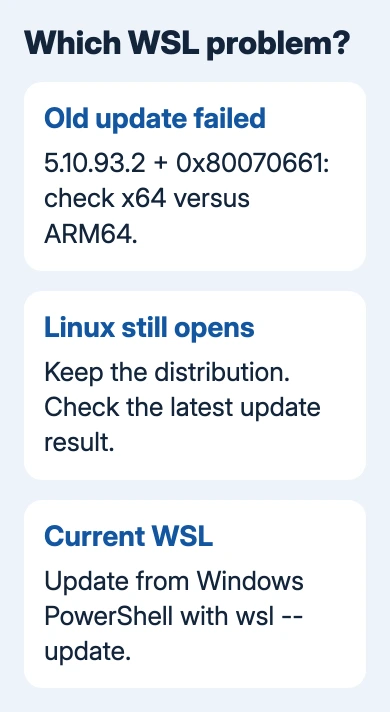
Owners reported the x64 failure on Windows 10 and 11, then confirmed it cleared later. The accepted reply suspected a package for the wrong processor; that wasn't a confirmed explanation from the update service.
A failed entry can remain in update history after a later attempt succeeds. Look at the newest attempt and open your Linux distribution from Start. A working Linux prompt tells you more than an old red line in the history list.
If the same package fails again, save its complete title beside the error code. Continue with the processor check for 0x80070661. A different code needs its own repair, even when the update's name hasn't changed.
I'd leave an otherwise working Linux installation intact while checking this. Removing Ubuntu won't correct the processor type of a Windows installer, and it creates another job before you've settled the update problem.
2. Check whether the package matches x64 or ARM64
Open Settings > System > About and read System type under Device specifications. An Intel or AMD PC normally shows an x64-based processor. An Arm-based PC needs the ARM64 package instead.
The important distinction is x64 versus ARM64, not simply 64-bit. Both can run 64-bit Windows, but their kernel installer packages aren't interchangeable. Use the reported system type rather than the laptop's brand to choose.
Microsoft's older WSL installation instructions list separate kernel packages for x64 and ARM64. Those packages are for older setups where WSL is installed as a Windows component. They don't apply to every current installation.
If an administrator supplied a saved kernel installer, give them the system type and the filename. Ask for the matching package from that official page. Renaming the installer or repeatedly approving it doesn't change its processor support.
That old error doesn't mean your processor can't run WSL. It means the installer package doesn't match it.
3. Update a current WSL installation from PowerShell
Right-click Start. On Windows 11, choose Terminal (Admin) and open a PowerShell tab. On Windows 10, choose Windows PowerShell (Admin) when that entry is available. Approve the administrator prompt.
Run these commands separately:
wsl --status
wsl --version
wsl --list --verbose
The first command shows your WSL settings. The second shows component versions if your installation supports it. The last lists your distributions, with a VERSION column showing 1 or 2. Save the output before updating.
A VERSION 2 entry in the distribution table describes WSL's operating mode. It isn't the installed kernel release number. Don't compare that column with 5.10.93.2 and conclude the kernel is missing.
For a current installation, run:
wsl --updateLet it complete and read its final message. The WSL command reference also provides this alternate route when the normal update download can't complete:
wsl --update --web-downloadThat option gets the update through GitHub instead of the Microsoft Store. Use it when the normal route is failing, rather than changing Windows services first. Company policy can restrict this alternate download; IT can approve it.
Save any message saying that --version or the update option isn't recognized. Older built-in WSL has different command support. Send the message to IT for a check of your Windows build and older kernel package.
For a machine that hasn't finished its original setup, the WSL installation guide covers the required restart and Linux account creation. An unfinished first launch is separate from this historical update error.
4. Restart WSL and check the running kernel
Save your Linux work and stop any jobs that must finish first. In Windows PowerShell, enter:
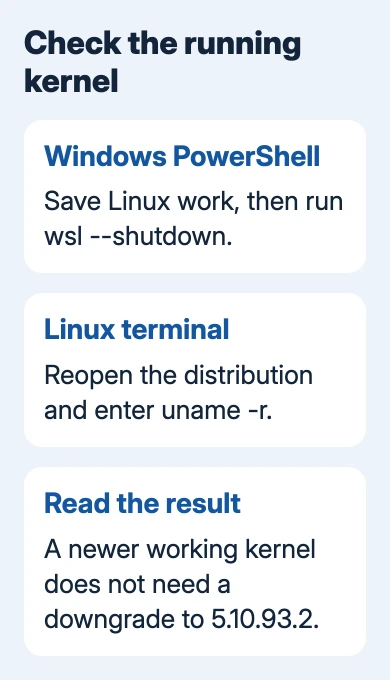
wsl --shutdownThis stops all running distributions and WSL's lightweight virtual machine. Open your usual distribution again from Start. In its Linux terminal, run:
uname -rThat prints the kernel the distribution is actually using. For a WSL 2 distribution, compare it with the kernel information from WSL's status or version output. A newer kernel doesn't need replacing with 5.10.93.2.
WSL 1 uses a different design and doesn't run the WSL 2 Linux kernel. Don't convert a working WSL 1 distribution to clear a failed-update record. First decide whether your work needs WSL 2 at all.
If opening Linux now reports a missing virtual disk, follow the WSL file-not-found repair. Check which file the message names first. A missing file and a mismatched installer are separate faults with different repairs.
When the same installer keeps returning
For a company PC, send IT the Windows build from winver, System type, full failed update title, and WSL command output. Ask them to check whether their update management is repeatedly offering the legacy package.
On a personal PC, launch Get Help and request support for WSL kernel update 0x80070661. Include whether Linux starts and whether wsl --update succeeds. Both results help support tell a failed update apart from a broken Linux distribution.
Keep any new error text from the update command. Support can then address the current failure instead of repeatedly troubleshooting a package released in 2022.
The Short Version
Retry Windows Update, check x64 against ARM64, and use wsl --update for a current installation. Keep a working distribution intact. The failed 5.10.93.2 entry is historical; check the newest update result and running kernel.
Checked November 27, 2026.
 If you have any business, I can build it online