OneNote can miss iPad handwriting when it treats pen strokes as drawing. Open the synced page in desktop OneNote on Windows, select the ink, then right-click and choose Treat Selected Ink As > Handwriting.
Owners confirmed that this made their writing searchable on the PC. It leaves the strokes handwritten. Turning the page into typed text is a separate task, and the iPad app doesn't have the same desktop conversion controls.
In this guide
1. Check that the writing actually reached the PC
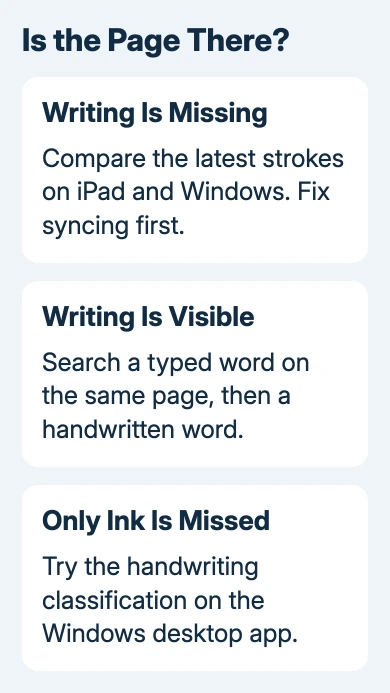
Open the same notebook, section and page on the iPad and in desktop OneNote on Windows. Compare the newest handwritten line. If it isn't visible on the PC, fix notebook syncing before changing how OneNote treats the ink.
Use the OneNote iPad sync checks when a recent edit hasn't arrived. Signing into a different account or opening another copy of a notebook can make a search look broken when the target page isn't there.
Search for a distinctive typed word on that same page. If the typed word is found but a clearly written handwritten word isn't, OneNote can find the page but isn't recognizing the ink.
Choose a handwritten word you can read clearly and that doesn't appear in the page title. Otherwise, a match in the title can look as though OneNote recognized your handwriting. Use a word that appears only in the ink.
Don't uninstall OneNote or sign out while unsynced notes remain on the iPad. First make sure those pages are safely available elsewhere. Keep your only copy of the writing safe while you fix search.
2. Mark the selected ink as handwriting in Windows
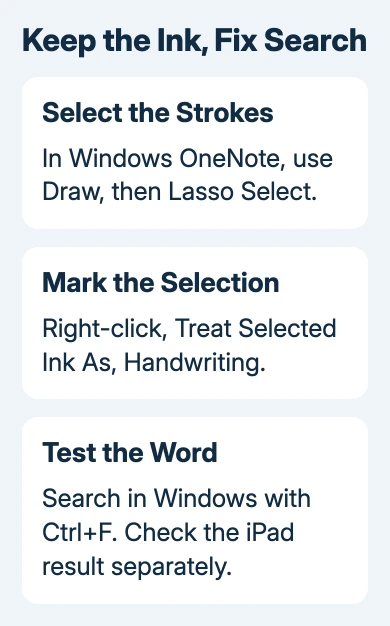
On your Windows PC, select Draw > Lasso Select in desktop OneNote. Draw a loop around the handwritten words you want to search. Right-click inside the selected ink and choose Treat Selected Ink As > Handwriting.
One owner described this exact sequence and confirmed that the words became searchable afterward. Another owner also had to mark the strokes as handwriting manually. Both were working with notes written on an iPad.
Select writing rather than diagrams for this check. Sketch strokes don't all need to be marked as handwriting. The command leaves pen strokes on the page instead of replacing them with typed characters.
Press Ctrl+F in the Windows app and search for the chosen word on that page. Check whether OneNote now highlights the matching writing. Then try a second handwritten word from the selected area.
If the menu isn't present, confirm that the selection contains editable ink rather than an inserted photograph or PDF printout. A lasso around a picture doesn't turn the pictured letters into OneNote pen strokes.
For the separate goal of converting ink into editable text, the OneNote Ink to Text guide explains which app has that feature. Making OneNote recognize those strokes as handwriting doesn't require text conversion.
3. Choose the right search scope on the iPad
After checking the PC result, return to the iPad and open the notebook. Tap the Search icon, enter the search term, then check which notebooks or sections the search includes before deciding the result is missing.
Microsoft's iPad search instructions describe choosing the search scope. A search restricted to another section won't find the page even when the writing is recognized.
Use a typed word on the target page to check the selected scope first. Once that result is found, compare the handwritten term. This tells you whether the remaining problem is specific to ink on the iPad.
The confirmed manual workaround restored search on Windows. Finding the word on your PC doesn't mean the iPad will find it straight away. Record which device finds the word when reporting a continuing failure.
If searching on the PC meets your immediate need, keep using it to find the page. It lets you find the meeting or lecture notes without rewriting the entire notebook or replacing the original handwriting.
4. Update OneNote, then test newly written strokes
Install the available OneNote update through App Store on the iPad. Update the Windows desktop app through File > Account > Update Options > Update Now when that control is available. IT may handle updates on a managed PC.
Create a small test page and write a clear, unusual word. Let the page sync to Windows, then search for that word before manually changing the ink type. This checks new writing, rather than reusing strokes you already corrected.
The historical discussion included a report that version 16.11 improved search. Later replies still described failures, including one owner whose personal PC worked while their corporate PC didn't. That version wasn't a universal fix.
Today's update is the appropriate one to install; don't search for that old build. Save your current iPad and desktop app version numbers with the test result so support can compare them.
Apply the Windows workaround to the pages you need now if new strokes still need it. The owner said new writing on a page also needed to be marked as handwriting. Changing an earlier selection didn't cover notes added later.
I'd test one representative page before selecting writing across a large notebook. It shows whether this workaround helps your particular notes without spending time on pages that were already searchable.
When recognition still doesn't work
The accepted historical answer described server analysis taking a few minutes. The owner said waiting didn't help and manual classification was still needed. If you need to find a note now, don't keep waiting for recognition to catch up.
Use OneNote's Help controls to reach support. For work notebooks, your Microsoft 365 administrator can submit the support case. Include both app versions, the notebook location and whether Windows finds the same page.
Share a sample page with typed text and handwriting, the search term, plus results with and without the ink marked as handwriting. Keep confidential meeting notes out of the sample unless your organization approves sharing them.
The Short Version
Confirm syncing first, then lasso the iPad strokes on Windows and classify them as handwriting. Compare Windows search with the iPad result. The workaround keeps the strokes instead of replacing them with text.
Checked November 26, 2026.
 If you have any business, I can build it online